To get straight to the point, the surest way to capture the Discord voice you share with friends while gaming into your video is to record desktop (system) audio alongside it. Discord voice comes mixed into the system sound output through your speakers or headset, so if you set your recording program to capture desktop audio, the call content goes straight into the video with no separate bot needed. On top of that, splitting game sound, your mic, and Discord voice into separate tracks makes editing much easier later.
This article walks through, step by step, the setup for capturing Discord voice via desktop audio, the why and how of recording on separate tracks, and the etiquette to take care of before recording. Whether it is a Valorant duo session or a five-person League party clip, you can create videos where the vibe of the call comes through alive.
3 Ways to Record a Discord Call: Bot vs. PC Capture vs. DOR
Discord's official support docs do not describe any feature that saves a whole call. The only save feature, Clips, is Windows-only, in early access for Nitro members, and only works while you are streaming with Go Live, saving just the last 30 seconds to 2 minutes, so it is not a call recorder (checked against the official Discord Clips guide on September 14, 2026). So the method depends on what you want to end up with. Pick one of the three below based on whether you need voice only or voice together with your gameplay.
| Method | Output | What you need | Pros and limits |
|---|---|---|---|
| ① Craig bot | Voice only. One track per speaker (FLAC or AAC), free tier records up to 6 hours and keeps files for 7 days | Server owner or Manage Server permission, invite the bot | Voice without any screen, edit each person's voice separately / Records server voice and stage channels |
| ② PC desktop audio capture (OBS etc.) | A video file with the call as heard from your PC output (everyone else mixed into one sound) plus your mic | Windows PC, no bot or permissions needed | Works right away without a bot / Cannot separate other people's voices, and you must extract audio from the video if you only want sound |
| ③ DOR | A match video with game footage plus game sound and your mic (Discord voice too when desktop audio is on), and automatic kill highlight clips | Windows PC, a supported game such as Valorant or League of Legends | Leave it on and it records and clips automatically, free / Overkill if all you want is a voice file |
If voice is all you need, Craig is the first choice. It is a multi-track recording bot listed in the Discord App Directory, and it saves a separate track for each person who speaks. Here is the order of operations.
- 1Invite Craig to your server — Add Craig to the server from the App Directory. You need to be the server owner or have the Manage Server permission, and the App Directory only opens on desktop and in the browser. The permissions it asks for on invite are Send Messages, Connect, and Change Nickname.
- 2Gather in the voice channel you want to record — Everyone joins a voice channel on the server. Craig records the server's voice channels and stage channels.
- 3Type /join — Type /join in the chat box and Craig enters the channel and starts recording. While recording, its nickname shows [RECORDING], so everyone in the channel can see a recording is in progress.
- 4End with /stop — When the call is over, type /stop to stop the recording.
- 5Download from the link — From the link Craig sent you by DM when the recording started (use /recordings if your DMs are closed), choose multi-track FLAC or AAC, or open it directly as an Audacity project. There is no direct MP3 export, so convert from FLAC if you need one. On the free tier, download within 7 days.
A lot of people search for how to record Discord from their phone, but Discord's official docs for the mobile app do not describe any feature that saves a call either, and Clips is Windows-only. The bot method, on the other hand, works the same on mobile: tap the App Launcher button to the left of the chat box or type / to pick a command, and this works the same across desktop, browser, and mobile (see the official guide to using apps on Discord). PC capture methods such as OBS or DOR do not work on a phone and need a PC (DOR itself is Windows-only).
Recording Only the Call Audio in OBS, Without a Screen
If you do not need the screen, only the voice, and you lack the permission to invite a bot, OBS works too. To capture only the Discord app's sound, add the Application Audio Capture (BETA) source available in OBS 28 and later, and the official OBS guide recommends disabling the global Desktop Audio under Settings → Audio to avoid echo (Windows 10 2004 or later and Windows 11). If the desktop audio source itself picks up nothing, check how to fix a game recording with no sound first.
- Record an empty scene with only the desktop audio (or Application Audio Capture) and mic sources enabled. The recording runs fine with no video source.
- The output is a video file. OBS's Remux (File → Remux Recordings) only changes the container to mp4 and does not extract audio, so if you need an audio file such as mp3, pull it out in an editing program.
- This method captures everyone else's voices mixed into one. If you need to edit each participant separately, Craig is the answer.
To sum up: Craig if you only need voice, OBS desktop audio capture if you want to handle it on your PC without a bot. The basic setup for capturing game sound and your mic together is in how to record your game with mic audio, and the details of splitting tracks in OBS are in separate game audio and mic tracks: OBS audio track setup. If, on the other hand, you want the gameplay and the mood of the call saved together, there is no need to run a separate recorder. Leave DOR's automatic recording with mic audio on and let it capture desktop audio as well, and it detects a supported game such as Valorant or League of Legends, records the whole match, saves kill moments as automatic clips, and lets you pick one from the library and share it right away as a dor.gg link.
Why You Have to Capture Desktop Audio to Record Discord Voice
Discord has no built-in feature to save a call as a video. So to get the call audio into a video, you need an external recording program. The key is the path the sound flows through. Your friends' voices come out as the system sound Discord outputs to your speakers or headset, that is, desktop audio. So if you leave your recording program set to capture this desktop audio, the call audio gets recorded along with everything automatically.
Conversely, if you set it to record only your mic track, only your voice goes in and your friends' audio is left out. The common mistake of only one side's voice being audible in a collab video comes precisely from this difference.
Step 1: Turn On Desktop Audio Input
In your recording program's audio settings, turn on the desktop audio or system sound input. This item is the key that captures all your computer's output sound, including Discord voice. At the same time, activate the mic input separately so your own voice goes in on its own.
- Turn on the desktop audio (system sound) input in the audio settings
- Activate the mic input as a separate item
- Confirm that the device Discord outputs to and the device the recording captures are the same
- Set the sample rate to 48kHz so it does not get out of sync with Discord voice
Step 2: Split Game, Voice, and Mic Into Separate Tracks
This is where video quality is decided. If you record all the sound lumped onto one track, it becomes impossible to lower just the game sound or raise just the Discord voice during editing. If you record game sound, Discord voice, and your mic each onto a different track, you can pick out and adjust only the sound you want in the editing stage.
For example, the kind of editing where you raise the game effects during a Valorant teamfight moment, then keep your friends' cheers alive right after a clutch but mute only the cursing, is nearly impossible without splitting tracks. This structure especially shines if you are making a Valorant clip compilation or Valorant highlights.
Step 3: Run a Test Recording to Balance the Levels
Before the real recording, run a 30-second test recording. It is common for your friends' voices to get buried under the game sound, or conversely for the call audio to be so loud that you cannot hear the game. Balancing the levels with a per-track volume preview greatly cuts down your editing time.
- Confirm your friends' voices are not buried under the game sound
- Check that keyboard sound or noise is not excessively mixed into your mic
- Confirm the Discord voice does not cut out or sound robotic
- Check the output files to confirm each track is saved separately (split recording)
A Quick Heads-Up Before Recording: Getting Consent Is Both Etiquette and a Safeguard
Recording a call is usually fine when everyone participating consents, and some regions require the consent of all participants, so before you start recording, just letting everyone know with a quick "I'm going to record this call" and getting their consent keeps things clean. It also puts your mind at ease when you later make the clip public, and your friends can adjust how far they take their jokes, which is good for everyone.
Recording Discord Voice Along With Your Game in One Go With DOR
DOR records game sound and your mic together, and if you set it to capture desktop audio as well, the Discord call audio goes in just as it is. Since the game footage, game sound, your friends' voices, and your own voice all land in one video, you can cut just the part you want in the browser clip editor, which opens with nothing to install, and share it right away. This is option ③ in the table above, the pick when you want the gameplay and the mood of the call saved together.
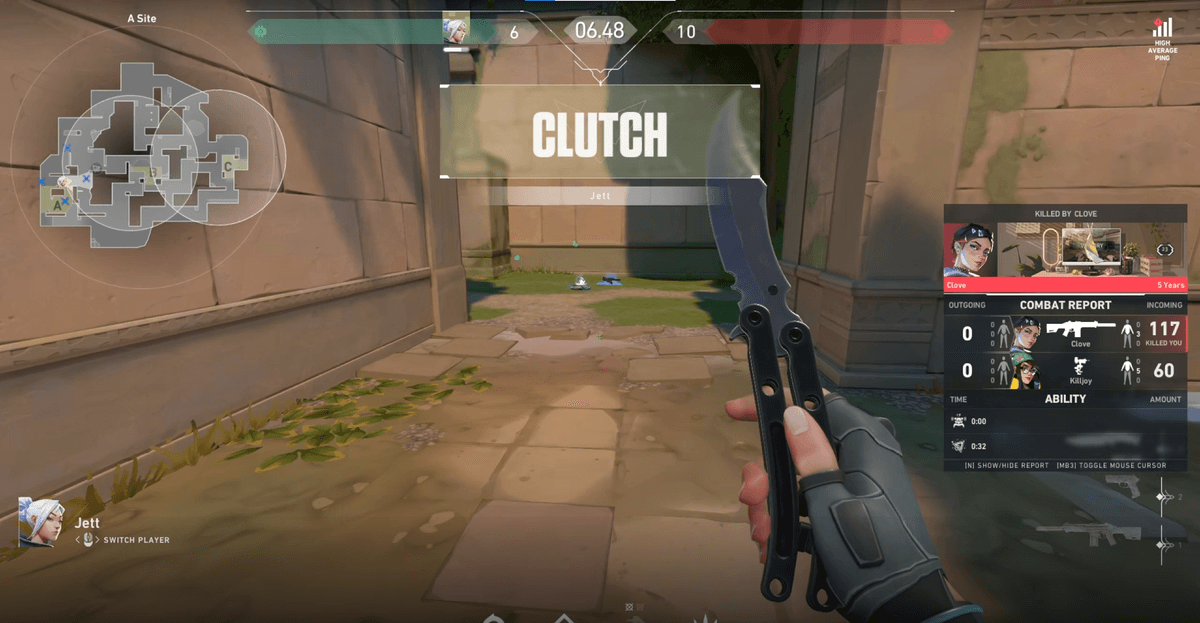
Thanks to this, it is much easier to make collab clips where the Discord voice stays alive. In moments like a League of Legends teamfight enjoyed in a five-person party or a Valorant clutch, where game sound and your friends' reactions erupt at the same time, you can cut the scene out just as it happened and bring it to life.
Summary: Desktop Audio + Track Splitting Is the Answer
There are two keys to capturing Discord voice into your video. Turning on desktop audio to capture the call audio, and splitting game, voice, and mic into separate tracks to secure editing freedom. Add a quick heads-up before recording to handle etiquette too, and you can reliably make great clips where the vibe of the call comes through alive.