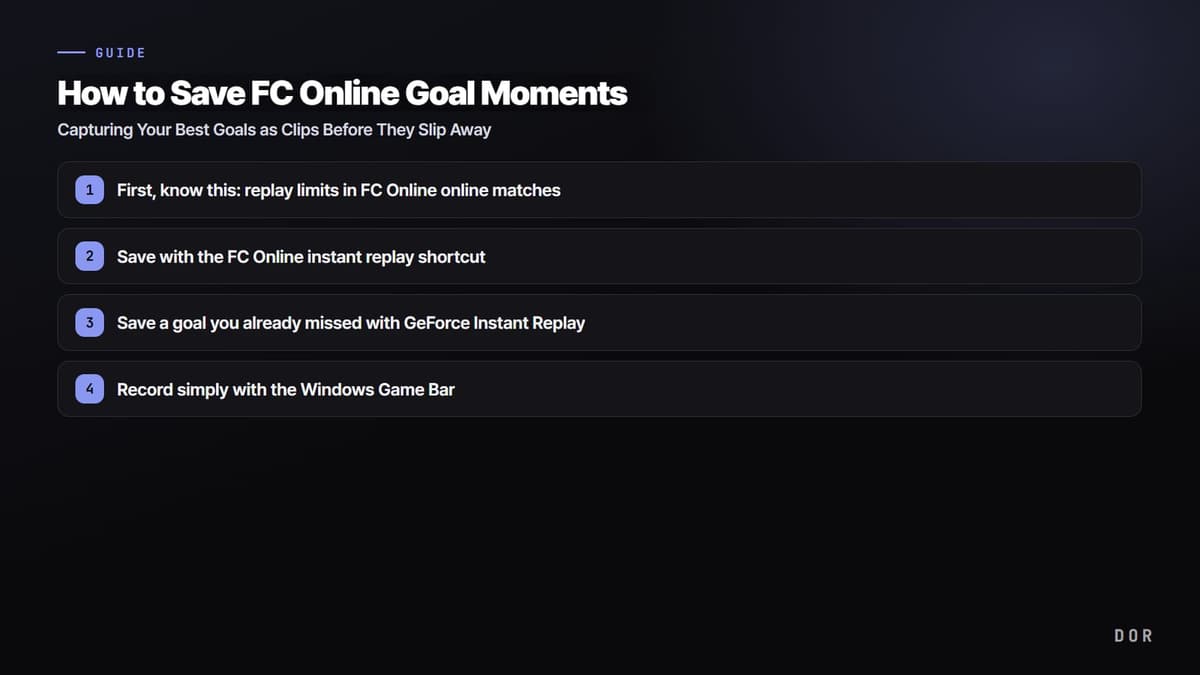
Let us start with the conclusion: the easiest way to reliably keep your FC Online goal moments is to use a clip tool that automatically detects the goal moment and saves it. You can also save with instant replay or GeForce Instant Replay, but they have one limit, which is that you have to remember and press a shortcut right after the goal goes in. This article walks through how to capture goal clips in different situations, from the built-in features to fully automatic saving, step by step.
First, know this: replay limits in FC Online online matches
FC Online has a Highlighter replay that lets you rewatch goals and decisive moments after a match. It collects key moments like goals, big chances, saves, fouls, and cards, and lets you pick the clips you like, edit them, and save them. However, instant replay (an in-match instant rewind) is single-player only, and in online matches you can only access and save highlights after the match ends.
Method 1: Save with the FC Online instant replay shortcut
The easiest starting point is the instant replay built into the game. If you press the shortcut right after a goal goes in, roughly the previous 30 seconds is saved as a video. The steps are as follows.
- In the game settings, first check the video save shortcut (usually something in the ALT+F10 family).
- Right after a goal goes in or a great moment happens, press the shortcut during the celebration.
- The previous 30 seconds is automatically saved as a video file.
- Check the save folder path in advance so it is easy to find your clips later.
Method 2: Save a goal you already missed with GeForce Instant Replay
If you use an NVIDIA graphics card, the GeForce app's Instant Replay (ShadowPlay) is useful. It always keeps the last few minutes in the background and saves them when you want, so it can even catch goal moments that have already passed. That said, you still have to press the save shortcut after the goal goes in.
- Install the GeForce app and turn on the overlay feature.
- Enable Instant Replay and set the buffer length to 3 to 5 minutes.
- After a goal goes in, press the save shortcut (default ALT+F10) to save the previous segment as a file.
- Set the quality and frame rate to 1080p 60fps or higher so fast shots stay sharp.
Method 3: Record simply with the Windows Game Bar
If installing a separate program feels like too much, you can use the Game Bar built into Windows. It is suitable for keeping short clips focused on goal moments. The steps are as follows.
- Press Win+G to open the Game Bar.
- Press the start recording button in the capture widget, or use the Win+Alt+R shortcut to start and stop recording.
- To save a moment that has already passed, turn on the 'record last 30 seconds' feature and press Win+Alt+G.
- Recorded files are saved in the Captures folder inside your Videos folder.
Method 4: Automatically save goals and highlights with DOR
All of the methods above require you to time it yourself and press a shortcut for the goal to be saved. The best goals in FC Online never come again, but DOR automatically detects goals and highlight moments during play and saves them as clips. Without having to remember a shortcut, the moment a goal goes in, that segment is kept as a clip on its own.
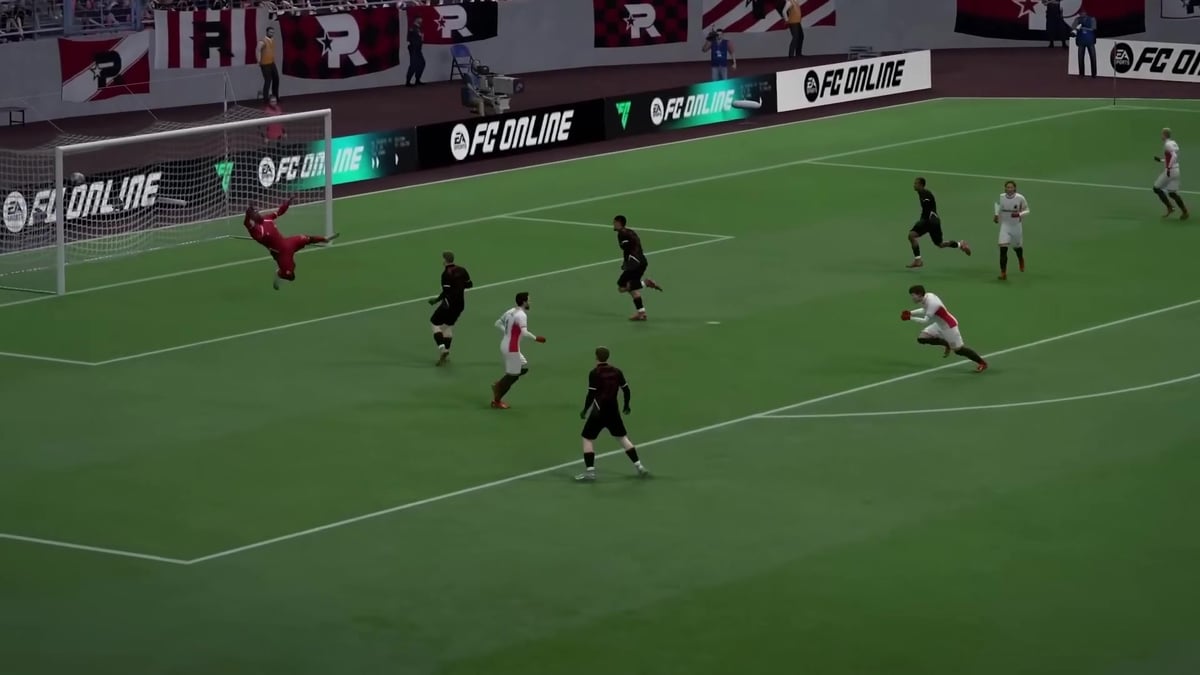
- Install DOR and add FC Online as a monitoring target.
- Turn on the auto clip feature and run the game as usual.
- When goals and highlights are detected during the match, those segments are automatically saved as clips.
- When the match ends, pick just the goals you want from the saved clip list and share or edit them right away.
Which method should you choose
If you only need to keep a moment or two now and then, the in-game instant replay or the Windows Game Bar is enough. If you want to adjust the quality and buffer length yourself, GeForce Instant Replay is good. But if you want to keep every one of those moments that never happen again, like a winning goal or a fantastic long-range strike, DOR, which automatically detects and saves goals, is the most reliable. Not just FC Online but the best plays in other games like Valorant and League of Legends are saved automatically the same way, so if you enjoy several games, managing your highlights becomes much easier.