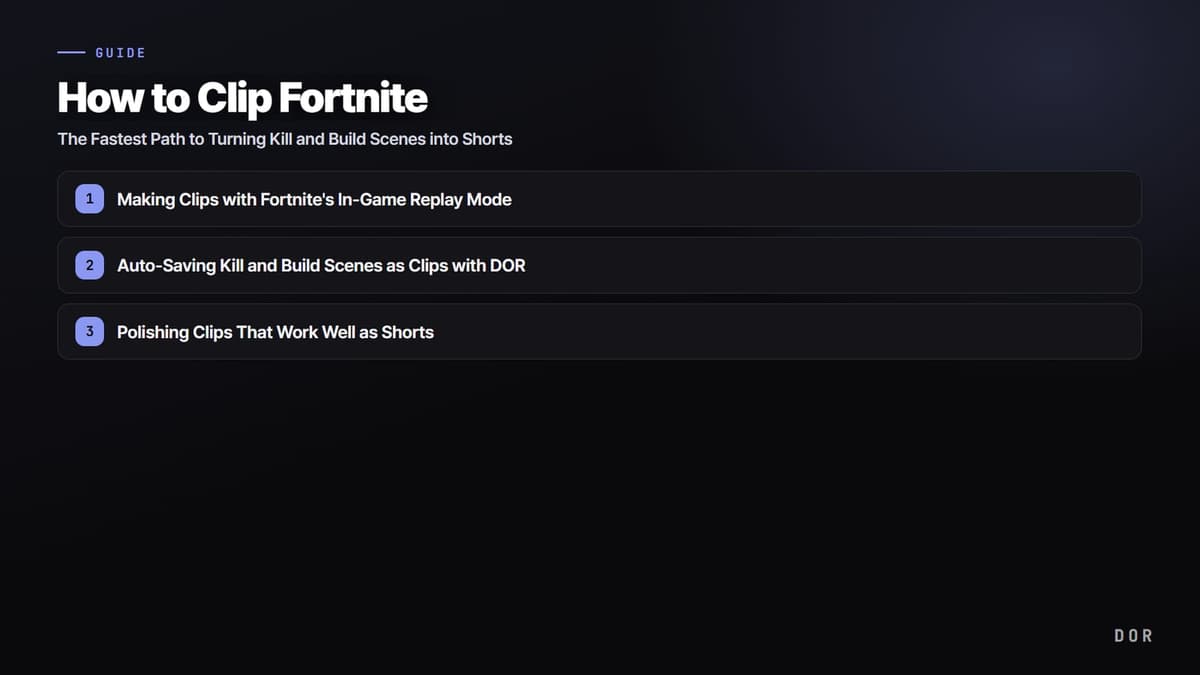
To get straight to the point, the fastest way to clip Fortnite is to have a recording tool running ahead of time so that an mp4 clip drops automatically every time a kill or build scene happens. The more you skip the process of reopening the replay each match, finding the scene, and re-recording the screen, the less time it takes to post a single Short.
This article covers both branching paths for turning kill and build scenes into clips in Fortnite. One is using the game's built-in replay mode, and the other is automating the recording itself with an auto-clip tool like DOR. Knowing the difference between the two lets you pick the right one for the situation.
Method 1. Making Clips with Fortnite's In-Game Replay Mode
Fortnite automatically saves a replay of each match on PC and console. On PC, about the last 100 replays are kept, so you can pull up the kill scene or a great build fight from the match you just finished and direct it, even changing camera angles.
- From the Fortnite main menu, go into the Career tab.
- Open the Replays item to see a list of recent match replays.
- Select the match you want, and to avoid losing it, do Rename and Save first.
- Move the timeline to a kill or build moment, and switch the camera to free view to set the angle.
- Set a start point and end point to create the clip segment.
The advantage of replay mode is creative freedom. You can recapture a kill scene you saw in first person from a third-person drone view, or show the moment your opponent throws up a build from the side, making cinematic shots. It especially shines in scenes where the viewpoint changes fast, like build battles.
Getting the Replay Out as mp4 Is the Real Hurdle
This is where many people get stuck. Fortnite replays are saved in .replay format, but this isn't a video file, it's data the game uses to redraw the scene. In other words, you can't upload a .replay file as-is to YouTube or Instagram, and it doesn't directly convert to mp4. The default save path is usually inside C:\Users\YourName\AppData\Local\FortniteGame\Saved\Demos.
In the end, to get an mp4 you have to play the replay inside the game and record that screen one more time with a screen recording program like OBS or GeForce Experience. The flow is to hit the record button while watching the replay, then cut out just the segment you'll use as a clip.
- First, have a screen recording tool like OBS or GeForce Experience running.
- Play the replay in Fortnite and direct the kill or build scene with the camera angle you want.
- Start recording right before the scene begins, and stop recording when it ends.
- Bring the recorded mp4 into an editing tool and trim off the excess at the front and back.
Method 2. Auto-Saving Kill and Build Scenes as Clips with DOR
Fortnite has an in-game replay, but as we saw above, the process of getting it out as mp4 is a hassle. The steps of reopening the replay, finding the scene, re-recording the screen, and cutting it again repeat every time. DOR shortens this whole flow. While you play, it automatically detects kill and build highlights and saves them straight as mp4 clips, so when the match ends, your Shorts material is already piled up in a folder.
- Install and launch DOR, then select Fortnite as the game to record.
- Keep the auto-clip feature on and play as usual.
- When a kill or highlight happens, DOR detects that moment and automatically saves it as an mp4 clip.
- When the game ends, pick the scenes you'll use from the saved clip list.
- Crop them to a vertical ratio and post them straight to Shorts, Reels, or TikTok.
What's especially convenient about DOR is that there's no conversion step. You don't have to replay the replay again, and you don't have to record the screen one more time to turn a .replay into mp4. It drops as an mp4 clip from the start, so you can post a Short the moment the match ends.
Polishing Clips That Work Well as Shorts
Once you've pulled the clip, the last step is fitting it to the grammar of Shorts. Even with the same kill scene, the watch-to-the-end rate changes a lot depending on how you cut it.
- Set it to a vertical 9:16 ratio and keep the length short, 15-30 seconds.
- Place the decisive moment when the kill or build pops within the first 3 seconds to prevent drop-off.
- For fast-hands scenes like build battles, slow them down slightly to show the details.
- Lay down a one-line caption of the situation, and you'll catch viewers watching without sound too.
In summary, the most efficient combo is to set up the camera with replay mode for the one or two scenes you want to put effort into directing, and to auto-save the kill and build clips that pile up daily with DOR to post them to Shorts quickly. Make the lower-effort path your default, and the frequency of posting videos itself goes up.