Here is the bottom line: for 4K game recording to come out clean, three things have to line up. The HEVC (H.265) codec with its strong compression efficiency, a fast SSD that can take in high-bitrate files without dropping frames, and enough bitrate to match the 4K resolution. Miss any one of these and you get frame drops, smeared image quality, or recording stutters. In this article we go through everything in order, from codec settings to spec requirements.
Why HEVC is the baseline for 4K
4K has roughly four times the pixel count of 1080p. To hold the same image quality in H.264, the bitrate climbs sharply, and with it the file size and disk load. HEVC (H.265) keeps similar quality while cutting bitrate by about 25 to 50 percent compared to H.264. In other words, it can record the same quality in a smaller file, which is especially helpful at resolutions like 4K where data explodes.
Add a GPU hardware encoder on top and the effect doubles. The NVIDIA NVENC HEVC encoder hands the encoding workload to dedicated circuitry on the GPU rather than the CPU, so it can compress 4K video with almost no impact on the game's own frames.
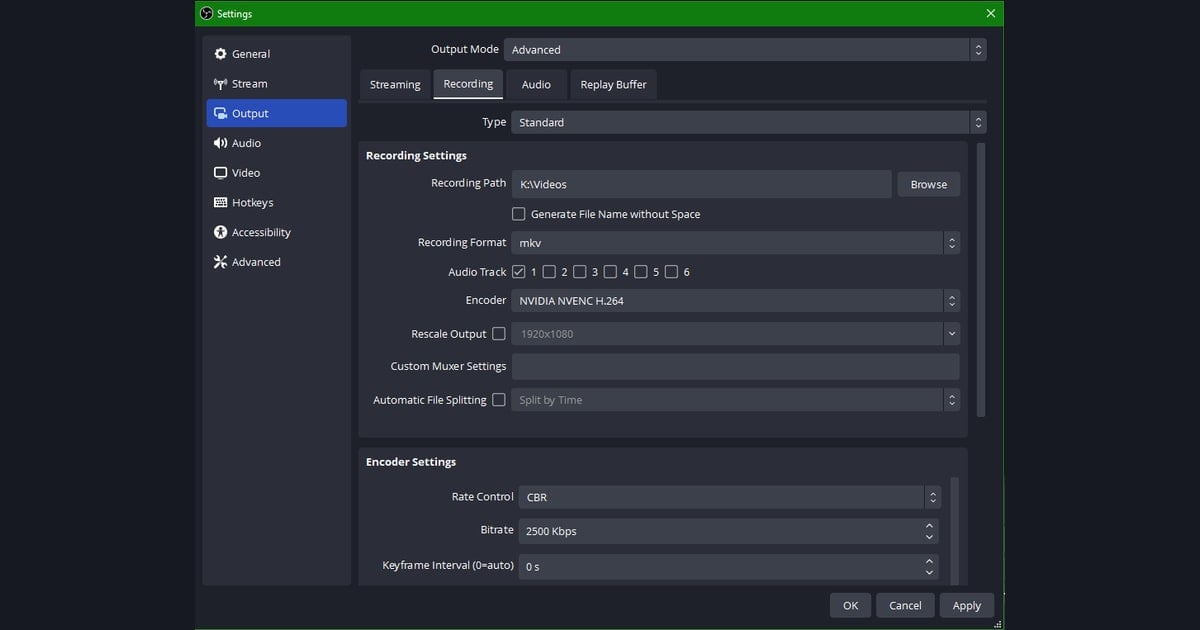
Step-by-step 4K recording setup
Step 1: Resolution and frame rate
Lock the output resolution to 3840x2160 and set the frame rate to match your game genre. For RPGs or cinematic content, 30fps is plenty, but fast-moving games like Valorant or PUBG call for 60fps. The faster the action, the more a low frame rate leaves motion blur behind.
Step 2: Choosing codec and encoder
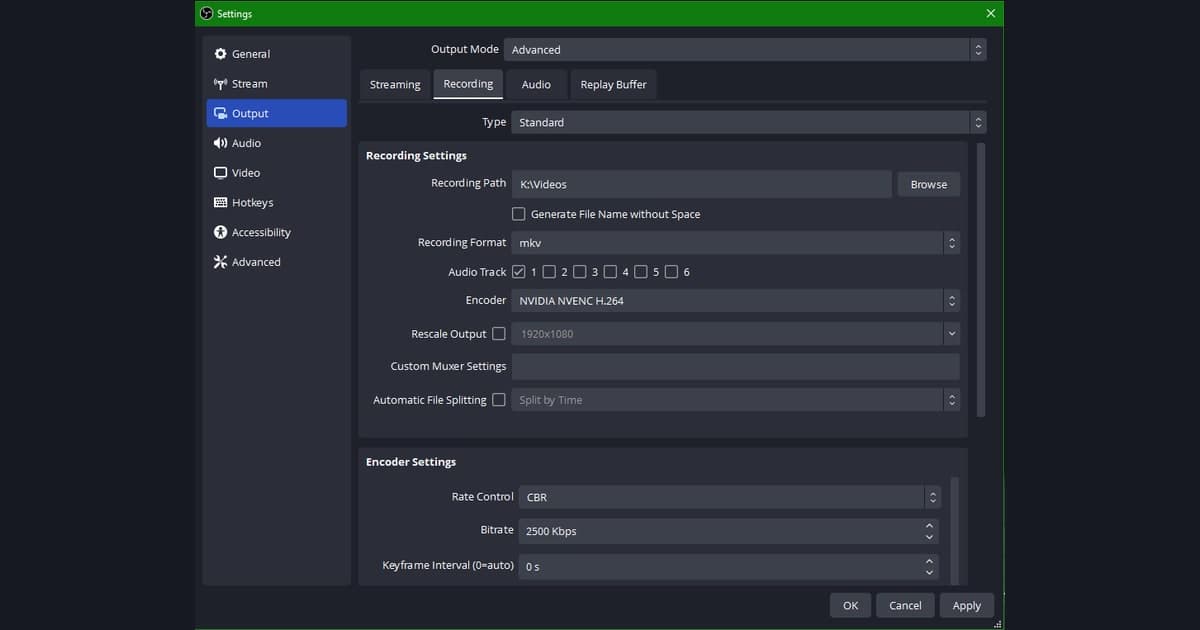
Pick HEVC (H.265) for the codec and NVENC (NVIDIA GPU) for the encoder. On AMD, AMF HEVC does the same job, and on Intel integrated graphics it is QuickSync HEVC. The key is to use GPU hardware encoding rather than software (x264) encoding. Encoding 4K on the CPU drops your game frames hard.
Step 3: Bitrate and rate control
For rate control, choose between CQP (or CRF), which keeps quality consistent, and CBR/VBR, which makes file size easy to predict. If quality comes first, the CQP 18 to 22 range is a safe bet, and if you want to manage file size for uploads, set CBR to about 60 to 100Mbps for 4K 60fps. For 4K 30fps you can drop it to around 35 to 60Mbps.
Step 4: Save to a fast SSD
High-bitrate 4K recording pours out 20 to 50GB of data per hour. Save it to a disk that cannot keep up with that flow and write bottlenecks will push your frames back. It is safest to point your recording save path to an NVMe SSD with a DRAM cache, kept on a separate drive from where your game is installed.
Recommended spec requirements
Below are rough recommended specs by 4K recording quality target. Read them as the game's own required specs plus some recording headroom on top.
- Minimum (4K 30fps, HEVC): NVENC-capable GPU (RTX 20 series or newer), DRAM-cache NVMe SSD, 16GB RAM, bitrate 35 to 60Mbps
- Recommended (4K 60fps, HEVC): RTX 30/40 series, PCIe 4.0 NVMe SSD (write 2GB/s or higher), 32GB RAM, bitrate 60 to 100Mbps
- Headroom (long 4K 60fps sessions plus concurrent work): RTX 40 series, dedicated 1TB+ recording NVMe SSD, 32GB+ RAM, extra storage savings if AV1 encoding is supported
- Storage: roughly 20 to 50GB per hour at 4K 60fps; for long sessions, set aside 1TB or more
How DOR lowers the load at 4K
If dialing in every setting feels like too much, just use DOR. DOR uses NVENC HEVC by default even when capturing at 4K, handing encoding off to the GPU's dedicated circuitry and lowering the load on your game. It is designed to hold a stable frame rate during high-resolution recording without you ever having to dig deep into codecs or rate control.
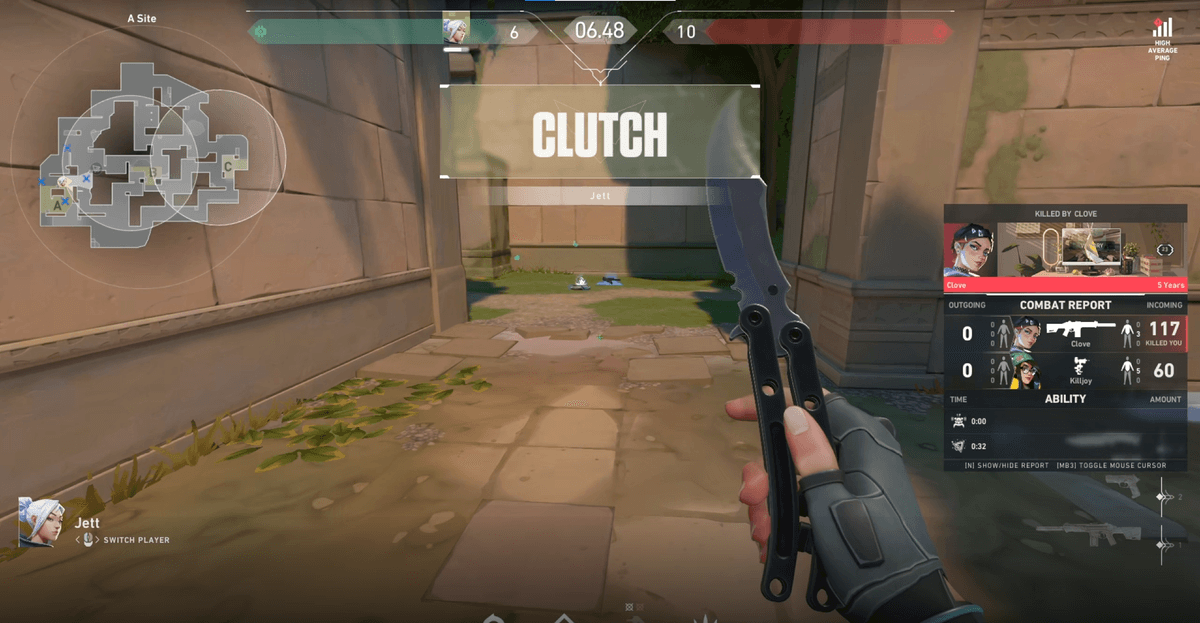
The 4K recording priorities differ slightly from game to game. In the Valorant recording guide, holding 60fps through fast aim duels is what matters, while the PUBG recording guide shows why bitrate headroom is important when capturing wide maps and long-range fights. Check the detailed settings in each game guide next.
Wrap-up
4K game recording comes down to a structure where the HEVC codec cuts file size, the GPU hardware encoder spreads out the load, and a fast SSD takes in the high-bitrate flow. Check your own setup against the spec table, and if the configuration feels like a hassle, starting with DOR, which handles NVENC HEVC by default, is the fastest way to get stable 4K results.