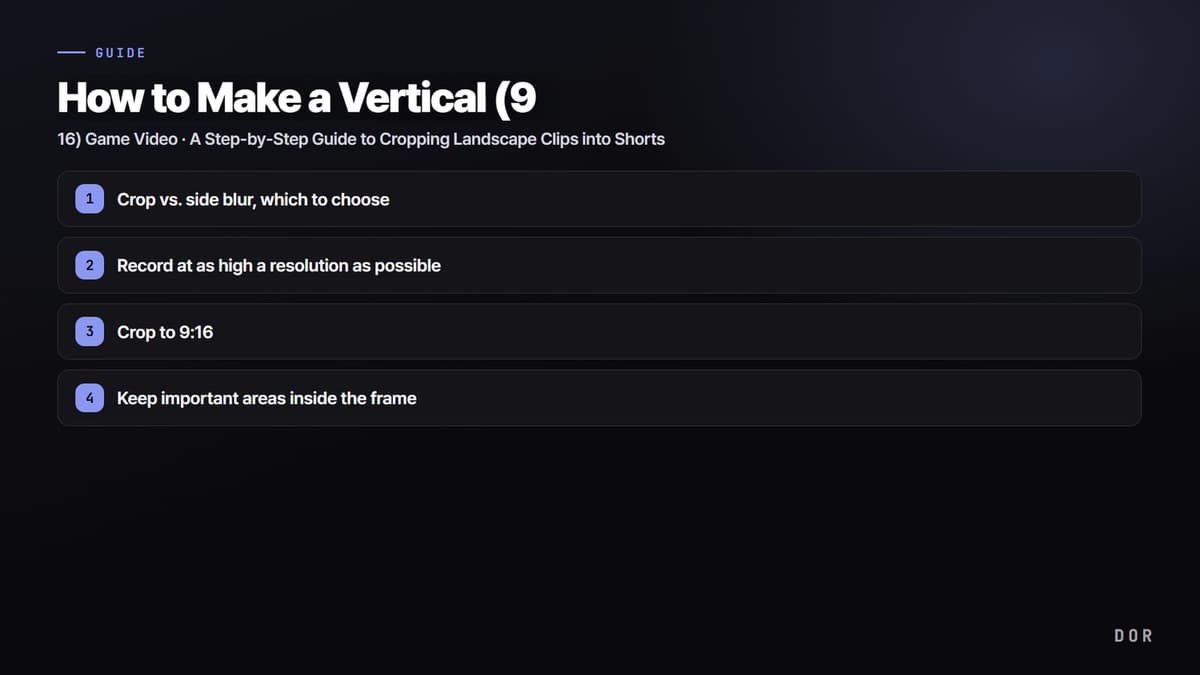
You have probably uploaded an awesome ace clip to YouTube Shorts only to end up with a video where the game sits tiny in the center and the top and bottom are full of black bars. The reason is simple. Almost every game runs in a 16:9 landscape screen, while Shorts, Reels, and TikTok are a 9:16 vertical ratio. If you just put a landscape video into a vertical frame, the leftover space goes black, and the game area you actually see shrinks by that much. So to make a game into a vertical Short, you absolutely need to crop the screen to fit the vertical ratio. In this article, we lay out, step by step, how to turn a landscape game screen into 9:16 vertical.
First, to sum up the bottom line, there are two broad paths. One is cropping, where you cut part of the screen vertically to fill the frame completely; the other is side blur, where you keep the landscape original in the center and fill the empty space above and below with a blurred background. For game footage, cropping is usually better, but depending on the situation there are cases where blur fits too. Let us first cover the difference between the two.
Crop vs. side blur, which to choose
Cropping is the method of keeping only the width that corresponds to vertical 9:16 from the 16:9 landscape screen and cutting off the sides. At the cost of discarding as much information as you cut, you can enlarge the remaining part to fill the screen, so characters and fights look big on mobile. Since Shorts are watched on a small phone screen, a crop that fills the frame with the game scene is usually more advantageous for immersion.
Side blur is the method of placing the entire landscape original in the center of the vertical frame as-is, and filling the leftover space above and below with the same screen blurred and enlarged as a background. It has the advantage of discarding none of the screen's information, so it suits clips where corner-of-the-screen info like the minimap or scoreboard matters in full, or scenes that move quickly left and right where it is hard to crop just one part. The downside is that the actual game screen gets smaller, so details are hard to see on mobile.
- Cases where cropping wins: 1v1 fights, and scenes where the action erupts at one point like an ace or pentakill. Filling the screen gives big immersion.
- Cases where side blur wins: scenes where corner-of-the-screen info like the minimap or scoreboard matters in full, or where left-right movement is intense, making it hard to fix the crop position to one spot.
- Both work: if your layout puts a facecam on top, placing the cam over the cropped game screen to fill the 9:16 is the most common form.
Step 1: record at as high a resolution as possible
The image quality of a vertical Short is largely decided at the recording stage, before cropping. Cropping a 16:9 screen vertically means keeping only a little over half of the width and cutting away the rest, so quality tends to drop in the process of enlarging the remaining area to 9:16 frame size. If the original was 1080p, the cropped and enlarged vertical screen looks blurrier.
So if you have vertical Shorts in mind, it is safer to record at as high a resolution as possible (1440p or higher, 4K if you can manage). The more original pixels you have, the more sharpness is kept even when you cut and enlarge just a part. The more frantically the screen moves, like a fight in Valorant or a teamfight in League of Legends, the more this difference widens.
Step 2: crop to 9:16
This is the core step of turning a recorded landscape clip vertical. In your editing program, first set the project ratio (canvas) to 9:16 (vertical 1080x1920). The landscape clip then comes in with empty space above and below, where you enlarge the clip to fill the vertical frame completely, then shift it left and right so the part you want to show falls within the frame. This process is the crop itself.
If you want to calculate the ratio directly, set the crop region in the format width:height:start X:start Y. For example, on a 1920x1080 screen the 9:16 vertical width is about 608 pixels, so basing it on the center of the screen makes the left starting point about 656 pixels. That said, in most editing tools, rather than entering these numbers directly, it is far more intuitive to drag the frame into place while watching the preview.
Set the crop position to the center of the action
The most important decision in cropping is which part of the landscape screen to keep. Keeping the center is usually the default, but depending on the game, if the action unfolds on one side of the screen, you should shift the crop position toward that side. If you blindly cut the dead center, you can end up pushing the very characters or fights that matter out of the frame.
Step 3: keep important areas inside the frame
Cropping inevitably discards the sides of the screen. The problem is that a game's core information is usually clustered in the corners of the screen. Health bars, ammo counts, the minimap, and the scoreboard are mostly at the edges of the screen, so cutting only the center makes this information disappear entirely. So a 9:16 crop is not simply cutting the center, but the work of deciding which important areas to keep.
- Crosshair/reticle: the lifeblood of an FPS clip. Set the horizontal position so the crosshair is always inside the frame. It is usually in the center of the screen so it is not a big issue, but you need to be careful in scenes where you swing your view widely.
- Health/ammo: information that shows tension. If it is a shame to have it cut off, you can also re-display it with a caption or small overlay in the space left after cropping.
- Minimap: if it is a clip where rotation or gank context matters, the minimap needs to stay alive. If you absolutely must show the minimap too, side blur may be better than cropping.
- Kill log/score: to show at a glance that it was an ace or pentakill, having the kill log in the frame is more convincing.
You cannot keep all the information, so the order is to first decide what is core in that clip. For a Valorant clutch, the crosshair and enemy positions are central; for a League of Legends teamfight, the champions' positions and abilities are central. Be sure to capture only the core in the frame, and boldly discard secondary information or replace it with captions.
Going from landscape clip straight to vertical with the DOR editor
Looking this far, the steps may seem like quite a lot, but with the right tool behind you, the actual work is done in a few operations. DOR automatically detects when a game launches, records in the background in 16:9, and on its own cuts best moments like kills, aces, and pentakills into short clips. And you can crop those landscape clips straight to 9:16 in the DOR editor and export them as Shorts. Recording, automatic clips, and vertical cropping all connect within one program.
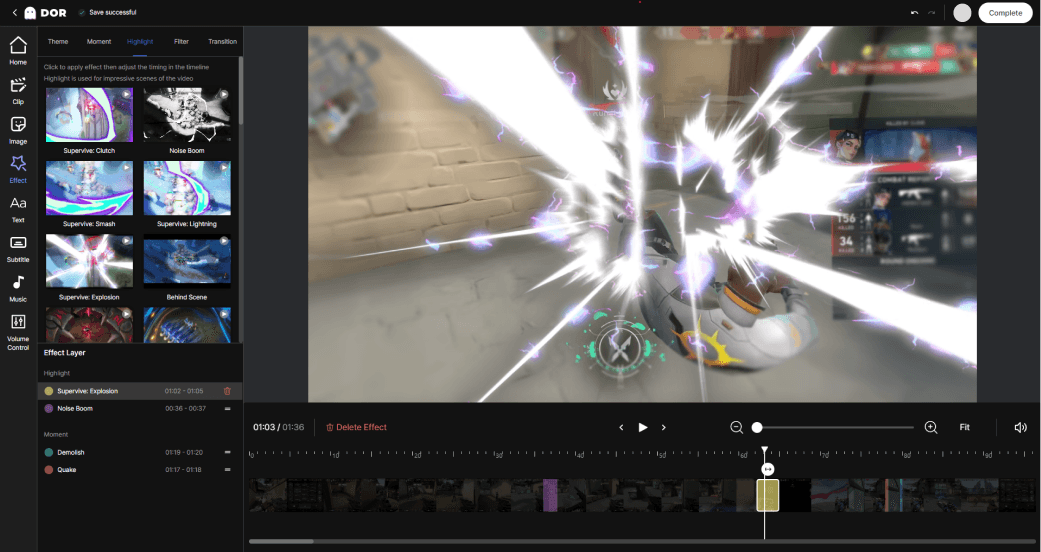
The flow is simple. Just enjoy the game as usual and DOR automatically stacks up your 16:9 best moments, then you pick the clips you want to make into Shorts and switch them to 9:16 in the editor. While watching the preview, just shift the crop position so the game screen fits the vertical frame, and whether it is the health bar or the crosshair, the area you want to keep is captured as-is and saved straight as a vertical video. The tedious process of moving the landscape original into another editing program and re-fitting the ratio disappears.
To sum up, games are 16:9, so to make 9:16 Shorts you need to crop, and you choose cropping to fill the screen completely, or side blur to keep the screen's information in full. When cropping, the key is to position it so that important areas like health bars, the minimap, and the crosshair fall inside the frame. And if you use DOR, you can crop a clip recorded in 16:9 straight to 9:16 in the editor and export it as a Short, so you can finish the vertical video right where you made the best moment, all at once.