To get straight to the point, when a long gameplay recording stutters partway through, the cause is almost always one of two things. One is a slow write speed where the disk cannot keep up with writing the video data, and the other is an oversized video that keeps ballooning into a single file. The fix is just as clear. Move your recording storage location to a fast SSD and automatically split a long recording into smaller files, and even a two- or three-hour session records smoothly to the end.
High-quality recording does not stream data out at a steady rate; it writes to the disk in bursts moment to moment. When the disk cannot take the write volume of that moment, frames drop and the video stutters even though CPU and GPU usage look perfectly fine. In other words, stutter is often not a performance issue but a storage bottleneck.
Why It Only Stutters in Long Recordings
There is a reason short recordings are fine but stutter starts once you go past an hour. The longer the recording runs, the more data accumulates on the disk, and when a single file's size balloons to tens of gigabytes, the burden on the operating system to update that file grows along with it. Add shrinking free space on top, and the write speed drops even further.
- Slow disk: an HDD or USB external drive cannot handle the burst write volume of high-quality recording.
- Oversized single file: a video that keeps growing as one chunk accumulates update strain.
- Insufficient free space: the fuller the storage gets, the more noticeably the write speed slows down.
- Background syncing: recording to a cloud-sync folder conflicts with real-time writes and causes stutter.
Step 1: Move the Storage Location to a Fast SSD
This is the most effective measure. An SSD has far more stable sustained write speed than an HDD, so stutter often disappears even with the same settings. Setting the recording storage folder to a separate internal SSD rather than the drive where the game is installed is more stable, since game loading and recording writes do not compete on the same disk.
- Make an internal SSD your first choice, and separate it from the game drive if possible.
- Avoid storage connected to a USB 2.0 external drive or a shared hub.
- Exclude folders with cloud sync enabled (Drive, OneDrive, etc.) from your recording targets.
- Always leave at least 20% free space on the storage drive.
Step 2: Turn On Automatic File Splitting
In OBS Studio, go to Settings > Output, change the output mode to Advanced, and turn on the automatic file splitting option in the Recording tab. The recording gets saved into a new file at each set interval based on time or size. Since a single file does not grow endlessly, the disk update strain drops, and even if a crash happens midway, the pieces up to that point remain intact.
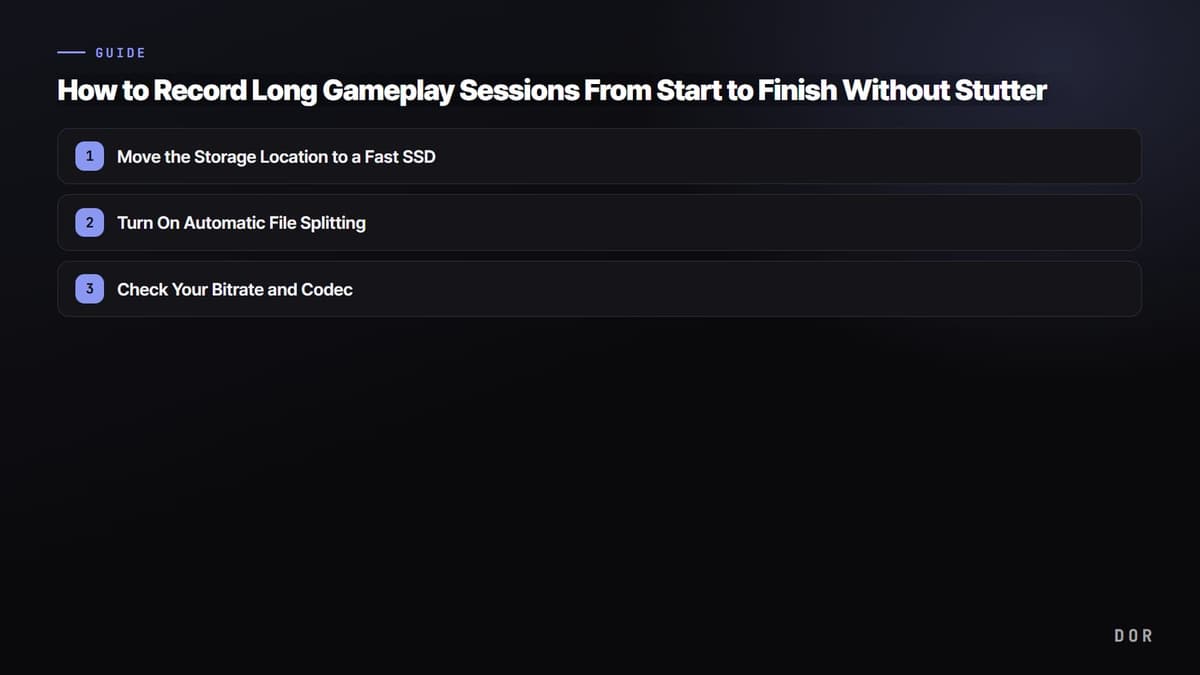
- 1Move the Storage Location to a Fast SSD
- 2Turn On Automatic File Splitting
- 3Check Your Bitrate and Codec
A split threshold of around 15 minutes or 1GB usually works fine. Splitting too finely makes stitching together a hassle during editing, while setting it too large reduces the benefit of splitting. If you plan to keep a long session in one piece, splitting at 30-minute intervals is plenty.
Step 3: Check Your Bitrate and Codec
If it still stutters after moving to an SSD and splitting the files, the bitrate you set may have exceeded the disk's throughput. 4K high-bitrate recording has a very large burst write volume, so if the quality feels excessive, lower the bitrate one notch to free up disk headroom. Using a GPU hardware encoder (NVENC, etc.) lets you record stably while reducing CPU strain.
- If it stutters at 1080p 60fps, try lowering the bitrate first.
- Use a GPU hardware encoder where possible to distribute the CPU strain.
- For 4K, an SSD is practically essential, and leave plenty of free space too.
DOR Has Inherently Low Disk Strain
That covers how to keep continuous recording stutter-free, but it is even simpler if you change the approach itself. DOR auto-saves on a per-clip basis, so the disk strain of long continuous recording is low. Instead of writing two or three hours into a single file, it saves meaningful moments split into short clips, so no oversized single file is created.
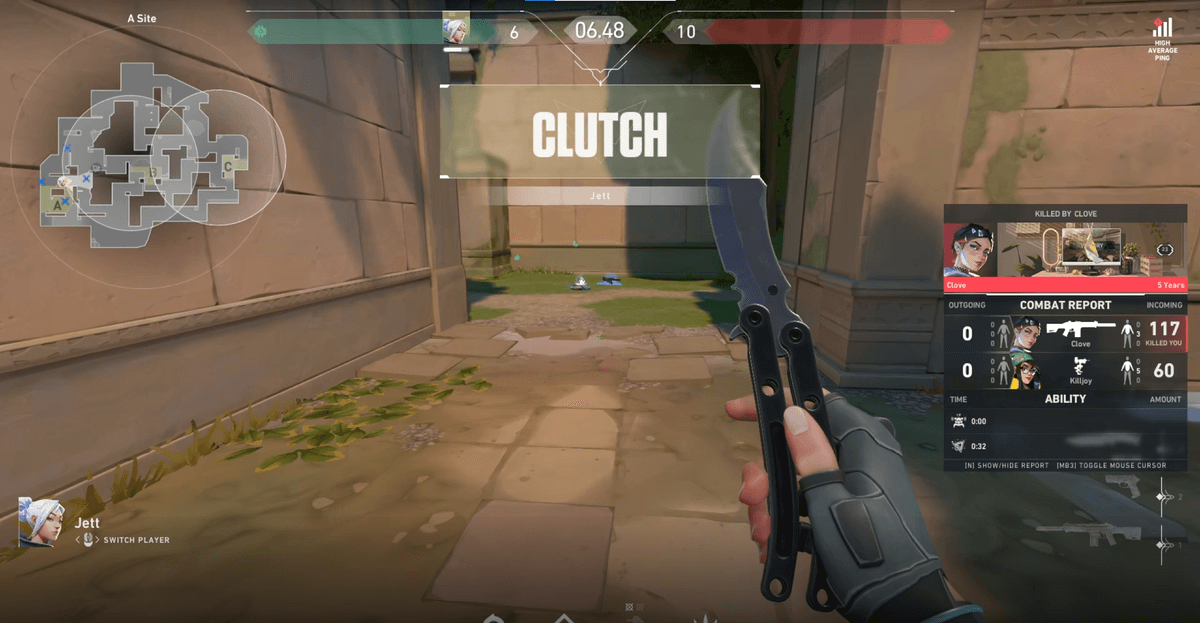
Since the write volume hitting the disk at once stays small even in a long session, the risk of stutter drops even on a slow disk. Whether it is a fast-paced game like a single round of Valorant or a long match of PUBG, you can save just the scenes you need as clips without having to separately manage a continuous-recording file.
To sum up, the order is simple. First move the storage location to a fast SSD, turn on automatic file splitting, and if it still stutters, adjust the bitrate. If managing the disk for continuous recording feels burdensome, changing the approach itself to DOR, which saves on a per-clip basis, is also a good choice.