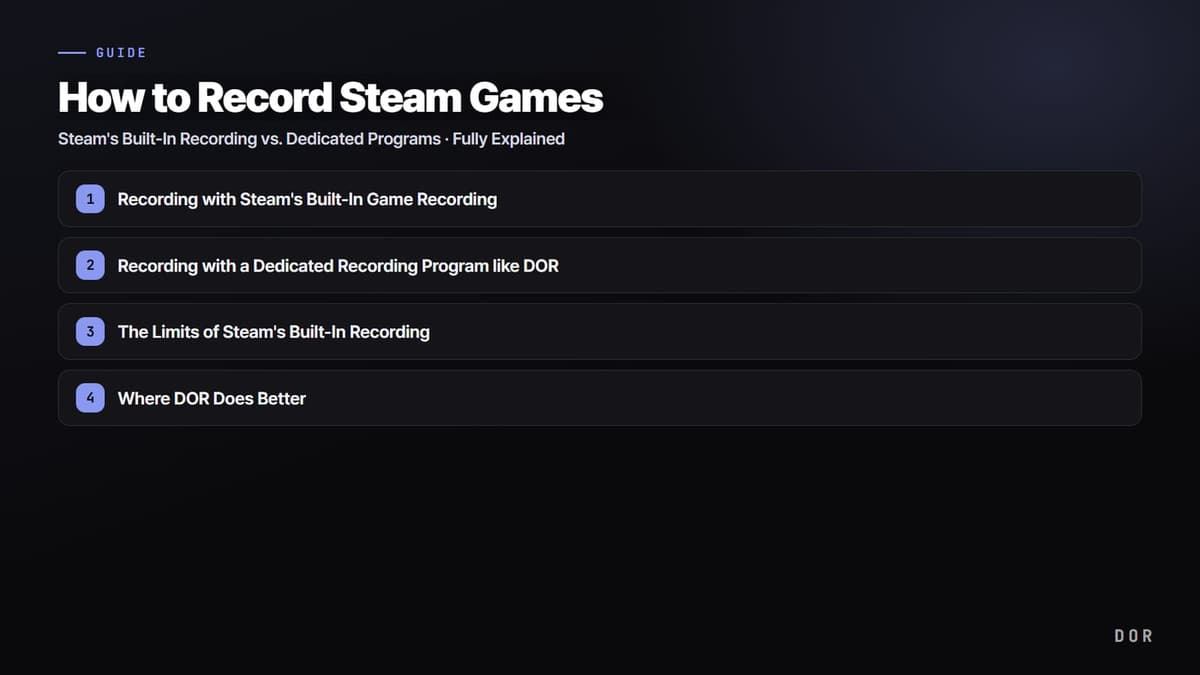
To get straight to the point, there are roughly two paths to recording Steam games. If you just want to lightly keep your best moments, Steam's built-in game recording feature is enough, and if you want to do everything at once, from cutting the recorded footage into clips and editing it to posting it straight to social media, a dedicated program like DOR is fast. Below, we'll set up both methods step by step and pick which one fits your situation.
Method 1. Recording with Steam's Built-In Game Recording
As of 2026, Steam has a built-in feature that officially lets you record games without a separate program. It runs lightly and is connected directly to the Steam overlay, so once you just turn it on, you can handle recorded footage anytime with the default F11 shortcut.
- Open the Steam client and go into Settings from the top-left menu.
- In the settings screen, select the Game Recording menu.
- Choose the recording mode. Pick between background recording, which stays on and keeps only the recent segment, and on-demand recording, which captures from the moment you press the shortcut.
- Specify the drive and maximum capacity to save recording files, and the length of time to keep for background recording.
- After launching the game, press the default F11 shortcut to open the recording panel and save the segment you want as a clip.
If you keep background recording on, the recent few minutes are continuously held in temporary storage throughout the game, so right after a great scene happens you can press the shortcut and salvage the moment that just passed as a clip. A big advantage is that you don't have to press the record button in advance.
Method 2. Recording with a Dedicated Recording Program like DOR
A dedicated program is different in that it takes charge of the whole step after recording, that is, making, polishing, and posting clips, more than the recording itself. Taking DOR as an example, the flow after installation is as follows.
- Install and launch DOR, then set the recording options (quality, frame rate, save location) just once.
- Launch your Steam game as usual. DOR automatically detects the running Steam game.
- Once the detected game is set as the recording target, the entire play is recorded with no extra setup.
- When you finish playing, extract the segments you want as clips from the automatically caught highlights and the full footage.
- Cut and edit the extracted clips right there and share them straight to social media or with friends.
The Limits of Steam's Built-In Recording
Steam's built-in recording is clearly well made, but as you use it, you start to see its boundaries. Knowing where the built-in feature's territory ends lets you divide the two methods better.
- Editing stays at the trimming level of cutting the front and back of a clip. Full-on editing that stitches multiple scenes together or adds captions and emphasis effects needs a different tool.
- Timeline event markers (kills, rounds, etc.) only show up if the game officially supports them. In games that don't support it, you have to find the segments yourself.
- Sharing is limited to MP4 export, QR codes, and temporary links, and the flow of exporting directly in a form tailored to the platforms you post to often is weak.
- In games that don't use the Steam overlay or in some runtime environments, recording may not be captured.
Where DOR Does Better
Here's where DOR's strengths come out. DOR automatically detects and records Steam games, and finishes clip extraction, editing, and sharing all in one place. Because it merges the process you used to go back and forth on, recording separately, an editing program separately, sharing separately, into one, the time it takes from closing the game to posting a clip gets noticeably shorter.
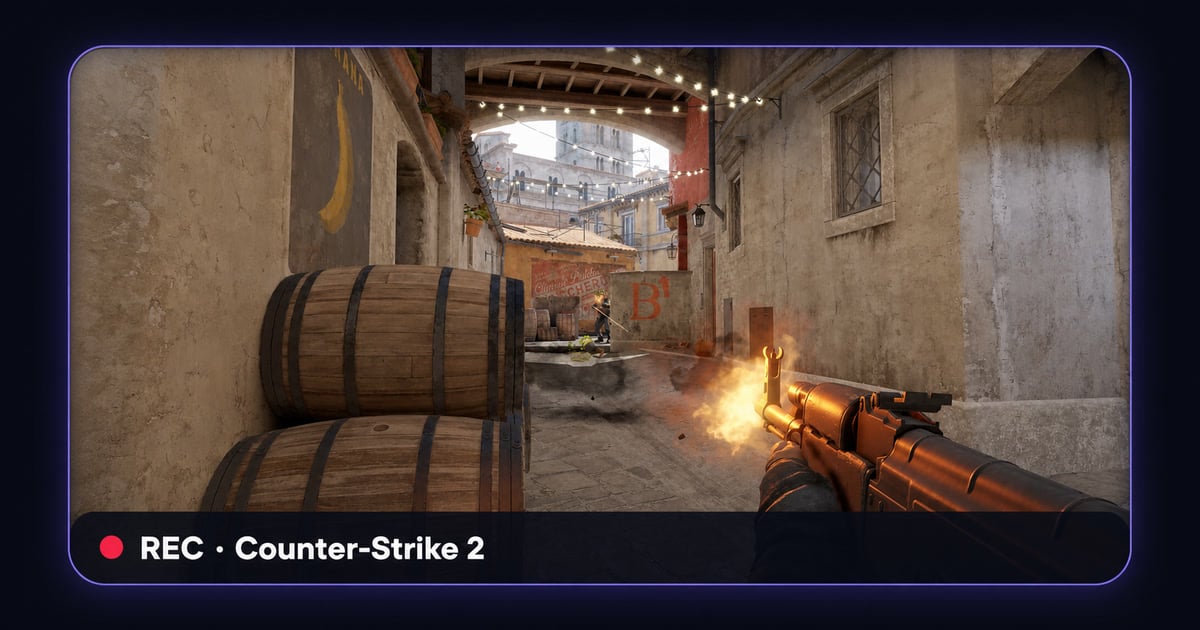
It doesn't discriminate by game type either. Whether it's a game like Counter-Strike, where fast fights are the core and you can't miss a single moment, or PUBG, where a match is long and decisive scenes come sparsely, DOR detects the running Steam game as-is, records it, and pulls out only the key segments. You don't need to fiddle with new settings for each game.
Which Method Should You Choose?
To sum up, here it is. If you just want to lightly keep your best moments now and then without any extra installs, Steam's built-in game recording is enough. Conversely, if making clips often, cutting and editing them, and posting them to multiple places quickly is your daily routine, a dedicated program like DOR, which handles everything from recording to sharing at once, saves a lot of time. Using both together is a good choice too. Lay down a safety net with background recording normally, and switch over to DOR when you're seriously making clips.