To get straight to the point, there are two main ways to record two games or multiple windows at once. The first is display (full-screen) capture, which grabs the entire monitor in one go. The second is the multi-source approach, placing several window sources into a single scene and arranging them side by side. Choose full-screen capture if you want to finish quickly, or multi-source arranging if you want a clean-looking screen.
The two methods serve different purposes. Full-screen capture records everything visible on the monitor exactly as is, so notification popups and the taskbar get captured too. Multi-source arranging lets you pick only the windows you want and set their position and size yourself, so the result is tidy. Below we will walk through each method step by step.
Method 1: Capture the Entire Display in One Go
This is the lowest-effort method. Open both game windows on a single monitor and record that monitor's entire screen as is. However you arrange the windows, they get recorded exactly as they appear, so almost no separate setup is needed.
- Launch both games you want to record and run them in windowed mode or borderless windowed mode.
- Place the two windows side by side on a single monitor. In Windows, dragging a window to the edge of the screen automatically splits it into halves.
- In your recording tool, add a 'Display Capture' or 'Full Screen' source and select that monitor.
- Confirm in the preview that both windows are fully visible and not cut off, then start recording.
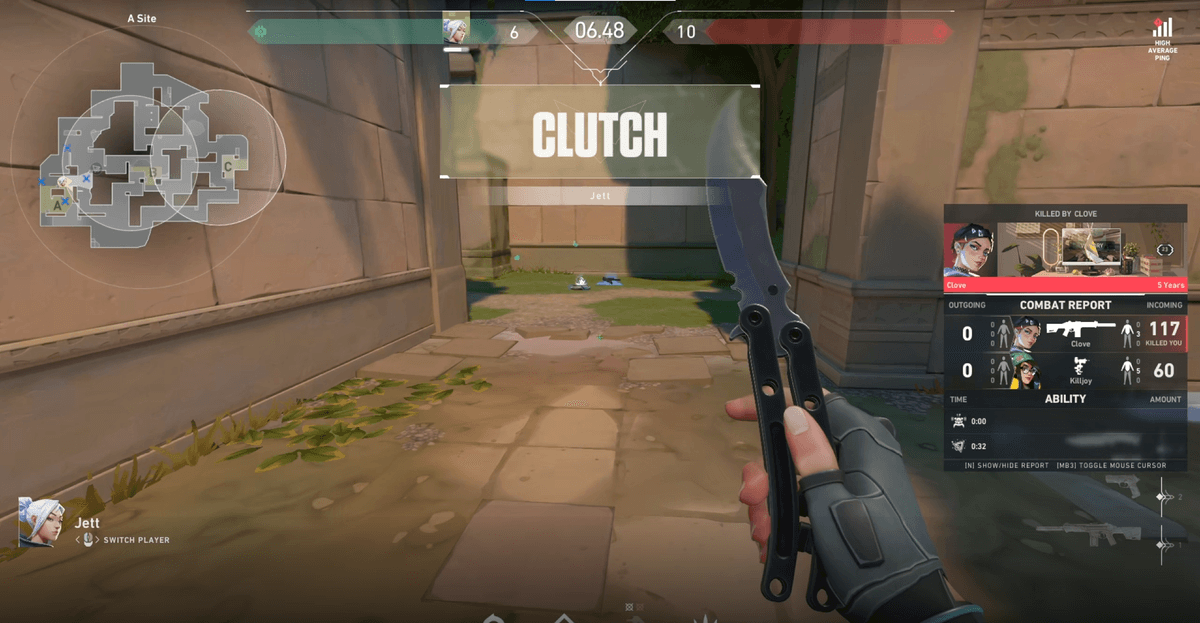
Games in full-screen mode can sometimes be captured poorly by display capture. In that case, switching to borderless windowed mode in the game options makes it far easier to place both windows together on one screen. Most popular titles like Valorant and League of Legends support this mode. We cover detailed per-game recording settings separately in the Valorant recording guide and the League of Legends recording guide.
Method 2: Place Multiple Sources in One Scene (Multi-Source)
Tools like OBS Studio let you place multiple 'Window Capture' sources within a single scene. You can set each window's position and size independently, so you can split the two games exactly in half or display one smaller than the other.
- 1Method 1: Capture the Entire Display in One Go
- 2Method 2: Place Multiple Sources in One Scene (Multi-Source)
- In the sources list, click 'Add' to create a 'Window Capture' and assign the first game window.
- Add another 'Window Capture' the same way and assign the second game window.
- In the preview, drag the red border of each source to adjust its size, and place the two windows side by side.
- Confirm that the two windows do not overlap and both fit within the screen, then start recording.
When Capturing Two Monitors at Once
If you run each game on a different monitor and want to capture both screens in one video, you need to widen the canvas resolution to the combined width of both monitors. For example, with two 1920x1080 monitors, set the canvas to 3840x1080 and place the two display capture sources side by side. This way both screens fit within a single frame without being cut off, and the sync stays intact.
Layout Setup: Tips for Dividing the Screen Nicely
If you just cram two windows in, the text shrinks and neither side is easy to see. For two games of equal importance, a left-right split down the middle works fine, while in a situation where one is the main focus, placing the main one large and the secondary one small in a corner looks better.
- Left-right split: when the two games are similarly important. Divide the screen exactly in half.
- Main + sub: when one game is the focus. Place the main one large and the sub small in a corner.
- Top-bottom split: useful for combining windows that each have a lot of tall, vertical information.
Whatever the layout, the first priority is to keep enough size that key information like text and the minimap does not get muddied. Just checking once in the preview before recording whether the smallest text is readable can save you a lot of reshooting.
An Easier Alternative: Record and Merge With DOR
If placing each source one by one and matching the canvas resolution feels like a hassle, there is a way to keep the recording itself simple. DOR automatically detects the game screen and records it cleanly, and you can merge multiple clips in the editor. Record the two games separately and then place them side by side or stitch them together in the editing stage, and you can create the screen you want without complex multi-source setup.
To sum up: full-display capture if you want to finish quickly, multi-source arranging if you want a tidy screen, and automatic-detection recording followed by merging in editing if you want to reduce the setup burden. Pick one based on the number of games you are handling and the purpose of the result, and recording two games or multiple windows becomes much smoother.