If you play back a recording and the audio comes through fine but the screen freezes in certain sections, or the video and audio drift further apart as it goes on, the cause is almost always one thing: the video was recorded at a variable frame rate (VFR). The key to the fix is forcing a constant frame rate (CFR) and locking your capture FPS to a single value. This article lays out, in order, how to prevent it at the recording stage and how to save files that already freeze.
Why does audio play while only the screen freezes
Audio usually flows at a constant rate. The screen, on the other hand, changes its frames per second depending on the computer's situation. The moment a game gets heavy, 60fps drops to 54fps and then climbs back up, for example. A file where the frame intervals are this uneven is called variable frame rate (VFR).
A recording file records, as timestamps, when each frame should be displayed. In a VFR file these intervals are not constant, but editors and some players play it back assuming the frame intervals are always the same. So in empty stretches they hold the previous frame, making the screen look frozen, while the audio keeps flowing at its own pace and gradually drifts.
Step 1: Force a constant frame rate (CFR) in your recording program
The surest fix is not to repair the freezing file but to record at a constant frame rate in the first place. Taking OBS Studio as an example, you can force a constant frame rate in the settings.
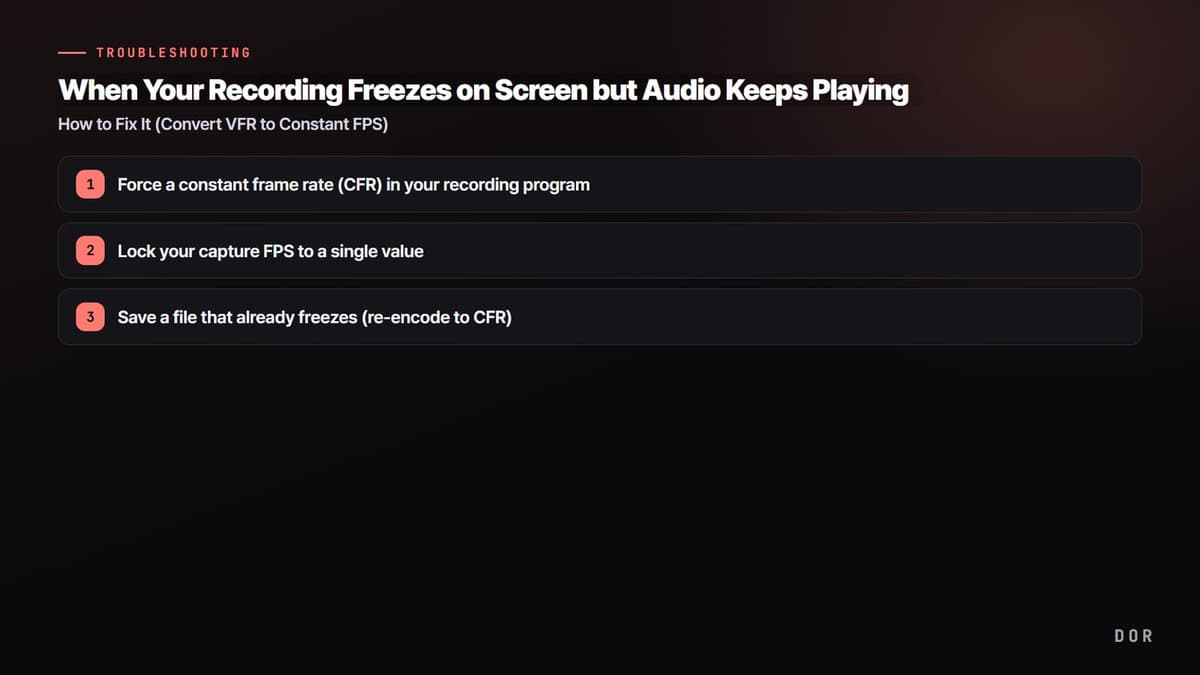
- 1Force a constant frame rate (CFR) in your recording program
- 2Lock your capture FPS to a single value
- 3Save a file that already freezes (re-encode to CFR)
- In OBS Settings > Video, lock the FPS to an integer value (e.g., 60).
- In Settings > Output, change the output mode to Advanced.
- Go to the Recording tab and find the Custom Muxer Settings field.
- Enter force-cfr=1 in that field to force a constant frame rate.
- After applying, do a short test recording and confirm the resulting file does not freeze.
Step 2: Lock your capture FPS to a single value
Even with the constant frame rate option on, the effect is halved if the capture itself wobbles. When your screen capture FPS and the game's frame rate move at different speeds, the recorder fills in or drops empty frames, and freezing reappears.
- Set your recording FPS to a value the game can hold stably. If 60fps frequently collapses, lowering it to 30fps causes less freezing.
- Match your in-game frame limit (e.g., 60) and your recording FPS to the same value.
- Using borderless windowed mode instead of exclusive fullscreen mode often makes capture more stable.
- Close heavy background programs while recording to reduce the range of frame-rate fluctuation.
Step 3: Save a file that already freezes (re-encode to CFR)
If a video you already recorded freezes, you can re-encode it to a constant frame rate with the free tool HandBrake. It re-encodes the video while re-laying the uneven frame intervals at a constant spacing.
- Load the freezing original file into HandBrake.
- On the Video tab, set Framerate to 60 (or the original's base value).
- Select the option below it as Constant Framerate.
- Press Start Encode to create a new file, then confirm the freezing is gone.
Editor compatibility: align to CFR before importing
Editors like Premiere Pro, DaVinci Resolve, and GOM Mix operate on the premise of a constant frame rate. If you import a VFR original as-is, the audio and screen start drifting the moment you make a cut. So aligning to a constant frame rate with Steps 1-3 above before editing is the safest. The bigger the momentary frame-rate fluctuation in a game, like Valorant or PUBG, the more effective this work is.
Recording with less freezing from the start: DOR
If aligning this process by hand every time is a hassle, it is easier to use a tool that defaults to a constant frame rate at the recording stage. DOR records at a constant frame rate, so there is less screen freezing and sync drift. Even when you import a recorded file straight into an editor, the screen and audio often match with no separate conversion.
To sum up, the key is two things. Force a constant frame rate (CFR) in your recording program, and lock your capture FPS to a single value the game can hold. Just keeping these two, the phenomenon where audio plays but only the screen freezes mostly disappears. Files that already freeze can be saved with a HandBrake re-encode or by re-exporting from an editor.