“Encoding overloaded” means OBS cannot encode frames at the configured pace. It is not the same as network dropped frames, and lowering bitrate alone is not a universal fix. If the game also stutters, see game recording stutter fixes; if CPU use is the standout symptom, use the high recording CPU guide.
Find the bottleneck in OBS Stats
| Stat or symptom | What it means | Reduce first |
|---|---|---|
| Rendering lag rises | OBS cannot compose frames on the GPU in time | Game GPU load and complex sources |
| Encoding lag rises | Encoder cannot keep up with output settings | Preset, resolution, and frame rate |
| Both rise | The system lacks overall headroom | Game and OBS load together |
| Only network drops rise | Upload-path issue | Connection, not recording encoder |
Reduce overload in this order
- 1Cap game frame rate — Use a stable limit so the game does not consume all GPU capacity.
- 2Close extra GPU apps — Temporarily close browser video, overlays, and other recorders.
- 3Test OBS priority — On Windows, test running OBS as administrator when appropriate and compare only that change.
- 4Ease output load — Lower output resolution or frame rate one step and check whether lag stops.
- 5Use a lighter preset — Reduce encoder preset complexity while checking the quality tradeoff.
- 6Stress-test briefly — Record the most demanding real game scene, then inspect both Stats and the file.
When OBS tuning is not your goal
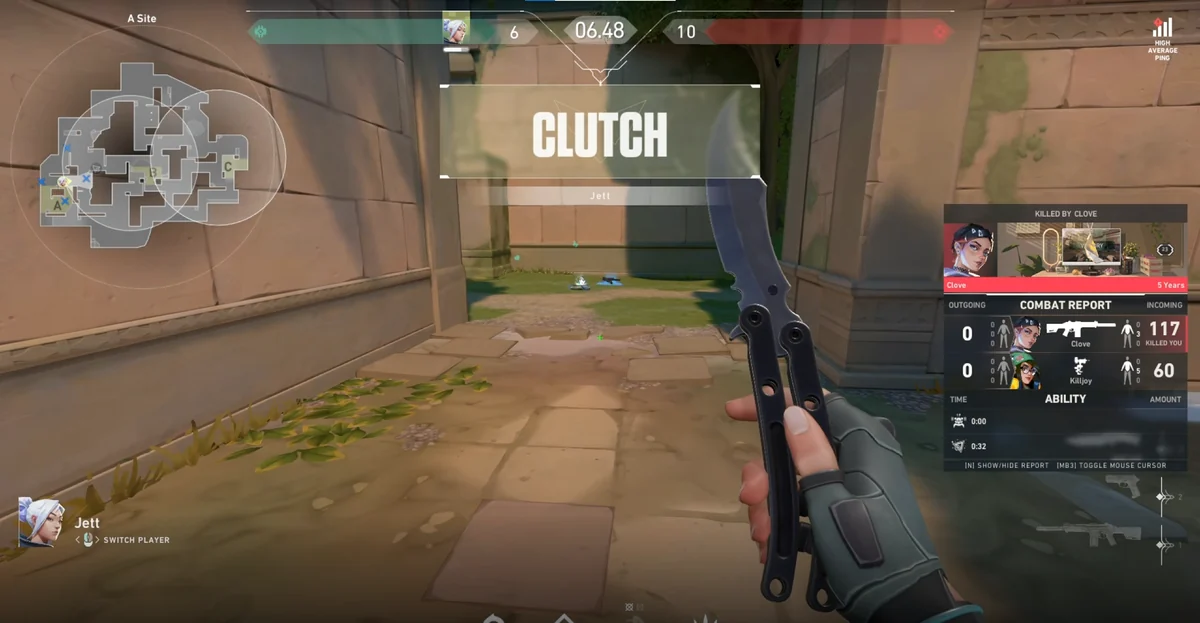
DOR does not repair the OBS overload warning. If a separate workflow that automatically records moments in supported games better fits the task, test DOR automatic game recording. Judge it with your own game FPS and output file on your PC. How it behaves in a high-refresh FPS is covered on the VALORANT recording page.
For a GPU-side bottleneck, continue with reducing recording GPU load. OBS describes operating-system and load-specific actions in its official encoding performance troubleshooting guide.