To get straight to the point, reducing GPU load while recording comes down to three things. First, lower the recording resolution one notch; second, ease the bitrate (or quality option); and third, use the graphics card's hardware encoder (NVENC) instead of software encoding. Applying just these three in order resolves most stutter and frame drops.
Why does recording burden the GPU? Turning the screen into a video file requires encoding computation that compresses every frame. If you process this computation with the same GPU resources the game uses, the game and the recording end up sharing the same pie, so frames drop. That is why the strategy for reducing load ultimately boils down to reducing the amount of resources encoding eats, or moving the encoding to a dedicated circuit.
Step 1: Downscale the Resolution One Notch
This is the most effective and fastest method. Lower the recording output resolution one notch, from 1440p to 1080p, or from 1080p to 900p (1600x900) or 720p. As the resolution drops, the number of pixels the encoder has to process decreases, and the GPU encoding computation immediately gets lighter. Keep the game at its original resolution and downscale only the recording output, and you can shed load without sacrificing your play screen.
Going from 1920x1080 down to 1280x720 reduces the pixel count to about 44%. The encoding load gets lighter by that much, so if you want to preserve frames in fast-paced screens like Valorant or PUBG, 720p recording is a perfectly practical choice.
Step 2: Ease the Bitrate and Quality Options
Bitrate is the amount of data packed into the video per second. Higher is better quality, but the encoder has to do more computation. If you use the CQ (Constant Quality) method common in recording, raise the value to around 18 to 22 to loosen the compression slightly. If you specify the bitrate directly with CBR/VBR, start in the 40,000 to 60,000 kbps range for 1080p 60fps, and lower it a notch at a time if your load is tight.
VBR (variable bitrate) raises the bitrate only when the screen is fast and lowers it in static scenes, reducing file size and load relative to quality. For games with intense on-screen motion, VBR is advantageous for lowering the average load.
Step 3: Switch to a Hardware Encoder (NVENC)
This is the key. Software encoders like x264 compress with the CPU, and some GPU encoding modes also pull in the graphics computation units (shaders). NVENC, by contrast, is a separate circuit embedded inside the GPU dedicated solely to video encoding. In other words, it is physically separated from the graphics computation unit the game uses, so recording with NVENC brings the impact on game frames down to around 5%.
With an NVIDIA graphics card (GTX 600 series or later), you can use NVENC H.264, and with GTX 950 or later, you can also choose NVENC HEVC (H.265), which has better compression. For Intel CPU integrated graphics it is Quick Sync, and for AMD it is AMF, the hardware encoders that play the same role. If you see 'NVENC' in the encoder settings, just switching to it changes the load structure.
- 1Downscale the Resolution One Notch
- 2Ease the Bitrate and Quality Options
- 3Switch to a Hardware Encoder (NVENC)
How to See GPU Load With Your Own Eyes
Once you have changed the settings, you need to confirm the load actually dropped. The simplest way is the Windows Task Manager. Open it with Ctrl+Shift+Esc and look at the GPU item in the 'Performance' tab. Clicking the graph lets you break it down into '3D', 'Video Encode', and so on, and recording load usually shows up under 'Video Encode'. Watching how this value changes as you turn recording on and off gives you a sense of how much the encoder is using.
- Task Manager > Performance > GPU: check overall usage and Video Encode usage. If 3D keeps hitting 95%, it is a sign the game itself is maxing out the GPU.
- OBS stats window (View > Stats): if 'Frames missed due to encoding lag' climbs, the encoder cannot keep up, so you need to lower the resolution and bitrate further.
- In-game frame monitoring: comparing the average fps difference with recording on versus off shows at a glance how much recording actually eats into it.
- Securing GPU headroom: if the game is using 100% of the GPU, there is no room for the encoder to squeeze in. Lowering the game options slightly to create 10 to 20% headroom makes recording smoother.
What to Check When the Load Still Will Not Come Down
- Lower the frame rate: dropping 60fps to 48fps or 30fps reduces the number of frames to encode itself, so the load decreases proportionally.
- Ease the encoder preset: dropping the NVENC preset one or two notches toward the faster side (P4, etc.) from a high-quality one like P6 makes the computation lighter with little quality loss.
- Clear out background apps: the Discord overlay, browsers, RGB control software, and the like nibble away at the GPU. Turn off unnecessary overlays while recording.
- Update drivers: an outdated graphics driver can reduce NVENC efficiency, so keep it up to date.
Why DOR Is Lighter
DOR uses the GPU's NVENC encoding chip by default, offloading the recording computation to a dedicated GPU circuit. Since encoding is processed in an area separate from the graphics computation unit the game uses, the GPU computation load stays low and the loss to game frames is small. Without users having to agonize over encoder types or complex bitrate tables one by one, just picking the resolution and quality runs the recording along a low-load path internally.
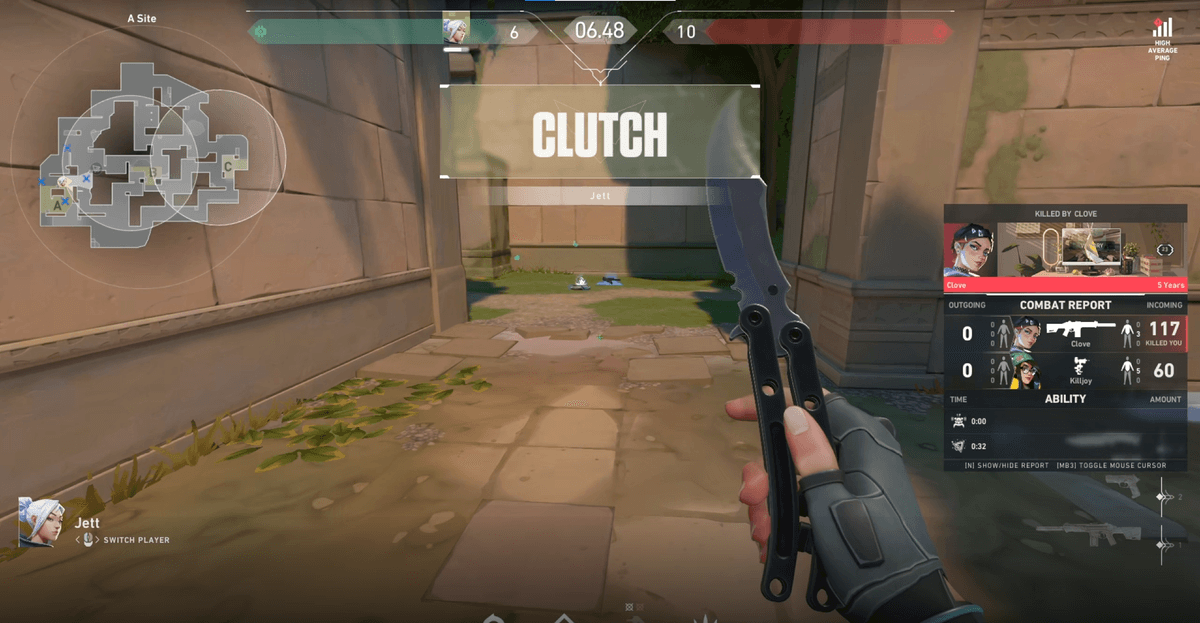
That is why it has a big effect in games with frequent fast screen transitions. Games like Valorant, where a hair's breadth of aim matters, or PUBG, where frames mean survival in a final firefight, take a big perceptible hit from dropping even a few frames to recording, and offloading the encoding load to a dedicated chip lets you minimize that loss.
To sum up, adjust recording GPU load one step at a time in the order of resolution downscaling > bitrate easing > switching to a hardware encoder, and find your PC's balance point by confirming the effect with Task Manager and OBS stats. If you want to reduce the fuss over settings, starting with DOR, where a low-load NVENC path is the default, is also a good starting point.