Let me start with the conclusion: the most common cause of CPU usage spiking to 90-100% while recording is a CPU encoder called 'x264.' Because the compute for video compression is shouldered by the CPU rather than the graphics card, your game logic and video encoding compete on the same CPU and usage explodes. The key to the fix is moving this encoding work to the GPU (NVENC).
Why Does CPU Usage Go Up When You Record?
Recording your screen means compressing (encoding) each captured frame into a video file size, moment by moment. The CPU encoder x264 does this compression on the CPU directly, while the GPU encoder NVENC uses a dedicated circuit built into the graphics card. x264 produces strong image quality but uses a lot of CPU, so at heavy settings like 1080p 60fps, usage hits 100%, your in-game frame rate drops, and the video gets dropped frames. In games where split-second reactions matter, like Valorant or PUBG, you feel this stutter right away.
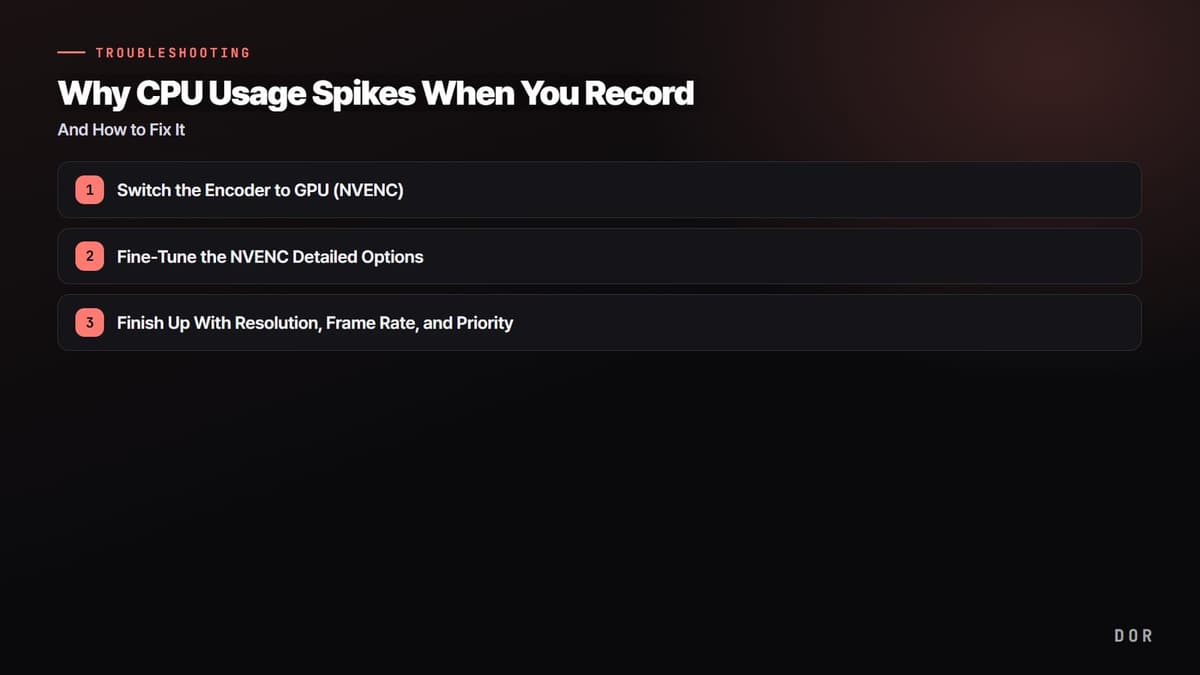
- 1Switch the Encoder to GPU (NVENC)
- 2Fine-Tune the NVENC Detailed Options
- 3Finish Up With Resolution, Frame Rate, and Priority
Step 1: Switch the Encoder to GPU (NVENC)
The single biggest way to drop CPU usage is to hand encoding off to the GPU. Because NVENC runs on a dedicated encoding circuit inside the graphics card, it doesn't significantly affect encoding performance even when the game is heavily using the GPU. You get image quality similar to x264's fast preset while barely touching the CPU. Here is the order for switching the encoder in OBS Studio.
- Open 'Settings' from the top menu in OBS.
- Choose 'Output' from the left tabs and switch the output mode to 'Advanced.'
- Go to the 'Recording' tab.
- Change the 'Encoder' option to 'NVIDIA NVENC H.264.' For an AMD graphics card, choose 'AMD AMF'; for Intel integrated graphics, choose 'Intel QSV.'
- After changing it, click 'Apply,' do a short test recording, and check the CPU usage again.
Step 2: Fine-Tune the NVENC Detailed Options
If your in-game frame rate still wavers a bit after switching to NVENC, tuning the detailed options makes it more stable. Some advanced options borrow the graphics card's compute cores (CUDA) and can affect game performance, so setting them up as below keeps the game and recording smooth together.
- Start with 'Quality' as your Preset.
- Turn off 'Look-ahead.'
- Turn off 'Psycho Visual Tuning' as well.
- Turning off these two options reduces GPU core usage so the game and recording run more smoothly together.
Step 3: Finish Up With Resolution, Frame Rate, and Priority
If headroom is tight even after moving to GPU encoding, or if you're in an environment where you can't use a GPU encoder, adjust your output settings and process priority together. Encoding load scales with the number of pixels on screen, so just lowering the resolution and frame rate by one step has a big effect. Try applying the following items from the top down.
- Lower the recording resolution one step, from 1080p to 900p or 720p.
- Adjust the frame rate from 60 to 30-45. This is often plenty for ordinary gameplay footage.
- If you must keep using x264, change the preset to 'veryfast' or 'superfast' to cut down CPU time.
- In the Task Manager 'Details' tab, set the priority of the recording executable (for example, obs64.exe) to 'Above normal.' OBS achieves the same effect under Settings > Advanced > 'Process Priority.'
- Sort background programs that eat CPU, like browser tabs, auto-update tools, and antivirus real-time scanning, by usage and close them from the top down.
DOR Uses GPU Encoding by Default
DOR sets GPU (NVENC) encoding as the default from the start, so CPU usage stays low without you having to go through the encoder switch above. A dedicated circuit on the graphics card handles video compression while the CPU can focus on game logic, so your frame rate doesn't waver much even while you play with recording on.
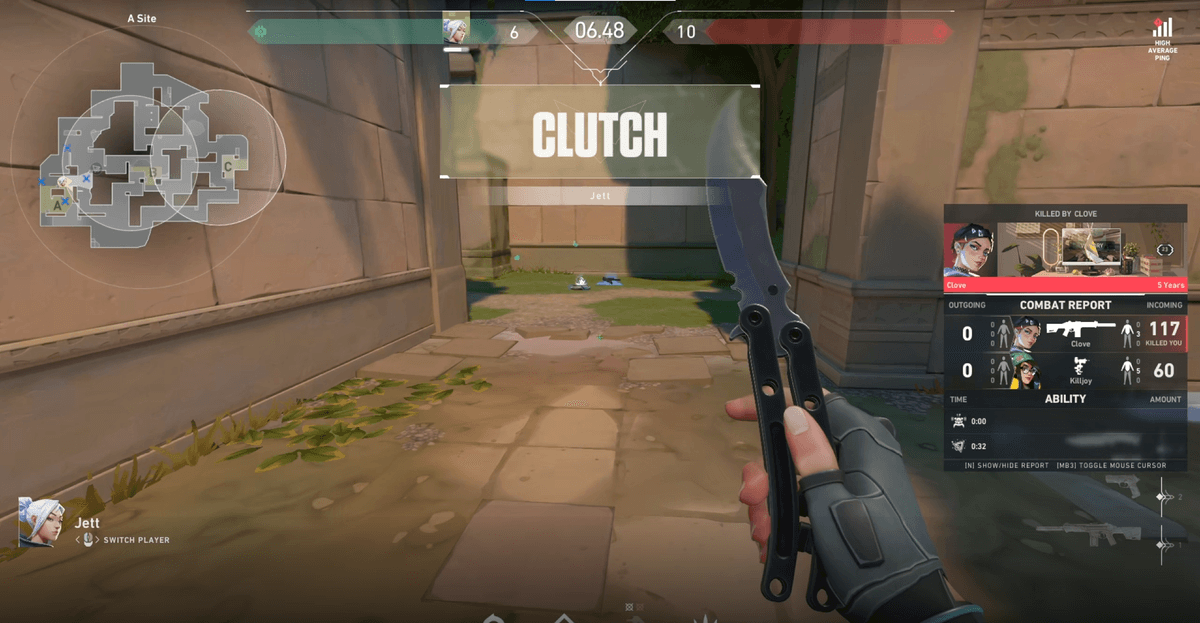
Especially in games that heavily use both CPU and GPU at once, like Valorant or PUBG, if the CPU also has to shoulder encoding, stutter hits in an instant. Because DOR offloads the encoding burden to the GPU, you can keep recording stably even in these situations. If you want to avoid CPU usage problems without complicated configuration, the simplest approach is to use a tool designed for GPU encoding from the ground up.