Let me start with the conclusion: input lag in games mostly drops noticeably when you tackle four things in order: turn off VSync, enable low-latency mode, set your monitor to its refresh rate, and cap your frames slightly below that refresh rate. Without buying expensive new gear, just changing settings in your current setup changes how quickly the screen follows when you move your mouse. Follow along below, one cause at a time.
Starting with what input lag even is
Input lag is the delay from the moment you press a mouse or key until the result is drawn on screen. This delay does not come from one place; it is the sum of several stages: mouse polling, game processing, GPU rendering, and monitor output. So touching just one thing has limits, and the key is to shave a little off at each stage.
Step 1: Turn off VSync (vertical sync)
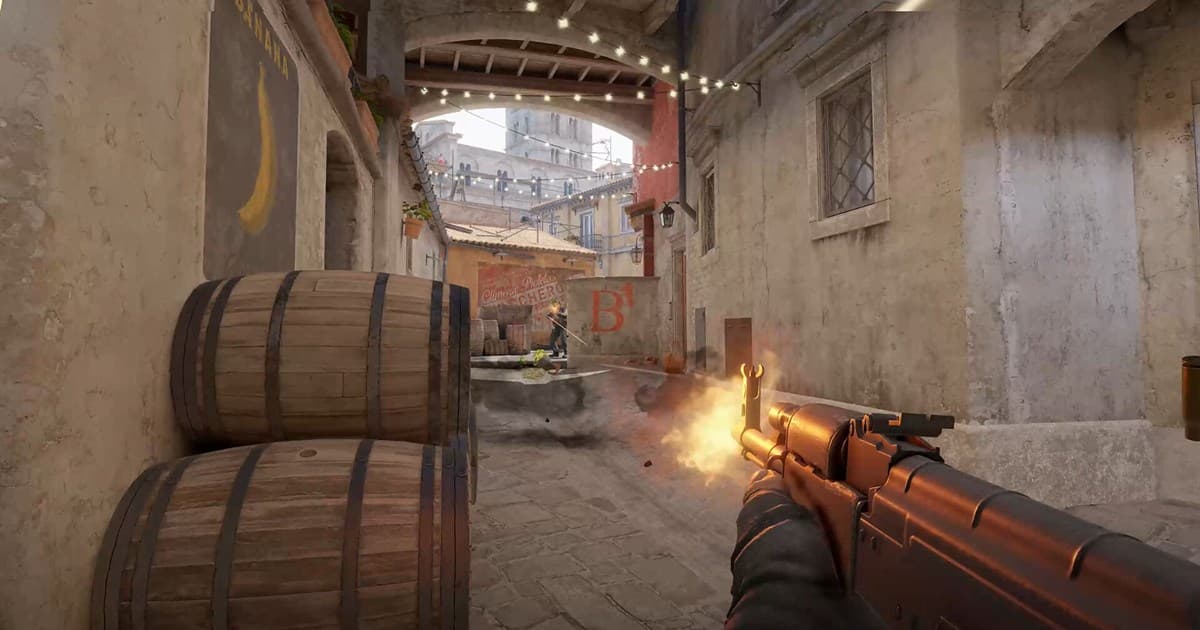
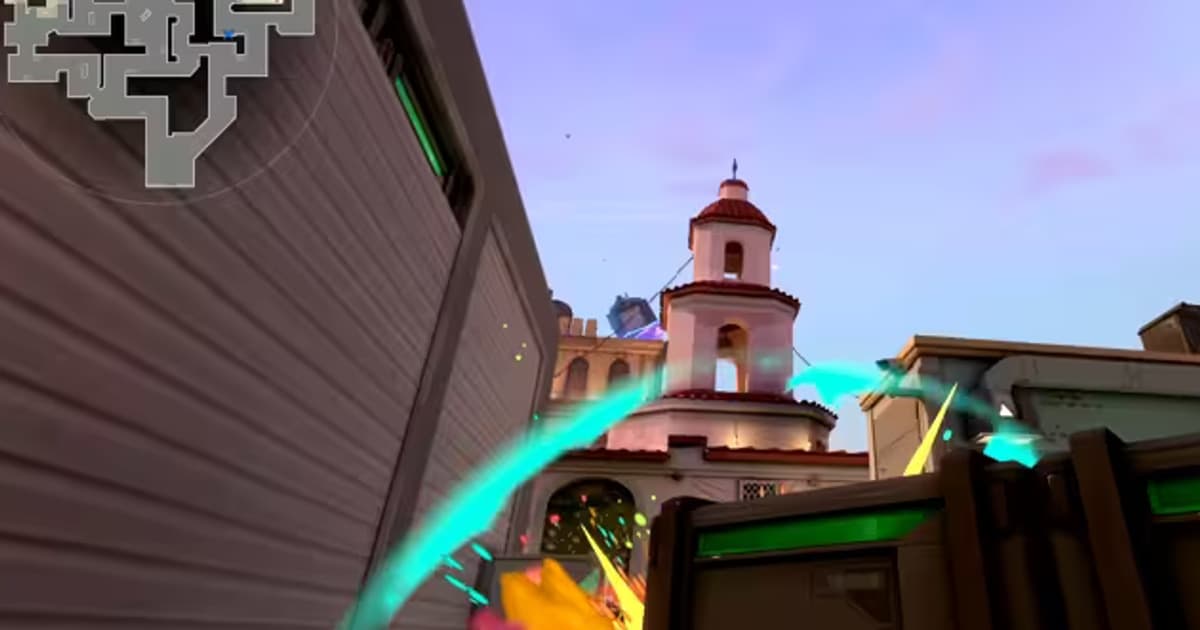
VSync prevents screen tearing, but it holds onto a frame the GPU has finished until the monitor is ready to receive it, making it a classic cause of increased input lag. In games where reaction speed decides wins and losses, like Valorant or Counter-Strike, turning VSync off is better even if the screen tears slightly.
- Turn off VSync (vertical sync) in the game's graphics options.
- Check that global VSync is not on in your graphics card control panel either.
- If tearing bothers you, replace VSync with G-Sync or FreeSync, covered later, instead of turning it off.
Step 2: Enable low-latency mode (Reflex / Low-Latency Ultra)
Low-latency mode keeps the GPU from queuing up too many frames in advance. When a long line of frames is waiting, your input has to wait that much longer to reach the screen, so this works by keeping that line short to reduce delay.
- If the game supports NVIDIA Reflex, turn on Reflex in the game's options. It works most accurately.
- If there is no Reflex, set Low-Latency Mode to Ultra in the NVIDIA Control Panel.
- On an AMD graphics card, turn on Anti-Lag or the matching option in Radeon Software.
In a game like League of Legends, too, when frames stack up excessively, a subtle delay appears between your click and the response, and enabling low-latency mode narrows that gap. As of 2026, low-latency mode is practically a setting you leave on by default.
Step 3: Adjust your monitor settings
It is surprisingly common to change settings only in the control panel while leaving the monitor itself as is. You have to go into the monitor's OSD menu and check directly for it to pay off.
- In Windows display settings, check that your monitor's refresh rate is set to its maximum (e.g. 144Hz, 240Hz). It is often left at 60Hz.
- Turn on G-Sync or FreeSync compatible mode in the monitor's OSD menu. The control panel alone does not apply it.
- If there is an overdrive (response time) option, set it to a middle level to balance ghosting and inverse ghosting.
- Run the game in fullscreen mode when possible. Windowed or borderless can add more input lag.
Step 4: Cap your frames (fps)
With G-Sync or FreeSync, the moment your frames exceed the monitor's refresh rate, sync breaks and input lag spikes. So it is more stable to lock your max frames slightly below the refresh rate.
- On a 144Hz monitor, cap around 141fps; on 240Hz, around 237fps.
- If the game has an in-game frame cap option, use that first.
- If the game has no option, use an external frame limiter like RTSS to set the same value.
- Turn on Windows Game Mode so the game process gets priority.
What to watch out for when recording while you play
Even after reducing input lag well with the settings up to here, a heavy recording program steals GPU and CPU resources, frames drop, and your response ends up slow again. DOR uses low-overhead capture, designed to record with little impact on input lag, so you can leave clips behind while keeping the responsiveness you just dialed in almost intact.
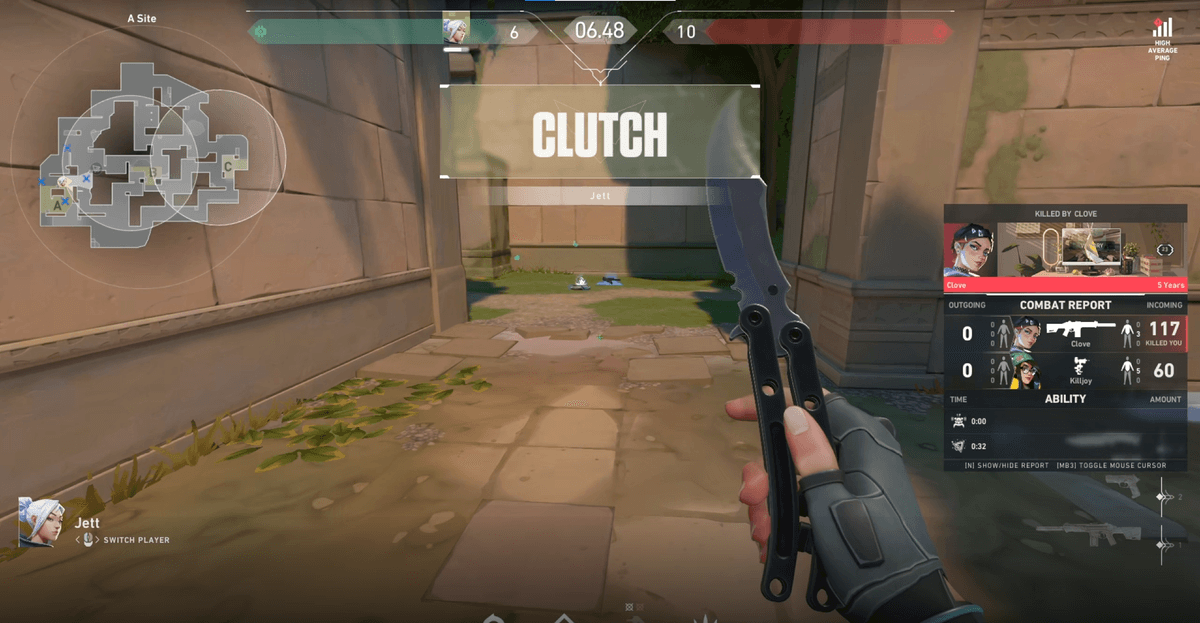
Especially in games where a single shot's response matters, like Valorant or Counter-Strike, recording overhead comes right back as feel in your hands. In a game like League of Legends, too, a frame drop during a teamfight makes your controls lag, so keeping the load down with lightweight capture is the safe move.
Wrapping up
Input lag is not solved in one shot; it is work you stack up to reduce stage by stage. Turn off VSync, enable low-latency mode, set up your monitor properly, and cap frames just below the refresh rate. And if you want to record your play, take care to use a low-overhead capture tool too, and you can keep your responsiveness while not missing the good moments.