Here is the bottom line: mp4 is the safest pick for editing and uploads, while mkv is better for stability during recording. So the standard play is "record in mkv, then convert to mp4." The two are not different in quality; they are just different boxes (containers) holding the same video, so converting does not cut quality, it only swaps the box. This article covers, in order, how to save as mp4, how to change mkv to mp4, and the real difference between the two formats.
First, let's clear up one term. mp4 and mkv are file shells called "containers." The actual video data inside them (a codec like H.264) can be identical, and with the same codec and same settings, the quality is exactly the same whether it is mp4 or mkv. In other words, the question "which format is higher quality" is actually meaningless; the real difference comes down to compatibility and stability.
Why mp4 gets used like a default
There is exactly one reason mp4 is used like a de facto standard: compatibility. Platforms like YouTube, Instagram, and TikTok, editing programs like Premiere Pro, DaVinci Resolve, and CapCut, and the default players on Windows, Mac, and smartphones all recognize mp4 right away. When you drop a recorded Valorant clip straight into an editor or share it over Discord or KakaoTalk, mp4 is the format that runs into "the file won't open" the least.
So why does OBS recommend mkv?
When you use OBS, recordings often save as mkv. It is confusing at first, but there is a reason. mp4 writes the video's table-of-contents info (called the moov atom) to the very end of the file the moment recording "finishes normally." So if OBS crashes mid-recording, the power suddenly cuts out, or the disk fills up, this index never gets written and the entire file becomes unopenable.
mkv is built differently, so even if recording stops abnormally, most of what was recorded up to that point survives. It means that if a crash hits at the end of a multi-hour League of Legends marathon or a tournament recording, mp4 might lose the whole thing, but mkv lets you salvage everything up to the cutoff point. That is why OBS's official recommendation is "record in mkv and convert to mp4 afterward if needed."
Saving recordings straight to mp4 in OBS
If your recording is short and you are not too worried about crashes, you can set it to save as mp4 from the start. Here is the order in OBS.
- Open 'Settings' from the top menu in OBS.
- Select 'Output' in the left tab.
- Scroll down to the 'Recording' section and find the 'Recording Format' dropdown.
- Select 'mp4' from the list and click 'Apply, then OK.'
- Now your recordings will save as .mp4.
The safer way: record in mkv, then auto-convert to mp4
OBS has a feature that "records in mkv but automatically converts to mp4 once recording ends." It is the best way to get both stability and compatibility, so for long, important recordings, this is the approach to use.
- Under 'Settings, then Output, then Recording,' leave the recording format as 'mkv.'
- Move to the 'Advanced' tab on the left.
- Turn on the 'Automatically remux to mp4' option in the 'Recording' area.
- Click 'Apply, then OK.'
- Now it records safely as mkv, and when you stop recording, an mp4 file is automatically created alongside it in the same folder.
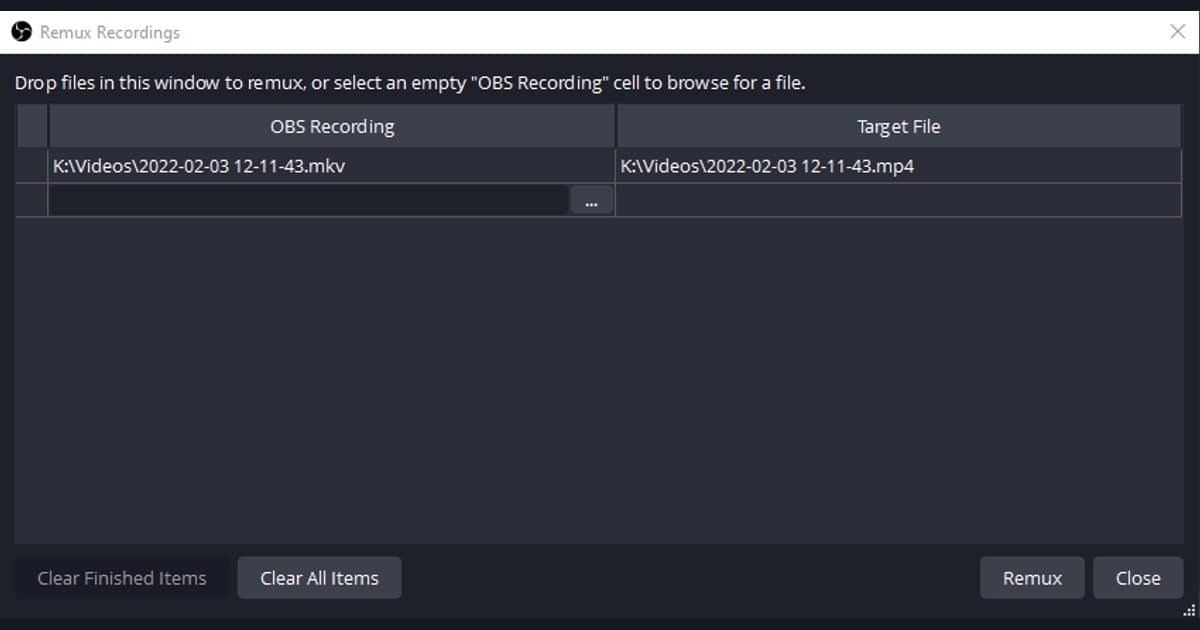
Converting an existing mkv to mp4 (remux)
If you already have a file recorded in mkv, you can convert it to mp4 right inside OBS. The method here is a 'remux,' which swaps only the shell to mp4 without re-encoding the video, so it loses no quality at all and is very fast.
- Open 'File, then Remux Recordings' from the top menu in OBS.
- Add the mkv file you want to convert in the left input field.
- Set the save location and mp4 filename under 'Target File' on the right.
- Click the 'Remux' button to start the conversion.
- When the conversion finishes, an mp4 file of the same quality is created.
mp4 vs mkv at a glance
- Compatibility: mp4 is recognized instantly on most platforms, editors, and devices; mkv may not open on some devices and apps.
- Stability: mkv preserves footage up to the cutoff even during a crash or power loss; mp4 can have the whole file corrupted on an abnormal shutdown.
- Quality: with the same codec and settings, the two are completely identical; the container has no effect on quality.
- File size: for the same video they are practically similar, with mkv being marginally larger.
- Editing and uploads: mp4 is overwhelmingly more convenient; mkv often needs conversion before editing or uploading.
- Standard workflow: record important, long sessions in mkv and convert to mp4 when done.
DOR has no conversion step at all
That covers the standard way of handling mp4 in OBS. But if fussing over "record, then check format, then convert" every time is a hassle, there is another option: use a tool that needs no conversion in the first place. The game recording program DOR saves to mp4 that is ready to use for editing and sharing, so there is no conversion step to change mkv to mp4 at all.
DOR automatically turns the standout moments of your gameplay into clips, and those clips are saved as mp4 from the start. So when you record a Valorant ace or a League of Legends teamfight, you can drop it straight into an editor or post it directly to YouTube Shorts or Instagram Reels without changing the format separately. With no digging through format settings or pressing a remux button, the file you recorded is already the file you can share.
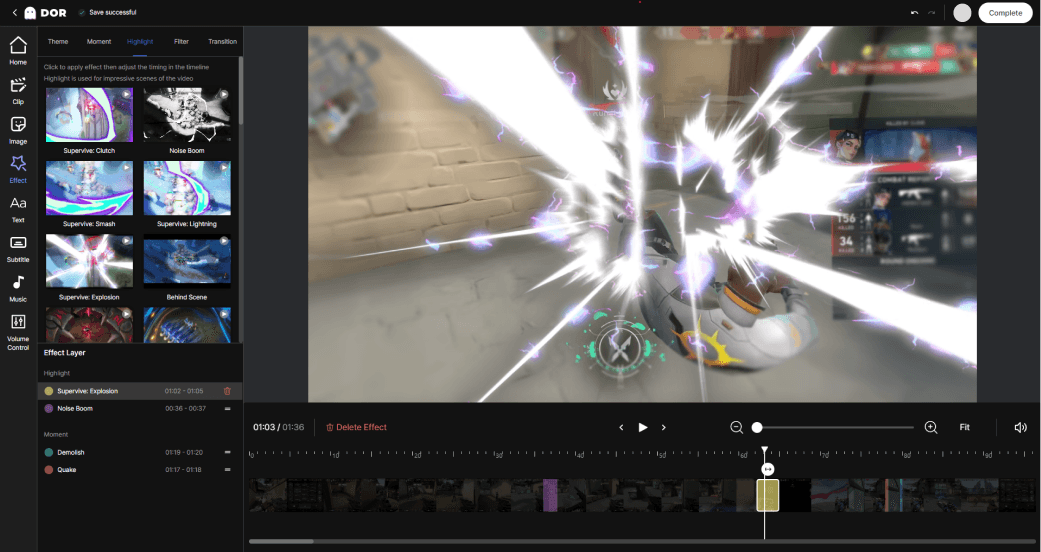
To sum up, if you use a tool you configure directly like OBS, it is safest to remember the flow of 'record safely in mkv, then convert to mp4.' Conversely, if you want an mp4 result straight away with no conversion step, a tool like DOR that saves as mp4 from the start saves a lot of time. Choose based on whether your recording goal is 'preserving a long original' or 'uploading right away.'