Here's the bottom line: a free Discord account only lets you upload up to 20MB per video (raised from 10MB in August 2026). A 1080p game clip at a typical 8Mbps hits that limit in about 20 seconds. To send a clip over the limit, you have two routes: compress the file to get it under 20MB, or turn the video into a link and just paste that address into the chat. The link method is the cleanest, since the size limit doesn't apply to it at all.
First, check Discord's video upload size limit
As of 2026, Discord's file upload limit differs by plan. Checking which tier you're on first makes it easier to set your target size for compression.
Example: a 1080p clip at 8Mbps is about 1MB per second, so the 20MB limit is roughly 20 seconds.
| Recording setting (assumed bitrate) | Free 20MB | Nitro Basic 50MB | Nitro 500MB |
|---|---|---|---|
| 720p30 at 5Mbps | ~32 s | ~1 min 20 s | ~13 min 20 s |
| 1080p30 at 8Mbps | ~20 s | ~50 s | ~8 min 20 s |
| 1080p60 at 12Mbps | ~13 s | ~33 s | ~5 min 33 s |
- Free account: 20MB per file (raised from 10MB in August 2026)
- Nitro Basic (monthly subscription): 50MB per file
- Nitro (higher subscription): 500MB per file
- Discord is experimenting with upload limits, so some users may be allowed larger files
Discord raised the free limit from 10MB to 20MB in August 2026 (per its official File Attachments FAQ). Don't set your compression target from an older article's 10MB or 25MB figure. One caveat from the same FAQ: the size is now checked before compression, so look at the actual file size before you send.
Method 1. Compress the clip to get it under 20MB
For a short clip, compression alone gets you under the limit. We'll walk through the steps using HandBrake, a free video compression tool. For the more detailed order of operations (length first, then bitrate, then resolution), see Discord Video File Too Large: Shrink Game Clips Without Ruining Them, which walks through it while keeping quality intact.
- Open HandBrake and load the clip file you want to share.
- Set Format to MP4 and the codec to H.264. This is the most compatible with Discord's preview.
- Lowering the resolution from 1080p to 720p cuts the size by nearly half.
- If you set the bitrate manually, try starting around 2,000 to 2,500kbps for a 30-second clip.
- Hit Start Encode to convert, then check that the resulting file is under 20MB.
Method 2. Upload to the cloud and share a link
If a clip is too long to shrink even with compression, the link method is the answer. Upload the video to a cloud service like Google Drive, Dropbox, or OneDrive, then just paste the share link into the Discord chat. Since the file doesn't pass through Discord's servers, the size limit doesn't apply.
- Upload the clip file to a cloud drive.
- Change that file's share setting so anyone with the link can view it.
- Copy the generated link and paste it into a Discord channel or DM.
- When the other person clicks the link, the video plays or downloads right away in their browser.
That said, this method requires adjusting share permissions every time, and the recipient has to leave Discord and move to another tab. The preview doesn't always show up cleanly inside the chat, which adds one more step.
Method 3. Share instantly with a DOR link
The fastest route is to use clips that are made as links from the start. With DOR, when you record your gameplay you can share the clip right away with a single link, getting around Discord's size limit. No need to compress, and no need to upload to the cloud separately.
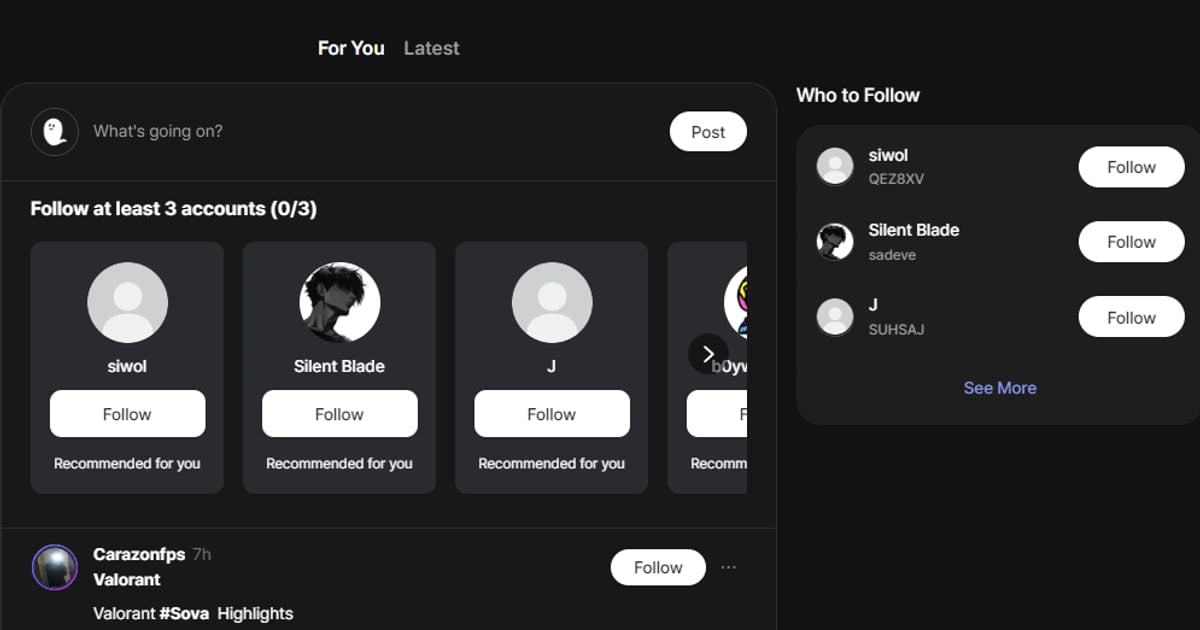
- Record a game moment with DOR, or open a clip you've already saved.
- Hit the share button to copy the clip link.
- Paste the link into a Discord channel or DM.
- Your friend clicks the link and plays the clip right away. It has nothing to do with file size limits.
This method is especially handy when sharing per-game highlights as a bundle. You can drop a Valorant ace into your Discord stats-sharing channel and a League of Legends pentakill into your duo's channel, each with a single link. No worries about compression mushing up the quality, either.
Wrap-up: choose the method that fits your clip length
For a short moment of 20 to 30 seconds, compression is plenty to get you under 20MB. For a highlight over a minute long or a video where you want to preserve quality, link sharing is the answer, and among those, a DOR link gets it done in one step with no extra work. Just pick your method based on the length of the clip you're sharing and how much you care about quality.