Let me start with the conclusion: the two biggest ways to boost Valorant FPS are turning on multithreaded rendering in the video settings and lowering detail quality to low. Touching just these two options can raise your frames by 20 to 50% on CPUs with four or more cores. The rest of the options add to this by improving stability and reducing stutter. Below, we look at each option's effect one by one, and at the end you can plug in the recommended values that match your PC spec.
The short answer: multithreaded rendering on + detail quality low
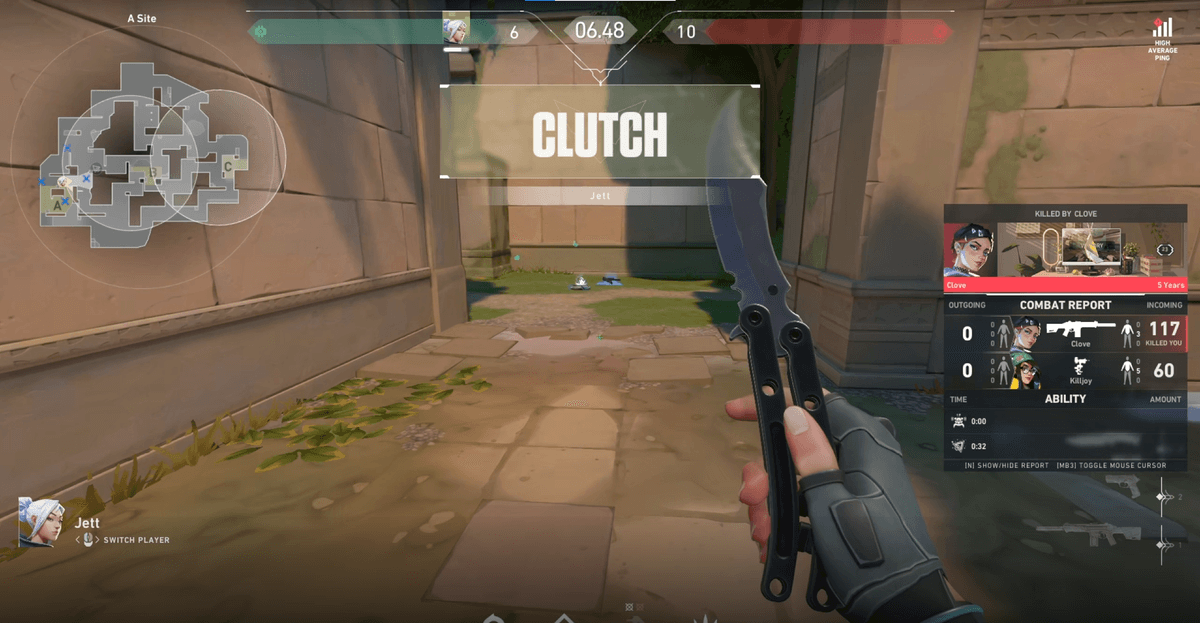
Two options are the answer. In the video settings turn multithreaded rendering on and set detail quality to low; on a CPU with four or more cores that alone lifts frames by 20–50 percent. Low-end PCs also drop material, texture and UI quality to low with anti-aliasing off, while mid-range and above keep texture and UI at medium with MSAA 2x, anisotropic 4x and NVIDIA Reflex on + boost. The goal is to hold a frame rate above your monitor's refresh rate. The catch is that once you turn on a recorder, that headroom often disappears again. DOR uses NVIDIA NVENC hardware encoding by default, so the load on game frames is small, and it detects VALORANT, records the whole match and saves kills and rounds as automatic clips, so you keep your frames and your ace. Below we look at each option's effect and the recommended values per PC tier.
Basic settings to check first
Before you touch per-option quality, getting the foundational items right makes the effect of your later settings much clearer. Check the following under Settings > Video > General.
- Display Mode: Fullscreen. It has less input lag and gives higher frames than windowed or borderless window modes.
- Frame Cap: 10 to 20 above your monitor's refresh rate. For 144Hz, setting it around 160 reduces input lag.
- VSync: Off. It reduces screen tearing but increases input lag and cuts frames.
- Anti-Aliasing: MSAA 2x or off. Off for low specs, and only up to 2x if you have headroom.
FPS impact by option
Valorant's video settings vary widely in how much each item affects your frame rate. We have ordered them by impact, so start from the top.
Multithreaded rendering, the biggest effect
This single option delivers the largest frame increase. On a CPU with four or more cores, just turning it on can give you 20 to 50% more frames. It is on by default, but it is sometimes off, so make sure it is set to on under Settings > Video > Graphics Quality.
Detail quality, the second biggest effect
This is the heaviest option in Valorant. It controls the fine detail of backgrounds and effects unrelated to gameplay, and Riot themselves have called it one of the few options that affects performance across all specs. Lowering it gives you a noticeable frame increase.
Material quality and texture quality
It is safe to leave material quality on low. For texture quality, there is almost no visual difference between medium and high, while medium gives about a 4% frame gain, so set low for low specs and up to medium if you have headroom.
Effect quality, bloom, and distortion
Keep effect quality on low. Bloom is a light-emphasis effect with a 1 to 2% frame impact but little visual benefit, and distortion is a scope refraction effect with an even smaller impact. Neither hurts your play if turned off, so set them both to off.
First-Person Shadows (Cast Shadows)
This option adds shadows to your hands and weapon and eats up about 2 to 3.5% of your frames. Beyond the frame reason, it adds visual noise to the screen and can obscure enemies, so turning it off is better for your aim.
Recommended settings by spec
These are recommended values bundling the options above to match your PC spec. Find your tier and plug them in directly.
Low-end, integrated graphics or older laptop
- Multithreaded Rendering: On
- Material, Texture, Detail, UI, Vignette: all low
- Anti-Aliasing: Off, Anisotropic Filtering: 1x
- Bloom, Distortion, First-Person Shadows, Experimental Sharpening, Improved Gameplay Clarity: all off
- Target frames: prioritize a stable 60 to 120
Mid-range, GTX 1650 or RTX 3050 class
- Multithreaded Rendering: On
- Material: low, Texture: medium, Detail: low, UI: medium
- Anti-Aliasing: MSAA 2x, Anisotropic Filtering: 4x
- Bloom, Distortion, First-Person Shadows: off, NVIDIA Reflex: On+Boost
- Target frames: a stable 144 or above on a 144Hz monitor
High-end, RTX 4060 or above with a high-refresh monitor
- Multithreaded Rendering: On
- Material: low, Texture: medium, Detail: low, UI: medium (based on pro settings)
- Anti-Aliasing: MSAA 2x, Anisotropic Filtering: 4x
- Bloom, Distortion, First-Person Shadows, VSync: off, NVIDIA Reflex: On+Boost
- Frame Cap: on a 240 to 360Hz monitor, set it to the refresh rate ceiling
Wrapping up with Windows and drivers
Once your in-game settings are done, you need to align the Windows side too for stuttering to drop. Apply the following in order.
- Turn on Settings > Gaming > Game Mode to funnel system resources to Valorant.
- Set your power option to High Performance.
- Update your graphics driver to the latest version.
- Close unnecessary background programs like Discord and recording overlays.
Keeping your FPS while still capturing your best moments
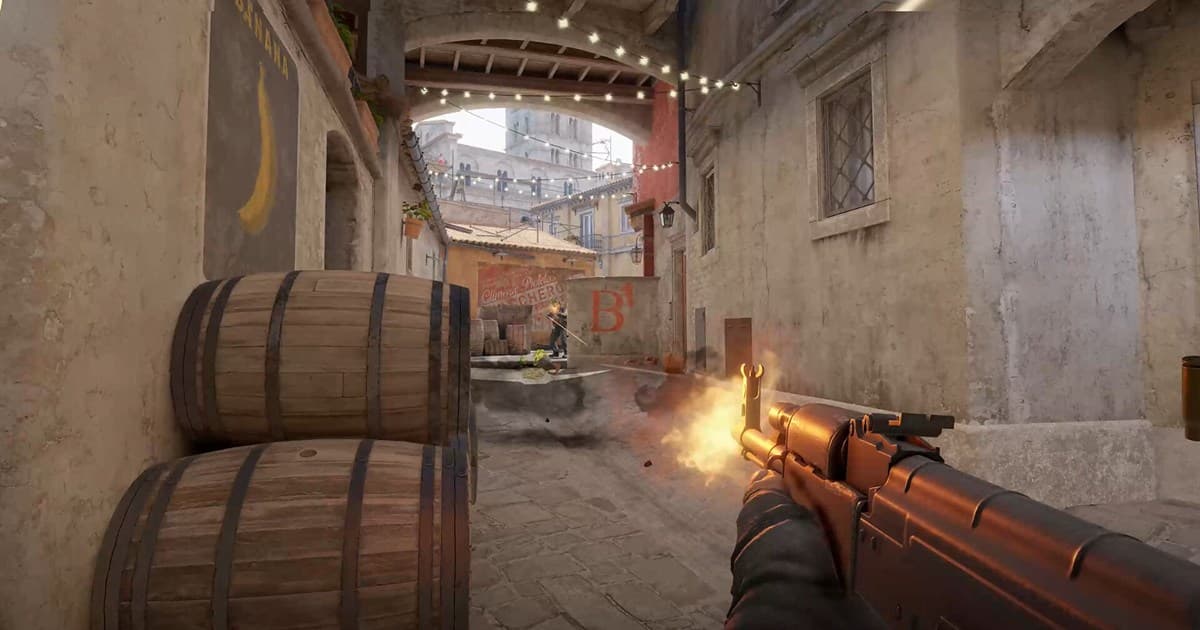
In Valorant, FPS translates directly into aim accuracy. That is why it is most frustrating when a heavy recording program cuts back into the frames you worked to gain. DOR uses low-overhead capture, so it records while keeping your FPS, and automatically saves moments like aces and clutches as clips. After you finish your settings, run one round of Valorant through DOR and you will see that only the best moments remain, with no frame loss. It works the same way in other FPS titles where frames matter, like Counter-Strike.