Let me start with the conclusion: Valorant pro crosshairs do not need to be set by hand. Copy the single line of code a pro shared, paste it into the import field in your settings, and the exact same reticle as that player is created right there. Below, the application steps, the most frequently used codes, and how to read a code are laid out in order.
What Is a Crosshair Code
A crosshair code is a one-line string that compresses the shape of a reticle into letters and numbers. Settings like color, length, thickness, outline, and whether there is a center dot are all packed into this one line, so just by exchanging the code anyone can reproduce the exact same reticle. Unlike the days of matching it by eye from a screenshot, now a single copy and paste does the job.
Steps to Apply a Code (Settings, then Crosshair, then Import)
- Open the gear icon (Settings) at the top right of the Valorant main screen.
- Move to the 'Crosshair' tab in the top tabs.
- Press the 'Import Profile Code' (Import Profile) button at the top right.
- Paste the code you copied into the input field and press 'Import,' and it is reflected in the preview right away.
- If you like it, leave it as is; if you only want to change the color, just adjust the color value separately.
A Collection of Pro Crosshair Codes
Below are the most copied pro players' codes as of 2026. Copy the whole code and paste it into the import field above. Each player has different tastes in color, thickness, and whether to use a center dot, so I recommend trying a few in turn and picking the one that shows up best to your eyes.
TenZ, Thin Cyan, No Center Dot
Code: 0;s;1;P;c;5;h;0;m;1;0l;4;0o;2;0a;1;0f;0;1b;0;S;c;4;o;1, this is one of the most minimal reticles in the pro scene. The black outline keeps the cyan line from getting lost even against bright backgrounds, and it barely covers the screen, which is an advantage for headline aiming.
Aspas, Small Cyan Cross, Center Gap
Code: 0;s;1;P;c;5;o;1;0l;4;0v;3;0g;1;0o;0;0a;1;0f;0;1b;0;S;c;0;s;1.2;o;1, it is slightly larger than TenZ's with a small gap in the center, giving a good balance between precise aiming and a spray reference point. It suits people who prefer a sharp, distinct sense of impact.
Demon1, Crisp White Cross
Code: 0;S;d;1;P;c;6;h;0;0l;4;0t;0;0o;3;0a;1;0f;0;1b;0, a classic white cross with sharp lines. If an ultra-minimal reticle feels like it disappears from your sight during a fight, a code with distinct lines like this is more stable.
How to Read the Code Format
A code is a list of keys and values separated by semicolons (;). Knowing just a few keys lets you fine-tune a code yourself.
- c, color. Depending on the number, white, cyan, green, pink, and others are assigned.
- l, length. Sets how long each line segment is. Longer is more visible.
- t, thickness. The thicker the line, the larger the value.
- o, outline/offset. Governs how much the center is open and the black border.
- a, alpha. At 1 it is fully opaque; lower values make it more translucent.
- d/m, additional options like whether to show the center dot (dot) and movement error.
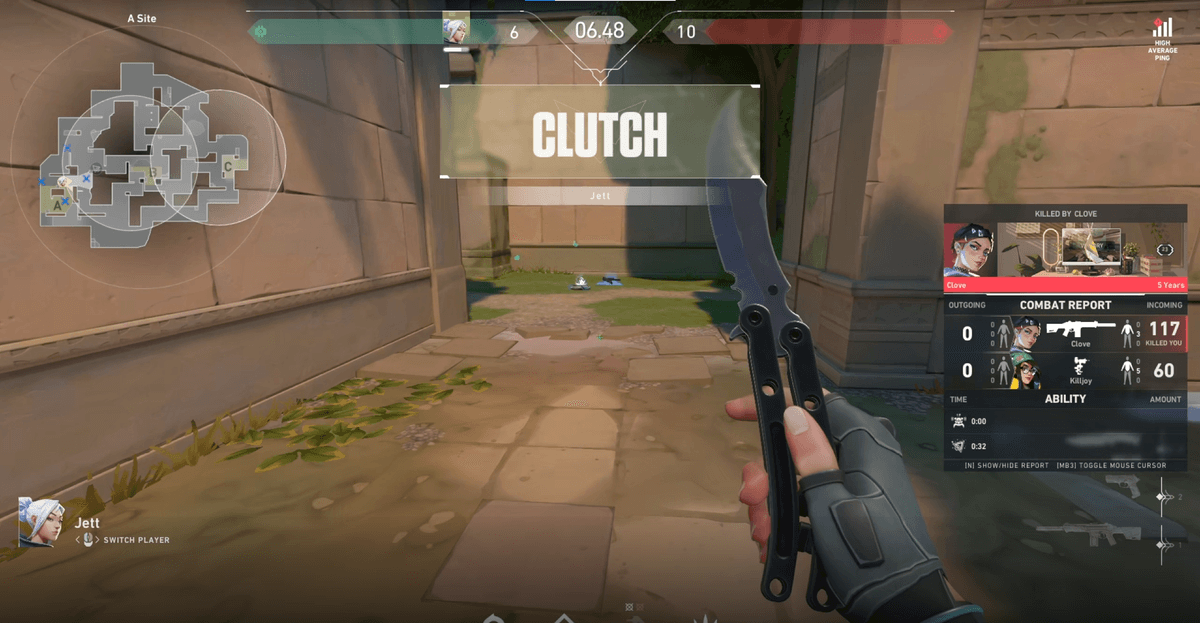
Once you have your reticle set with a pro code, it would be a shame to miss the great moments you earned with your own hands. The aces you land with your reticle are saved by DOR as automatic clips. While you focus on the game, your kill and ace moments are kept for you, so it is great for reviewing later to see which crosshair fit you well. It works the same way not just in Valorant but in other FPS games like Counter-Strike.
Wrap-Up
Pro crosshair codes apply instantly just by copying them and pasting them into the import field. Try the TenZ, Aspas, and Demon1 codes in turn, pick the one that fits your eyes best, and lightly tweak just the color and thickness with the c, l, t, o, and a keys to complete your own reticle. The best moments you make with the reticle you settle on are saved by DOR for you.