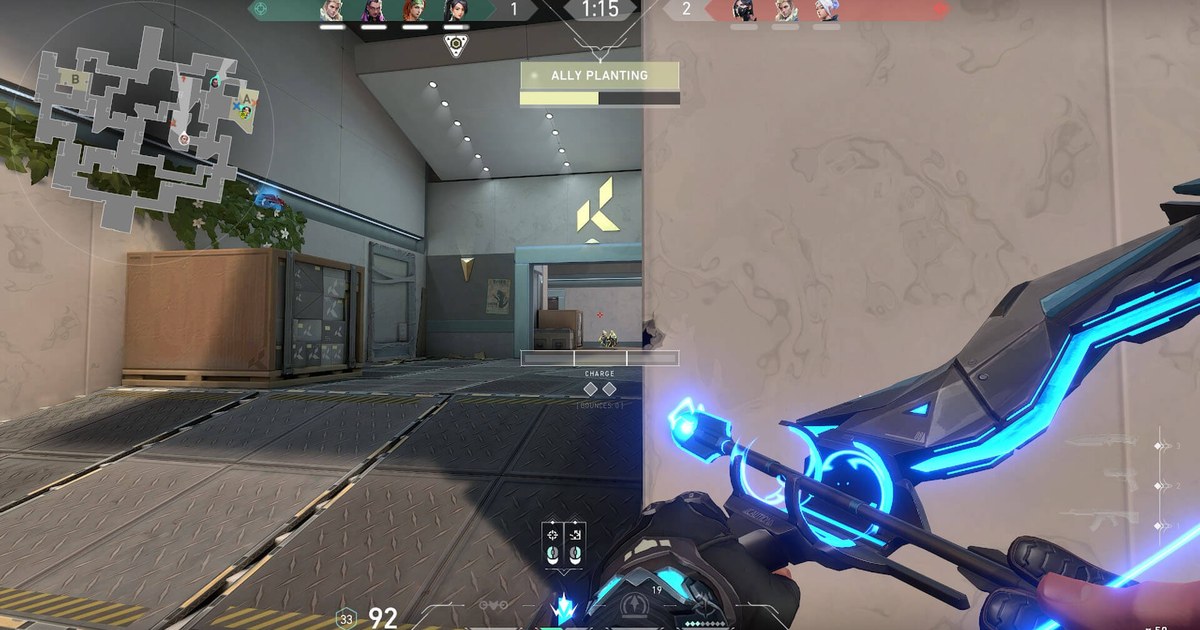

If you recorded VALORANT with OBS and got audio but a black picture, here is the short answer. Update OBS to the latest version, and if the screen is still black, replace your Game Capture source with Window Capture. Try those two first.
VALORANT runs Riot Vanguard, an anti cheat system, while OBS Game Capture works by attaching a capture hook to the game. When the two do not get along, the source stays black.
Other common causes are fullscreen mode, where the game stops drawing frames as soon as you alt tab, laptops where OBS and the game run on different graphics cards, and overlay programs that collide with the capture. This guide is based on the official OBS documentation as of November 29, 2026.
It lists the likely cause for each symptom and the order to fix things in, and closes with a way to record VALORANT automatically without choosing a capture method. If fullscreen recording goes black in other games too, also read when fullscreen game recording is not working.
VALORANT recording black screen: causes and fixes by symptom (as of 2026-11-29)
| Symptom | Likely cause | Fix |
|---|---|---|
| Only the Game Capture source is black, other windows show fine | OBS capture hook and Vanguard do not match (OBS 31.0 and similar) | Update OBS to the latest version, and switch to Window Capture if it is still black |
| Goes black when you alt tab or minimize | A fullscreen game stops drawing frames while minimized | Set Display Mode to Windowed Fullscreen and confirm with a test recording |
| Black only on a laptop | OBS and VALORANT run on different graphics cards | Set both OBS and VALORANT to High performance in Windows graphics settings |
| Capture fails only with an overlay on | Conflict with on screen display tools such as RivaTuner, MSI Afterburner or the Discord overlay | Turn off overlays and FPS counters, then reconnect the OBS source |
| Even Display Capture is black | On older OBS or Windows builds, the monitor and OBS use different GPUs | Update OBS and Windows, then set Capture Method to Windows 10 (1903 and up) |
| Preview shows only part of the screen or the wrong size | The source is stuck at the wrong size | Reset the source transform, then fit it to the screen |
| None of the above works | Antivirus or security software blocks capture, or permissions are missing | Add OBS to your security software exceptions and run OBS as administrator |
Check your OBS version first, then switch to Window Capture if needed
Start with your OBS version. The official OBS knowledge base article on the capture hook certificate update includes a compatibility table for anti cheat software.
Riot Vanguard (VALORANT) is marked as failing on OBS 31.0, which was signed with only the new certificate, and as working on 31.1 and later, which are signed with both certificates. So if you are still on a 31.0 build, simply updating may clear the black screen.
If you are on the latest version and Game Capture is still black, do not spend long on it.
In July 2026 there were reports of Game Capture going black in VALORANT and League of Legends, and OBS said at the time that the cause was likely on the Vanguard side, advising players to use Window Capture or another method until it was resolved.
Players later reported that capture worked again after a Vanguard update. Because Game Capture can work one week and fail the next depending on anti cheat updates, it is less stressful to use Window Capture for VALORANT from the start.
Window Capture takes whatever is shown in the game window, so it does not hook into the game. To check recording stutter and black screens across other games as well, see the game recording stutter and black screen checklist.
How to fix a black VALORANT recording, in order
- 1Check your OBS version and updateOpen Help in the OBS menu and choose Check For Updates to install the latest version. OBS 31.0 builds fail to capture games protected by Vanguard, so be sure to update. After updating, close both OBS and VALORANT and start them again so the capture reconnects.
- 2Set Display Mode to Windowed FullscreenIn VALORANT, go to Settings > Video > General and change Display Mode to Windowed Fullscreen. In Fullscreen, the game stops drawing the moment you alt tab, so the OBS preview can look black. The input latency difference between the two modes is covered in fullscreen vs borderless windowed.
- 3Replace Game Capture with Window CaptureRemove the Game Capture source, add a Window Capture source with the + button, pick the VALORANT window, and set Capture Method to Windows 10 (1903 and up). Before a real match, make a test recording of about 30 seconds to confirm the picture is captured.
- 4Turn off overlays and FPS countersClose programs that draw on top of the game, such as the RivaTuner (RTSS) or MSI Afterburner on screen display and the Discord overlay, then try again. The OBS documentation says that if you keep using RTSS 7.3.2 or newer, you should enable 'Use Microsoft Detours API hooking' in its setup.
- 5Assign the graphics card on laptopsGo to Windows Settings > System > Display > Graphics, add OBS and VALORANT one by one, set each to High performance, and restart both. The full click path is in how to choose which GPU a game uses.
- 6Run OBS as administratorRight click the OBS icon and run it as administrator. The OBS Game Capture troubleshooting guide names VALORANT, alongside Call of Duty, as an example of a game that needs OBS running as administrator to be captured properly. If you want to keep using Game Capture, run OBS as administrator and reconnect the source. If you use antivirus or security software, add OBS to its exception list.
Check before you start recording
- OBS is on the latest version, and you restarted both OBS and VALORANT after updating
- VALORANT Display Mode is set to Windowed Fullscreen
- Your source is a Window Capture pointed at the VALORANT window
- Overlays and FPS counter programs are turned off
- On a laptop, both OBS and VALORANT are set to the high performance graphics card
- A 30 second test recording shows both picture and sound
Tired of choosing capture methods? Let DOR record VALORANT for you
If swapping OBS capture methods one by one feels like a chore, another option is DOR, which detects your game and records it on its own. DOR is a free Windows app.
Leave it installed, launch VALORANT, and it automatically detects the game, records the full match, and collects the recordings in My Clips. VALORANT is one of the games with automatic highlight clips, so kills are saved as separate clips, and aces and clutches get tags.
Quality options on the free plan are 720p or 1080p at 30 or 60fps (1080p at 30fps by default), and on supported NVIDIA graphics cards such as the RTX series it records with NVENC hardware encoding.
In the app you can trim any section to 16:9, 9:16 or 1:1, and in DOR Studio (dor.gg/studio) you can merge clips, add text, BGM and effects such as shake zoom, then export an mp4 or share a dor.gg link. Your results carry no watermark.
Setup tips are in VALORANT recording software, clip picking and saving tips are in how to clip VALORANT, and clips from other players are collected on the VALORANT video hub.