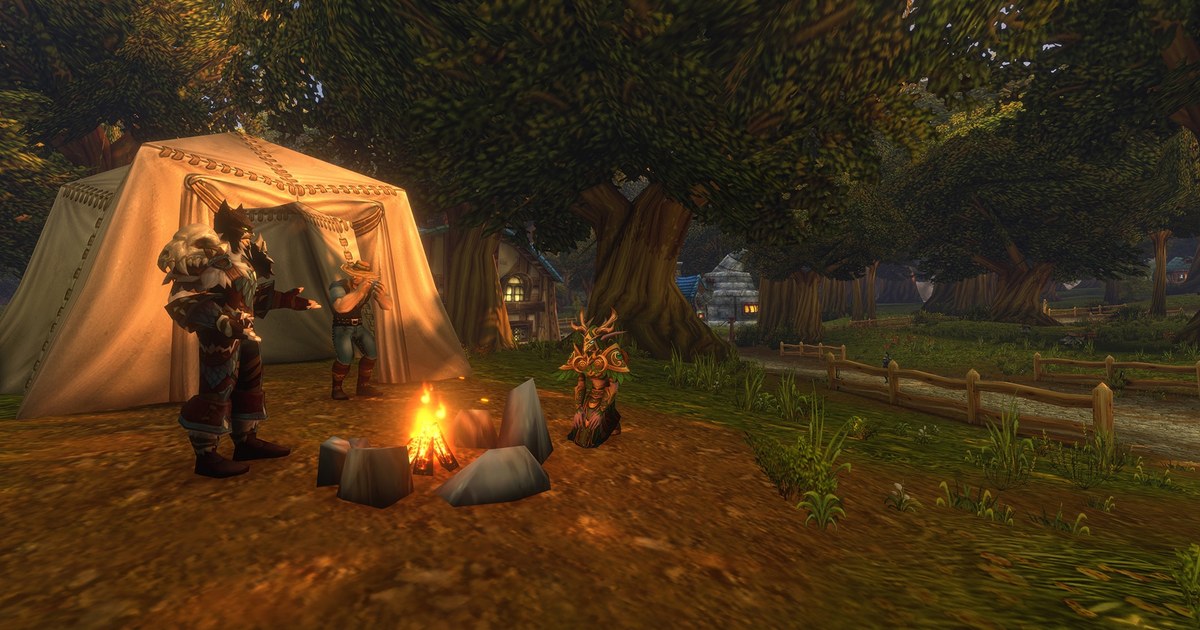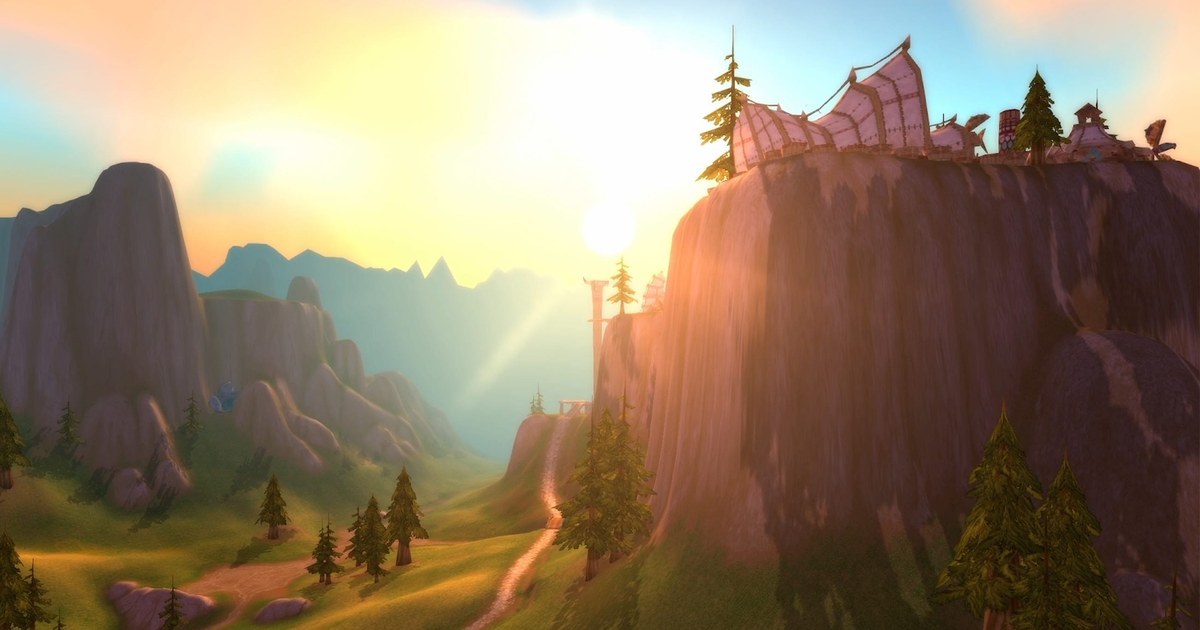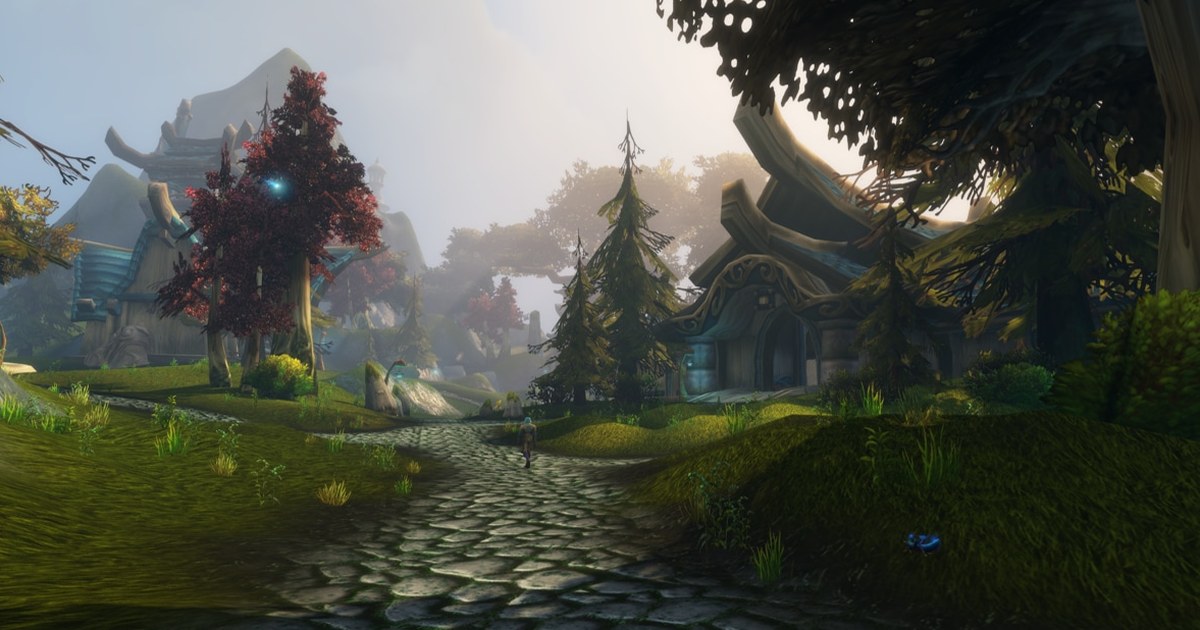

The short answer: do not swap the whole preset. Start WoW Forever at Render Scale 90%, and only if FPS is still short, lower Secondary Lighting, Compute Effects and Shadow Quality one step at a time.
Texture Resolution, Liquid Detail and Spell Density cost very little FPS, so leave them high, and set Max Foreground FPS to your monitor's refresh rate. The launch schedule, subscription and ruleset details are in the WoW Forever launch guide, so this page sticks to settings.
The values below are starting points that several guides and community threads agree on, but every PC behaves differently, so test in a crowded capital or a raid. The setting names are given in English, because your client may translate them.
Short answer: Render Scale 90% first, then only the costly options
Render Scale is the single biggest lever. Go from 100% to 90%, then 80% if you still need more, and keep anything below 75% as a last resort because the image turns visibly soft.
Before touching it you can also drop Secondary Lighting and Compute Effects (the fog and atmosphere effects) from High to Good, but do not push lighting much lower, since the atmosphere flattens out. Shadow Quality at Good or High and SSAO at Good are sensible.
Texture Resolution costs video memory rather than FPS, so keep it on High if your card has the VRAM. There is no DLSS in WoW Forever, only FidelityFX Super Resolution 1.0, so it is not recommended here. Changes only apply after you click Apply, and Ctrl+R shows your current FPS. Other ways to see it are covered in how to show FPS in games.
How to set up WoW Forever graphics step by step
- 1Check your FPS with your own eyes firstStand in a crowded capital and press Ctrl+R to show the current FPS. A quiet spot such as a dungeon entrance tells you nothing about raids, so do not use it as your baseline. More methods are in how to show FPS in games.
- 2Keep Render Scale as the last cardOpen Graphics Quality and start with Render Scale at 100%. Change one item at a time, click Apply, and look at FPS again in the same place. If you need Render Scale, go to 90% and then 80%.
- 3Lower lighting, compute effects and shadows one step at a timeTake the three costly items down one step from High or Good. On a low end PC you can take lighting, fog, shadows and SSAO to their lowest levels and keep only textures on High if you have the VRAM. Old console commands that remove fog turn it off in a way Blizzard did not intend, so it is safer to skip them.
- 4Go lighter for raids and battlegrounds onlyGraphics Quality has a Base tab and a Raid and Battleground tab, so you can use lighter values only in big group fights. Spell Density on Essential keeps the screen cleaner. FPS boosting addons are not recommended, because they narrow your field of view and scenery pops in late.
- 5Adjust brightness and UI, starting with GammaIn Advanced, raise Gamma in small steps for dark zones, and step back if daytime looks washed out. Brightness lifts the blacks too, so touch it after Gamma. In Display, tick Use UI Scale and size the interface to your monitor.
- 6Turn on the convenience optionsIn Controls, enable Auto Loot and hold Shift to loot a corpse manually. Bind the Interact Key close to your movement keys, and turn on Status Text, Target of Target, cooldown numbers and Lock Action Bars so raids are easier on the eyes.
WoW Forever graphics settings starting values (as of November 24, 2026)
| Setting | Starting value | Why |
|---|---|---|
| Render Scale | Start at 100%, then 90% and 80% if needed | The biggest FPS lever. Below 75% the image gets soft, so use that last. |
| Secondary Lighting | Good (High if you have headroom) | Costly in FPS. Going too low flattens the atmosphere. |
| Compute Effects | High, Good if short on FPS | Fog and atmosphere effects with a large FPS impact. Lower this first when you struggle. |
| Shadow Quality | Good or High | Dropping one or two steps from the top level returns noticeable FPS. |
| SSAO | Good | Small FPS cost and it keeps depth in interiors. |
| Texture Resolution, Liquid Detail | High | Texture costs VRAM rather than FPS, and liquid detail costs almost nothing. |
| Spell Density | Essential | Keeps the screen readable when spell effects pile up in raids and battlegrounds, at almost no FPS cost. |
| Max Foreground FPS | Your monitor's refresh rate | There is no point going above the refresh rate, and it can only add heat. |
Check before you finish
- Did you start Render Scale at 100% and only lower it to 90% and 80% when needed?
- Did you change Secondary Lighting, Compute Effects and Shadow Quality one at a time and compare FPS in the same place?
- Is Texture Resolution on High, as long as your video memory allows?
- Is Max Foreground FPS matched to your monitor's refresh rate?
- Did you recheck FPS in a crowded raid or battleground scene?
Record raid scenes with DOR while you check your settings
DOR is a free Windows app. When you launch a supported game it detects it automatically and records, and the recordings gather in My Clips. World of Warcraft is recorded as a whole session from launch to exit.
Forever is a newly added game version, so on your first login day check once that recordings appear in My Clips, and you can also start a recording yourself with screen recording (default hotkey F7).
After changing settings, record one raid and you can replay the footage to see exactly where it stuttered, which makes the next tweak easier. Free recording offers 720p and 1080p at 30 and 60 fps, with 1080p at 30 fps as the default.
Trim the boss kills you want to keep in the app to 16:9, 9:16 or 1:1, then combine them in DOR Studio, add text or BGM, and export an mp4 without a watermark or share a dor.gg link. The sharing steps are in how to share WoW raid kill videos.