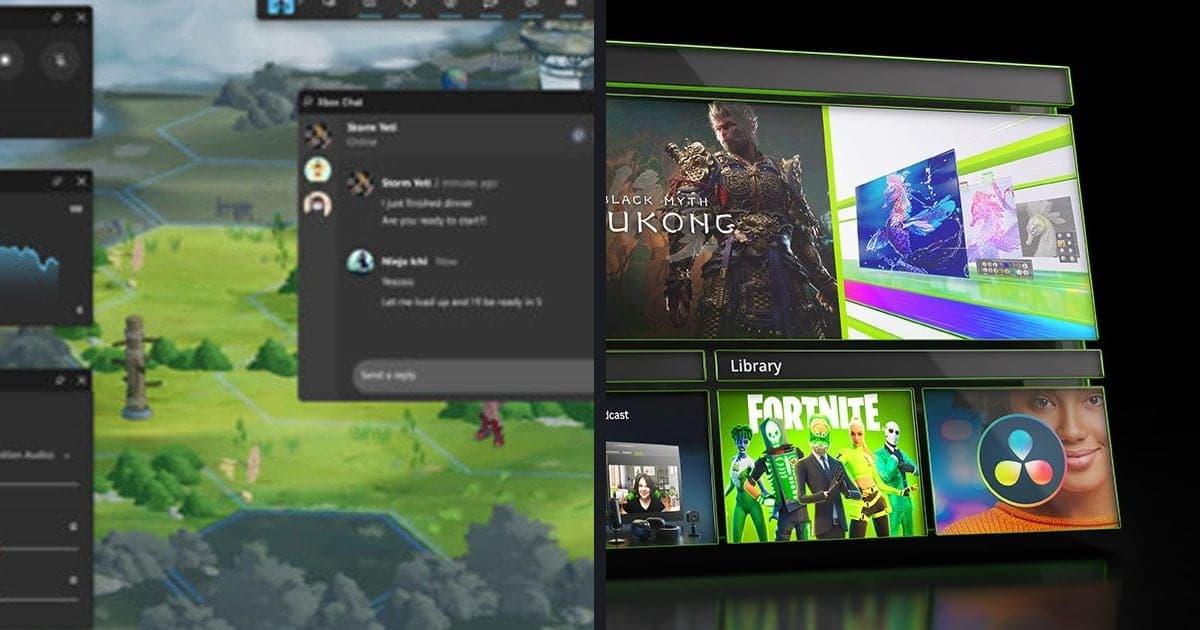
To see your FPS in a PC game, turn on one of three things: the Steam performance monitor, the NVIDIA app overlay (Alt+R by default), or the Performance overlay in Xbox Game Bar (opened with Win+G). The conditions differ. The Steam monitor needs the Steam overlay enabled, and the NVIDIA overlay needs In-Game Overlay switched on with a GeForce RTX or GTX 600-series or later card (checked on September 30, 2026, Windows PC only). If you are already hunting for why your frame rate drops, continue with fixing FPS drops while recording. This guide only covers how to get the number on screen.
Bottom line: Steam monitor for Steam games, NVIDIA overlay for GeForce cards
If you launch the game through Steam, start with the Steam performance monitor: the Steam documentation describes four detail levels, from a single FPS value up to CPU, GPU and RAM. If you have a GeForce graphics card, the NVIDIA app overlay shows metrics such as frame rate, clock speed and GPU temperature. For Xbox Game Bar, this guide only confirms that its Performance overlay has an FPS counter opened with Win+G. No official document says which method is more accurate or lighter, so none is ranked here. Showing a number is a separate topic from recording settings; for those, see NVIDIA game recording settings.
How to turn on an FPS counter
- 1Check that the Steam overlay is on — The Steam performance monitor is shown by the in-game Steam overlay, so check the overlay first. The global switch is the "Enable the Steam Overlay while in-game" toggle on the In Game page of Steam > Settings. Per game, right-click the game in your library, choose Properties... and look for the same checkbox on the General tab. Both come from the official Steam Community Overlay page. The default overlay shortcut is Shift+Tab, which you can change on the same page.
- 2Turn on the monitor under Settings > In Game — In Steam, open Settings > In Game and find the Performance Monitor setting and the detail level option. According to the Steam news post from July 1, 2025, there are four levels: Single FPS Value; FPS Details; FPS Details, CPU & GPU Utilization; and FPS, CPU, GPU & RAM Full Details. You can change the level while a game is running. Size, position and hotkey are set in the Performance Overlay section of the same screen, and you can also adjust font size, color saturation and background opacity. If you only want one number, start with the lowest level.
- 3Read the numbers on screen — Without frame generation you see one line, "FPS XX ↓Min↑Max". The ↓Min and ↑Max values are the lowest and highest single frame within the last second, and ↓Min turns red when it falls below half of the average. If frame generation such as DLSS or FSR is detected, Steam shows FPS including generated frames and the real game FPS as separate values, one second apart. An optional FPS graph plots the one-second average FPS over a 90-second window. CPU % uses the same "% Processor Utility" measure as Windows Task Manager, so it can exceed 100% during boost. GPU memory appears as "6.8/16 GB" and turns red when exceeded.
- 4Enable In-Game Overlay in the NVIDIA app and use Alt+R — Open the NVIDIA app and confirm that In-Game Overlay is on under Settings > Features. NVIDIA support (updated August 4, 2025) says GeForce RTX and GeForce GTX 600-series and later desktop and laptop GPUs can show performance metrics such as frame rate, clock speed and GPU temperature. In game, Alt+R toggles the statistics overlay and Alt+Shift+R cycles the metrics. Change shortcuts through Alt+Z > Settings (gear) > Shortcuts. The document lists Alt+Z > Statistics > Configure heads up display for transparency and the number of metrics; that wording may not match the current app, so check inside the app settings.
- 5Open Xbox Game Bar with Win+G — With the game in focus, press Win+G to open Xbox Game Bar and use the FPS counter in the Performance overlay. This comes from the Game Bar updates record on Microsoft Learn (entry dated September 24, 2019, an archived document). The counter is in Game Bar version V3.33.26001.0 or later, and the same record says the version is shown in the settings behind the gear icon at the top right of Game Bar, which could not be confirmed for the current app. Because the record dates from 2019, the current widget menu path and button names are not given here. If your screen looks different, look for the Performance entry inside Game Bar.
- 6Compare before and after in the same scene — Read the counter during real gameplay, not in a lobby or menu. Games with frame generation turn it off in menus and cutscenes, which is normal, so judging from those numbers alone can mislead you. When you change a graphics option, compare the value in the same scene before and after. The official docs do not compare the accuracy or overhead of the three methods, so keeping to one method for a comparison keeps your reference steady.
The three methods side by side
| Method | How to turn it on (official wording) | Conditions and what it shows |
|---|---|---|
| Steam performance monitor | Under Settings > In Game, find the Performance Monitor setting and the detail level, and set the hotkey in the same place. The default hotkey is not given in the official post. | The Steam overlay must be enabled. It shows FPS, CPU, GPU and RAM in four detail levels in a corner of the screen. |
| NVIDIA app overlay | In the NVIDIA app, turn on In-Game Overlay under Settings > Features, then press Alt+R in game to toggle it. Alt+Shift+R cycles through the metrics. | For desktop and laptop GeForce RTX and GeForce GTX 600-series and later. It shows frame rate, clock speed, GPU temperature and more in the top right of the screen. |
| Xbox Game Bar | With the game in focus, press Win+G and use the FPS counter in the Performance overlay. | A 2019 record says the FPS counter is in Game Bar version V3.33.26001.0 or later. The current widget menu path could not be confirmed for this guide. |
If no counter appears
- "Enable the Steam Overlay while in-game" is on in the In Game page of Steam > Settings and in the game's Properties... > General tab.
- The Steam overlay opens in game with Shift+Tab, or with the key you set on the same page.
- You know the Steam page says the overlay can close on its own under heavy system load and that programs monitoring the system, such as recording software, can interfere, and you closed them and retested.
- In-Game Overlay is on under Settings > Features in the NVIDIA app, and your card is GeForce RTX or GTX 600-series or later.
- If Alt+R does nothing, you checked the current shortcut in the NVIDIA app under Alt+Z > Settings > Shortcuts.
- You know the first version of the Steam monitor focuses on Windows and the most common GPUs, so some data may be missing, and you tried another method when values were empty.
If you also want to record while watching FPS
An FPS counter is handy when you record games too. If the counter stays visible while recording, compare the same scene before and after you start, and you can see how much load recording adds on your PC. You can make the same comparison when you record the full match of a supported game as an mp4 with DOR, a free Windows app. For the whole flow of capturing Steam games, see how to record Steam games, and if your PC is on the modest side, read recording games on a low-end PC.
Official sources checked
The paths and conditions here were checked against official documents on September 30, 2026. The Steam monitor comes from Understanding the In-Game Overlay Performance Monitor, the NVIDIA overlay from NVIDIA App In-Game Performance and Latency Overlay, and the Game Bar FPS counter from Game Bar updates - Windows Insider Program. The overlay toggle and Shift+Tab come from Steam's Steam Community Overlay help page, and the detail level names from the Steam news post "Steam In-Game Performance Monitor" (July 1, 2025). Menu names and shortcuts can change with updates, so confirm them in the app settings.