The short answer: open AMD Software: Adrenalin Edition, turn on Instant Replay in the Record and Stream tab, and press the default shortcut Ctrl+Shift+S during a game to save what just happened.
According to AMD's own support page, it can keep up to the last 20 minutes, adjustable in 15 second steps with a slider. If you press the shortcut and nothing gets saved, read AMD Instant Replay not working: fix list, and if the clip saves without sound, see AMD Instant Replay no audio: fix order.
If pressing a key after every highlight feels like a chore, the DOR option at the end is easier: leave it on and the whole match of a supported game is recorded automatically.
Short version: turn it on, set the length, check the hotkey
Only three settings matter. First, switch Instant Replay on under Record and Stream. Second, set how much to keep with the length slider.
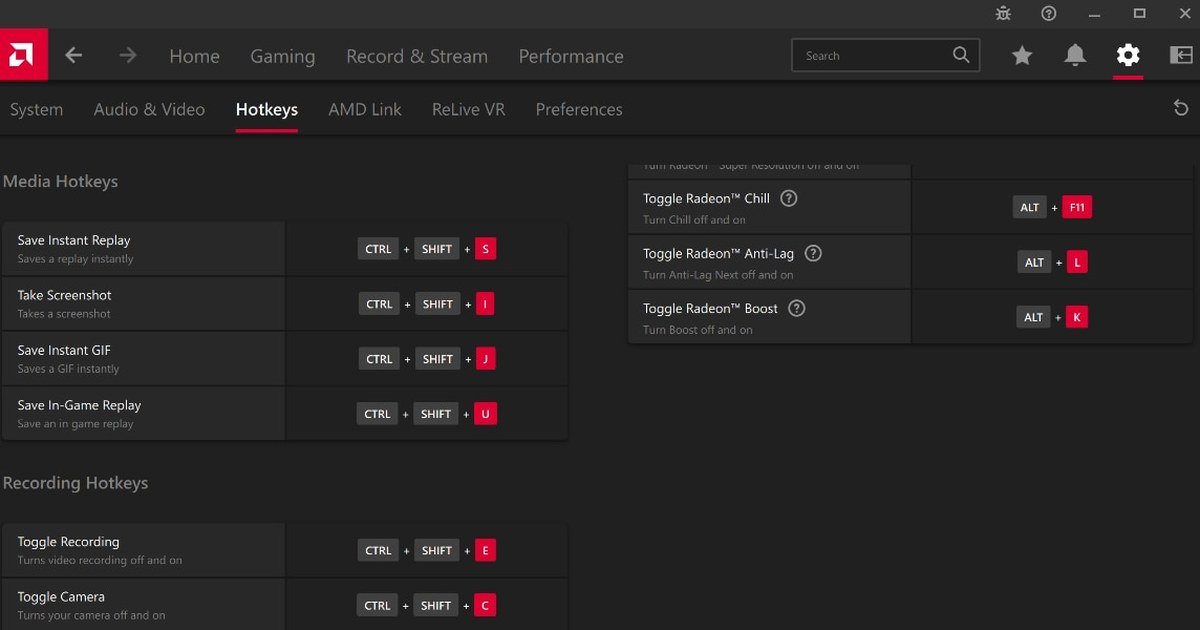
Third, open the hotkey screen in the settings and check which key is assigned to Save Instant Replay. The table below lists the default media and recording hotkeys shown on AMD's official support page, and every one of them can be changed. Some hotkeys need Ctrl or Alt in the combination. To compare other ways of saving the last moments on a PC, see how to record the last 30 seconds on PC.
How to turn on and use AMD Instant Replay
- 1Open AMD Software and go to Record and StreamOpen AMD Software: Adrenalin Edition from the desktop right click menu or the Start menu, then choose the Record and Stream tab at the top. Typing Record and Stream into the search box opens the same screen.
- 2Switch Instant Replay onWith Instant Replay enabled, the software keeps recording your gameplay so you can save recent moments after they happen. After a driver update, check once more that it is still switched on.
- 3Set the replay lengthThe length slider moves in 15 second steps and goes up to 20 minutes. Keep it short if you only want the last half minute, longer if you want the flow of a whole round.
- 4Pick quality and encodingRecording profiles are Low (720p, 60 fps, 5 Mb/s), Medium (in game resolution, 60 fps, 10 Mb/s), High (in game resolution, 60 fps, 30 Mb/s) and Custom. Video encoding can be AV1, HEVC or AVC, and HEVC gives smaller files than AVC. What is available depends on your graphics card.
- 5Check the hotkey and press it in gameIn the hotkey screen under Media Hotkeys, check the key for Save Instant Replay and change it if you like. Press it right after the moment you want, and the length you set is saved as a file, by default in the Radeon ReLive folder under Videos.
Default AMD Software hotkeys (as of November 2026)
| Action | Default shortcut | What it does |
|---|---|---|
| Save Instant Replay | Ctrl+Shift+S | Saves the last moments as a video file |
| Toggle recording | Ctrl+Shift+E | Starts and stops a normal recording |
| Take screenshot | Ctrl+Shift+I | Saves a still image of the screen |
| Save Instant GIF | Ctrl+Shift+J | Saves a GIF between 1 and 30 seconds long |
| Save In-Game Replay | Ctrl+Shift+U | Saves a replay you can watch back inside the game |
| Toggle microphone | Ctrl+Shift+M | Mutes or unmutes the mic while recording |
Checklist before you save
- Is Instant Replay switched on under Record and Stream
- Did you set the replay length with the 15 second slider
- Did you check the Save Instant Replay key on the hotkey screen
- Does the drive with the save folder have enough free space
- If you need sound, did you check the audio capture device and microphone settings
Leave DOR on and supported games record themselves
Instant Replay saves a moment when you press the hotkey after it happens. DOR is a free Windows app: launch a supported game, it detects the game and records the whole match, and everything collects under My Clips in the app.
There is no hotkey timing to think about, and you can trim the part you want and export it as 16:9, 9:16 or 1:1. For League of Legends, VALORANT, PUBG, FC Online, Fortnite, CS2 and Overwatch, highlights such as kills are also saved as automatic clips.
Recordings, edits and shares carry no watermark, and the free plan covers 720p and 1080p at 30 and 60 fps. Another way to rescue a moment that already passed is covered in how to save just the moment you just saw as a clip.