Let me start with the conclusion: you can save a moment that just passed, even if you never pressed the record button beforehand. The secret is the replay buffer. While your game is running, the replay buffer continuously holds the most recent N seconds of video and audio in memory. Then, when you press a hotkey, the N seconds leading up to that exact moment are dropped to a file. In other words, instead of recording the whole screen, it always keeps only a short stretch buffered and pulls it out only when you need it.
So even moments that have already passed, like right after you pull off a clutch or land a sweet combo, can be saved with a single hotkey. In this article, we go through how the replay buffer works, how to turn it on and configure it in OBS, and how DOR handles this whole process automatically.
How the Replay Buffer Saves the Moment You Just Saw
Normal recording writes video to disk starting from the moment you press the start button. Anything before that press exists nowhere. The replay buffer works the other way around. With the buffer on, the program keeps cycling only the most recent N seconds in memory. As new footage comes in, it discards the oldest part, always keeping just the last N seconds.
Because this entire N seconds is alive in memory, the moment you press the hotkey you can immediately move that stretch to a file. That is exactly why you don't need to turn recording on in advance. It doesn't pile video onto your disk throughout the game; it keeps only the moments you truly want to save, so it uses little space and puts little strain on your system.
Turning On the Replay Buffer in OBS
If you use OBS Studio, you can enable the replay buffer in the output settings. Let's walk through it in order.
- Open Settings from the lower right of OBS and choose Output from the left menu.
- Switch the output mode to Advanced, then find the Replay Buffer tab among the tabs at the top.
- Check the Enable Replay Buffer option.
- Enter the maximum replay time in seconds. For highlights, we recommend 30 to 60 seconds.
- Click OK to save your settings.
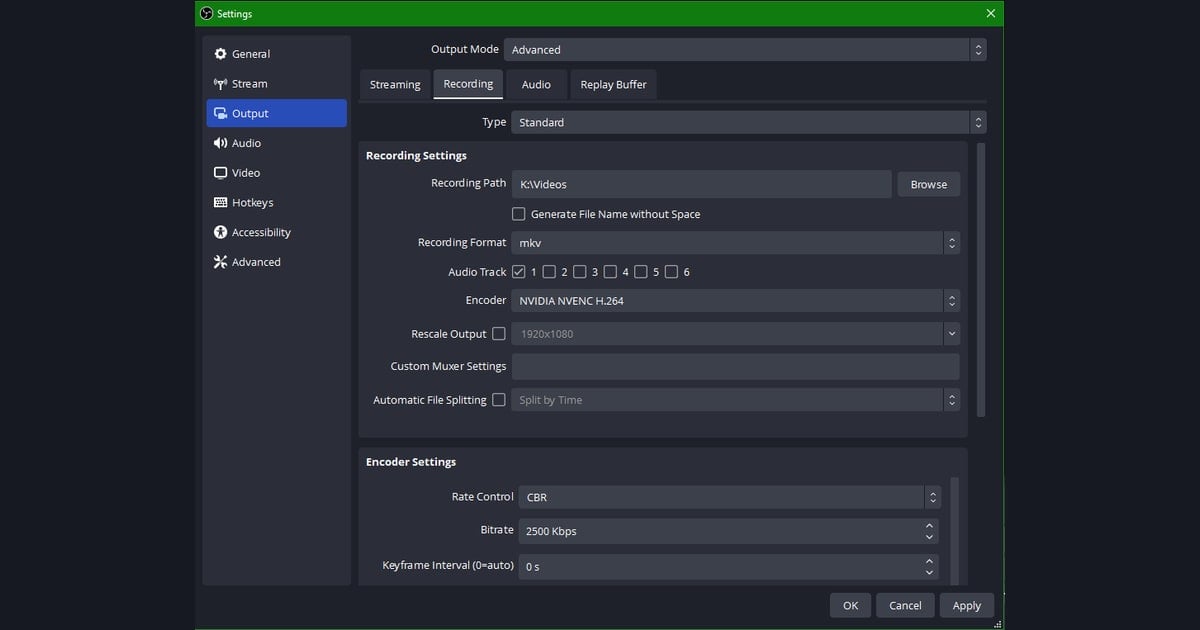
Once configured, a Start Replay Buffer button appears in the controls area at the lower right of OBS. You have to press this button for the buffer to actually start running. It's a good habit to turn it on once before you start your game.
Keeping the Buffer On Automatically
If you tend to forget to press the button each time, you can enable an option in General settings like Automatically start replay buffer when streaming starts. This way the buffer starts running together when you begin streaming or recording, which cuts down on forgetting to turn it on.
Assigning a Hotkey
The heart of the replay buffer is the hotkey. It only matters if you can press it right after a great moment happens. Here is how to assign the key.
- Open Settings and choose Hotkeys from the left menu.
- Find the Save Replay item in the list.
- Click the input field and press the key you want to use. We recommend a key like F9 that won't conflict with your game keys.
- Click OK to save, and during the game press that key whenever a great moment happens.
Now, with the buffer running, just press your assigned key whenever a moment worth keeping happens. The N seconds up to that instant are saved as a clip file. You won't miss an ace in Valorant or a great Valorant clip, or a long teamfight moment like a League of Legends teamfight.
The Limits of the OBS Approach and How DOR Differs
That's the standard way to use the OBS replay buffer. It's certainly powerful, but it has two prerequisites. First, you have to turn the buffer on in advance. If you forget, that whole match leaves nothing behind. Second, you have to press the hotkey yourself right after a great moment. If your hands are tied up on the mouse and keyboard during a fight, it's easy to miss that timing.
DOR handles both of these steps automatically. With OBS you have to turn on the replay buffer and press a hotkey, but DOR automatically detects highlights and saves the moment that just happened as a clip on its own. While you stay focused on the game, DOR recognizes and keeps your kills, clutches, and decisive moments for you.
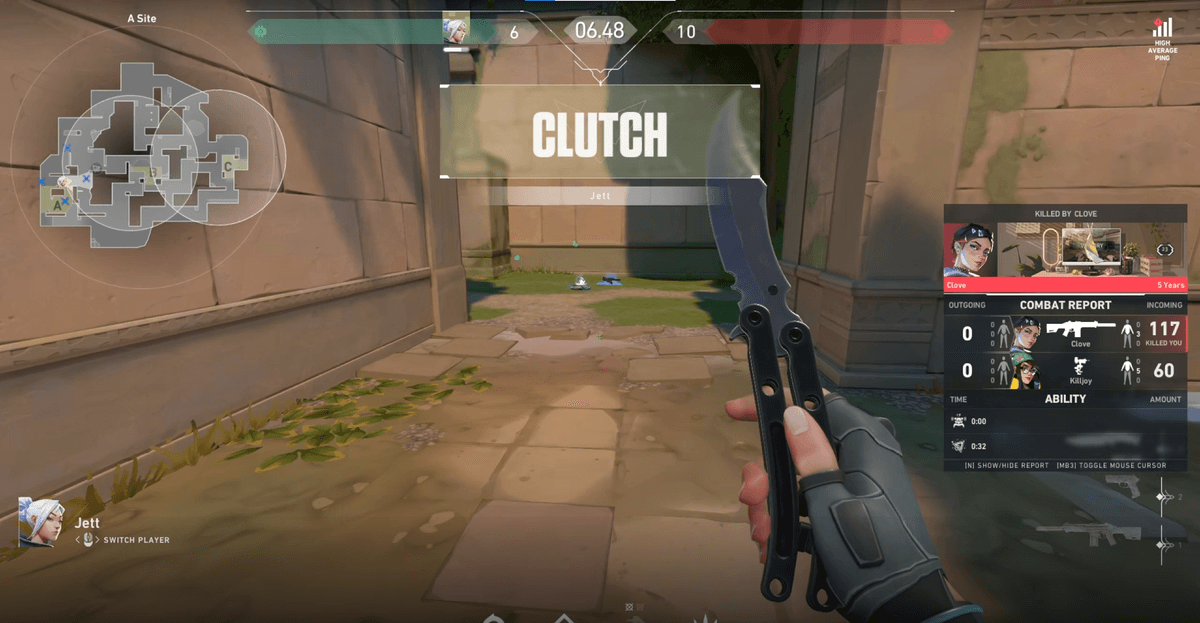
As a result, you don't have to worry about hotkey timing or remember to keep the buffer on. When the game ends, that day's highlights are already organized into clips. The more a game has fights that end in an instant, like Overwatch teamfights, the more reliably automatic detection grabs the moment compared to pressing a hotkey by hand.
Summary
The replay buffer continuously holds the most recent N seconds in memory, so you can save a moment that just passed even without turning recording on in advance. In OBS, you enable the buffer in the output settings, set the maximum time, and then assign a hotkey. The catch is that you still have to keep the buffer running at all times and press the key yourself. With DOR, this whole process is automated: it detects highlights on its own and keeps the moment that just happened as a clip. If you want to focus only on the game, DOR takes far less effort.