To keep the last 30 seconds on PC, a rolling recording must already be running before the moment happens, and Instant Replay in the NVIDIA app or AMD Software is what does that. Xbox Game Bar with the Windows key+Alt+R starts recording only when you press it, so it is a different kind of tool than saving backward in time. Instead of OBS replay buffer setups, this guide compares only what the official NVIDIA, AMD and Microsoft documents describe, as checked on October 6, 2026, and then adds a way to keep a whole match with DOR and trim the final 30 seconds afterward. If you want the basic idea first, read how saving the last seconds of a clip works.
The simplest way to choose
If you have an NVIDIA graphics card, start with Instant Replay in the NVIDIA app; if you already use AMD Software: Adrenalin Edition, start with its Instant Replay. Both keep recording while you play and save the recent stretch with a single hotkey. NVIDIA describes ShadowPlay as saving the last 30 seconds of gameplay, but the length is configurable in settings, so 30 seconds is not a fixed value. If you press the hotkey in the NVIDIA app and no file appears, work through what to check when NVIDIA Instant Replay does not save.
Six steps from setup to a tested clip
- 1Decide between saving backward and recording forward — First decide whether you want a rolling recording or one that starts when you press a key. To keep a moment that has already passed, the rolling recording must already be switched on before that moment happens, while Xbox Game Bar with Windows key+Alt+R creates a file only from the moment you press it.
- 2Check length and hotkey in the NVIDIA app — Open the NVIDIA Overlay with Alt+Z. Under the Settings cog, set the Instant Replay length and look over quality and save location in Video capture. The official news page lists Alt+Shift+F10 for saving a clip, but hotkeys can be changed there, so confirm the value on your own machine.
- 3Turn on Instant Replay in AMD Software — In AMD Software: Adrenalin Edition, type Record into the search box and open Record & Stream Settings. Switch on Instant Replay and set the length with the slider. For hotkeys, search Hotkey and open Hotkey Settings, then use the Media Hotkeys section; some need a CTRL or ALT combination. The document gives no default hotkey values, and Record requires the full installation.
- 4Use Xbox Game Bar as record-after-press — Press the Windows key+G to open Game Bar, start recording with Windows key+Alt+R and stop with the same keys. Windows key+Alt+M turns the microphone on or off. To include system sound, open Settings, go to Capturing and choose All for the audio option. While you are on that Capturing screen, look for any option about saving the recent past; this guide only covers the steps in the document it checked.
- 5Test a save in the lobby and find the file — Try one save before the real match. Xbox Game Bar files land in the Captures folder under Videos as MP4, with the game name and date and time in the file name. For AMD, check the media save location folder (shown by default as Videos\Radeon ReLive under your user folder); for NVIDIA, use the location you set in settings.
- 6Keep only the stretch you need — If the saved file runs longer than the moment you wanted or the start feels awkward, set a new start and end in an editing tool so only that scene remains. Before sharing, play the file from the beginning to confirm picture and sound came through.
Methods compared (checked October 6, 2026)
| Method | How it keeps the last moment | What the official docs confirm |
|---|---|---|
| NVIDIA app Instant Replay | Rolling recording runs continuously and a clip-save hotkey stores the recent stretch | The official news page lists Alt+Shift+F10; length, save location and Video capture are adjusted under the Settings cog |
| AMD Software: Adrenalin Edition Instant Replay | Keeps recording gameplay while it is on, so you can go back over the recent past | Up to the last 20 minutes, length set with a slider in 15-second steps (document last updated November 11, 2024) |
| Xbox Game Bar | Records from the moment you press Windows key+Alt+R and stops with the same keys | MP4 files go to Videos > Captures. The page used here covers record-after-press only, so check Settings > Capturing yourself for any save-the-recent-past option |
| DOR full-match automatic recording | Detects a supported game, records the whole match as mp4, then you trim afterward | Set a start and end in the app library; output ratio 16:9, 9:16 or 1:1 |
Check before you rely on it
- The rolling Instant Replay recording was already switched on before the moment you wanted to keep
- You confirmed the clip-save hotkey in the settings screen yourself
- The length is what you want (NVIDIA Settings cog, AMD slider in 15-second steps)
- The disk usage limit and save location in NVIDIA settings are what you intend
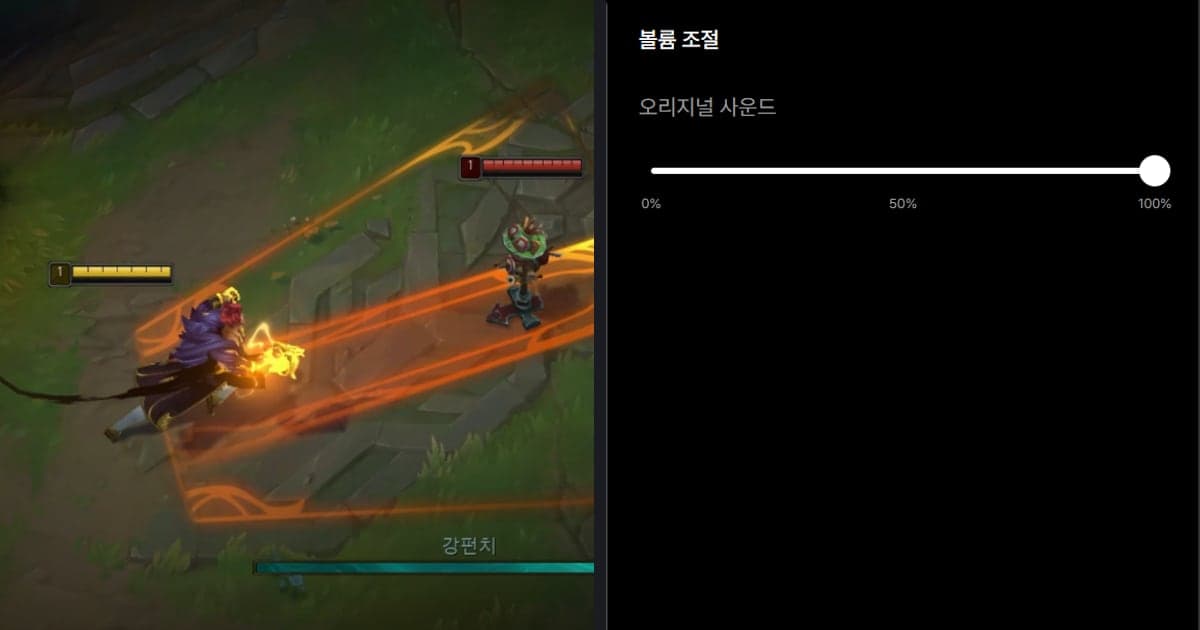
- Microphone and system sound options are set the way you need
- You opened a test file and checked both picture and sound
Keeping the whole match with DOR and picking the last 30 seconds
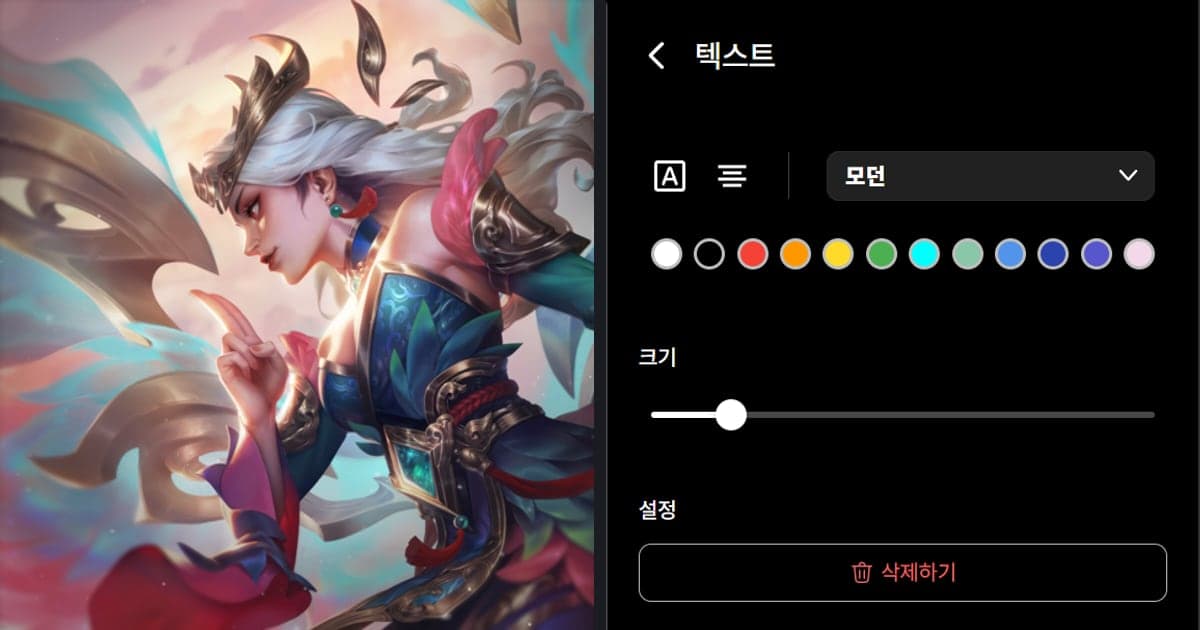
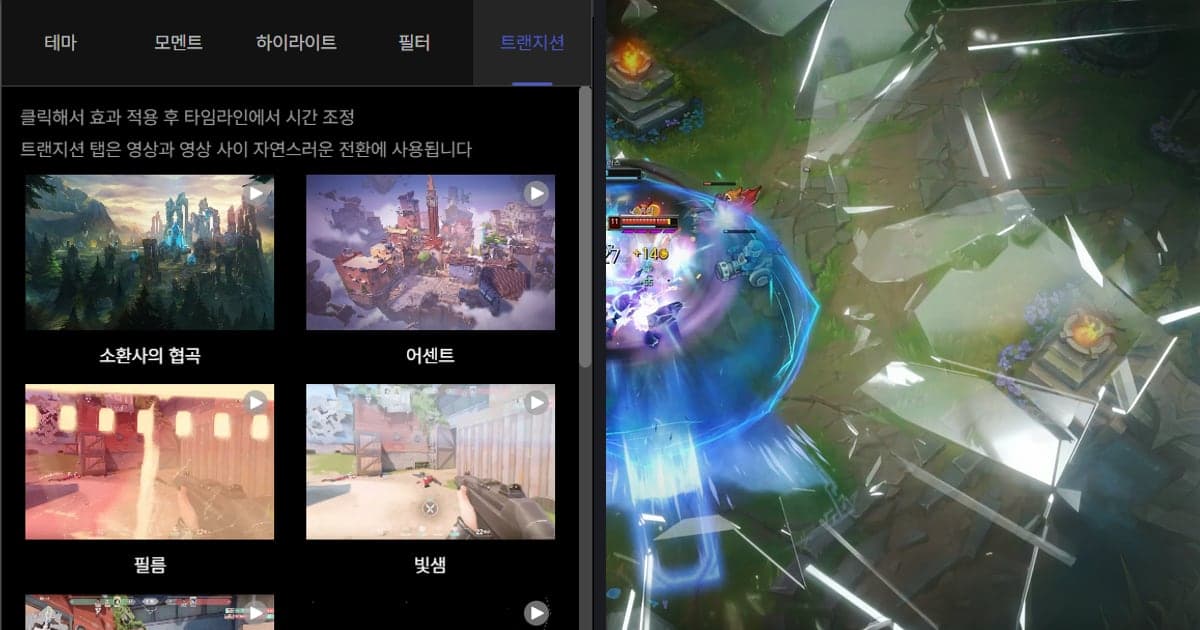
When you launch a game DOR supports, such as VALORANT or League of Legends, the app detects it and records the whole match as mp4, so there is no hotkey timing to worry about; afterward you open the app library, use the trim function to set a start and end, and pick the final 30 seconds. For the trimming steps in detail, continue with the game clip trimming guide. Output ratios are 16:9, 9:16 or 1:1, and a dor.gg link plays in a mobile browser. On an NVIDIA graphics card DOR uses NVENC hardware encoding by default, and the whole match, including that last fight, ends up in one file. Game sound and your microphone go into the same file, so you can review the sound of that final stretch along with the picture. Automatic kill and highlight clips exist for seven games only: VALORANT, League of Legends, PUBG, FC Online, Fortnite, Counter-Strike and Overwatch.
Official sources used
Checked on October 6, 2026. The NVIDIA app Instant Replay, hotkey and Settings cog details come from NVIDIA app download and features, the AMD Instant Replay length and Hotkey Settings from AMD Record and Stream support article (last updated November 11, 2024), and Game Bar hotkeys and the save folder from Microsoft Support on recording with Xbox Game Bar. The phrase last 30 seconds is promotional wording from the NVIDIA ShadowPlay page, and hotkeys and lengths can change with updates, so trust your settings screen first.