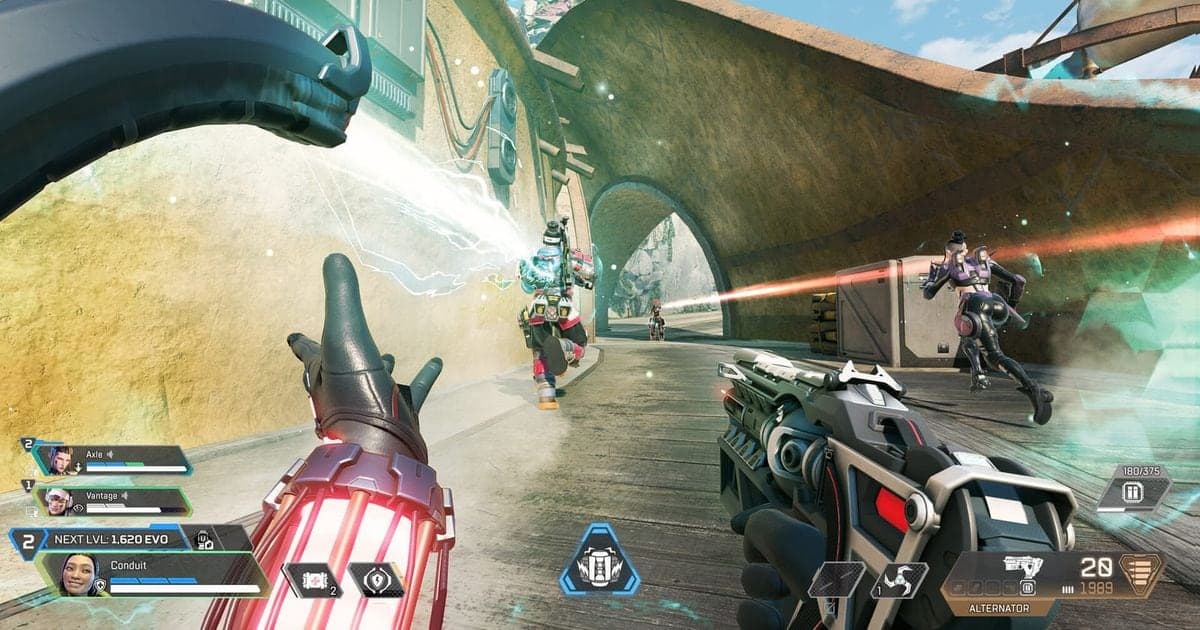
To VOD review yourself in Apex Legends, you need your own match saved as video, and the EA Help pages checked on October 2, 2026 describe only Death Recap and spectating after you have fallen, not a replay you can save and rewatch. So the practical answer is to record the whole match and review two or three fights from it. If you worry about stutter in long matches, read how to record long gameplay without stutter first. This guide covers only the review workflow: picking a match, the questions to ask while watching, and saving segments. Everything here is for Apex Legends on PC.
The short answer: review needs footage, not more stats
The EA Help article on Ranked says Death Recap gives details on who killed you and the damage you took, and the report article mentions spectating other players after you have fallen. Both are useful, but the pages as written do not say they show the positioning choice you made before the fight, so your own footage is the safer way to check it. You do not need a website to start: a review only needs your own match saved as video and a short list of questions. As a suggestion rather than a proven number, keep a session to one match and two or three fights inside it. Turning a great moment into a shareable clip is a separate job, covered in how to clip Apex Legends.
A five-step review routine
- 1Check that the match gets recorded — Make sure the DOR app is running, then play one match and check once that the finished match lands in the app library as an mp4. Apex Legends is a game with full-match auto recording, and this guide is for Windows PC. A match that was not recorded cannot be reviewed, so check before you queue for Ranked.
- 2Pick which match to review — You cannot watch every match, so set a rule. Good candidates are a match where you went down early, one where placement was decided in the last fight, and one where Death Recap still left you unsure why you lost. Right after you fall, jot down who downed you and the damage you took, then find the same moment in the video and compare.
- 3Decide the questions to answer while watching — Do not play the video from start to end. Start a little before the fight begins and stop when you are down or the fight is settled, answering the checklist questions below. Limit yourself to one or two questions per fight, and if the same problem shows up twice, boil it down to a single behavior to change next match.
- 4Trim and save only the segment — Once you find a fight worth another look, use segment trimming in the DOR app library to set the start and end and keep just that scene. You can choose 16:9, 9:16 or 1:1 as the output ratio. Apex Legends has no automatic highlight clips, so you choose the segment. Lining up your saved segments makes it easier to see whether the same situation keeps repeating.
- 5Share by link and rewatch — A trimmed segment can be shared as a dor.gg link and plays in a mobile browser too. That is handy for rewatching on your phone while you are out, or for talking through a scene with a friend you play with.
Review options compared
| Method | What you get | Limits |
|---|---|---|
| Death Recap | Who killed you and the damage you took (as written in EA Help) | A summary, not video. The article does not describe what else it shows |
| Spectating after you fall | You can watch other players once you are down (as written in EA Help) | It is someone else's view, not your decisions, and whether it can be saved or replayed was not confirmed |
| Footage you record yourself | Your whole match from your own view, rewindable as often as you like | It only exists if recording was on, and long matches need you to pick which parts to watch |
| DOR full-match auto recording | Apex Legends matches saved as mp4, with segment trimming in the app library | No automatic highlight clips for Apex, so you choose segments manually; Windows PC app only |
Questions to ask for each fight
- Before the fight started, was your position close to cover or out in the open?
- How far away was your squad, and were you close enough to help each other when you went down?
- Did the fight start while you were healing or using a shield item?
- After going down, were you in a position and situation where a teammate could bring you back?
- EA Help says that while a squadmate is still alive you can respawn until the Round 4 ring closes, so what did your team do in that window?
- EA Help says RP comes from kills, assists, placement and skill bonuses, and that heals and revives give no RP (checked October 2, 2026). With placement in mind, was this fight worth taking?
- Does the Death Recap match what the video shows, and what decision would you change after spectating once you were down?
Keep the whole match in DOR and trim only what you need
DOR is a free Windows app that records games automatically, and it covers Apex Legends with full-match auto recording. A review needs the entire match on file, and on an NVIDIA graphics card the app uses NVENC hardware encoding by default. It records game sound and your microphone together, so the callouts you made stay in the same video as the game audio, giving you a clue to how well you worked with your squad. Apex Legends does not get automatic highlight clips for kills, so you cut the part you want to watch yourself. Supported games are on the Apex Legends page, and the trimming steps are in how to trim game clips.
Official sources (checked October 2, 2026)
All EA Help pages below were checked on October 2, 2026. Death Recap and how Ranked points work are in How Apex Legends Ranked works, spectating after you fall is in How to report a player in Apex Legends, and the respawn rules after going down are in How to play Apex Legends as a beginner. No saveable in-game replay or retention period was found in those pages, which does not mean none exists, so check inside the game. RP and season rules can change.