Before preserving a decisive Battlefield 6 moment, define whether the deliverable is a quick automatic clip, a controlled full production, or an immediate manual save. Battlefield 6 clipping tools differ in automatic-event coverage, scene and audio control, performance cost, and editing preparation, so brand recognition alone cannot decide the winner.
Identify the file and the required outcome first
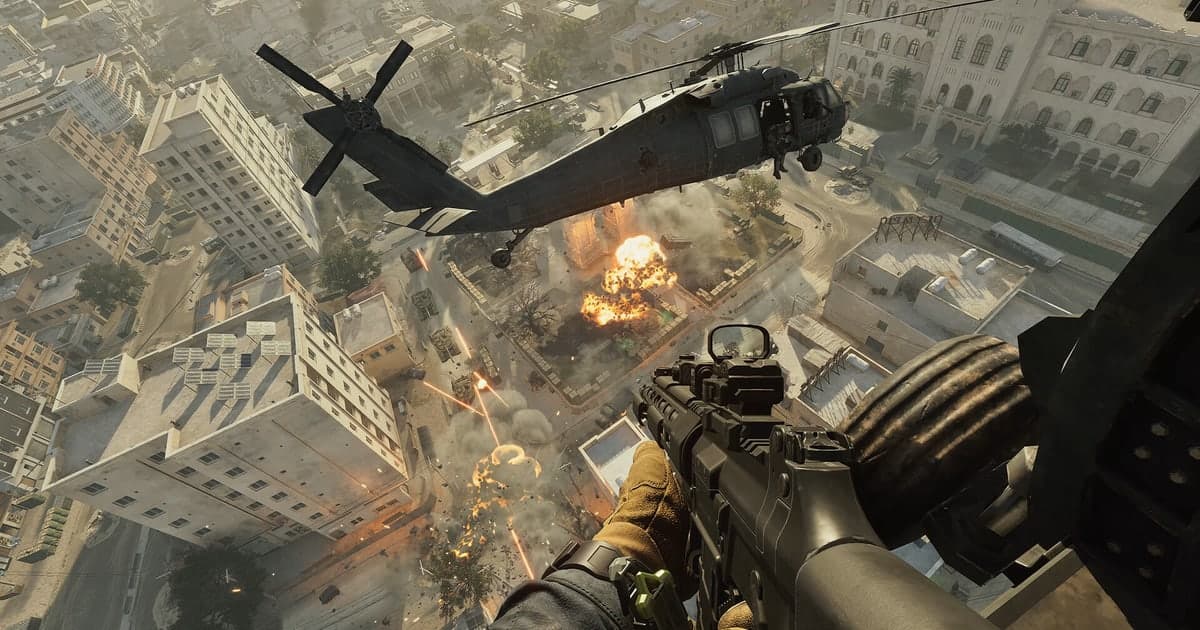
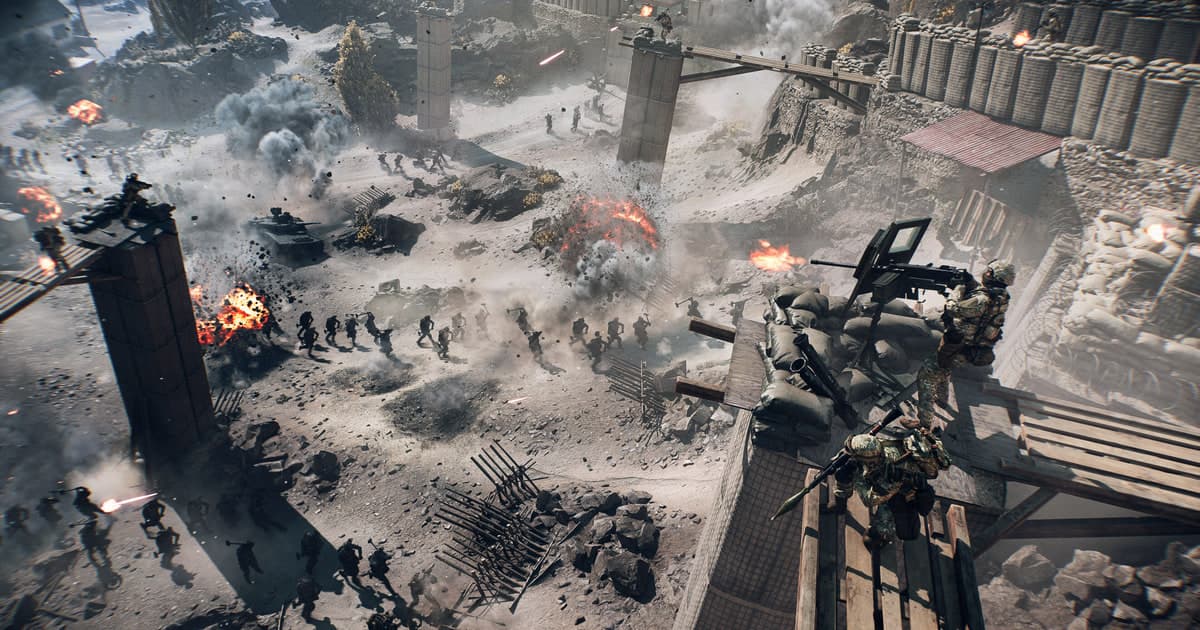
EA lists widely different resolution and frame-rate targets across PC presets, so capture tools must be compared on the preset the player actually uses. Combine thirty seconds of infantry combat with thirty seconds of vehicles, destruction, smoke, and explosions because that transition stresses the GPU and encoder. If an ultrawide display is used, inspect crop and canvas aspect ratio as well as image detail. Record the selected PC preset, upscaler, frame generation, and frame cap so a later comparison can reproduce the same high-performance conditions. Continue recording from a wall collapse through the dust and moving debris to expose block artifacts or a brief encoder stall. Listen separately for engine audio, distant blasts, and squad orders, then record whether fullscreen, borderless mode, or an HDR path changed the canvas or color result. Keep the real resolution and frame cap, then test only the relevant DOR, OBS, and operating-system or GPU candidates for sixty seconds each. Do not inspect average FPS alone; compare low-frame smoothness, missing audio, compression artifacts during fast turns, seek behavior, and final file size.
Compare the options and their failure conditions
| Option | Best fit | Verify before committing |
|---|---|---|
| DOR | Simple short-clip collection when Battlefield 6 is supported | Actual support plus sixty-second video and audio quality |
| OBS Studio | Detailed control of scenes, audio, and encoder | Setup time, capture compatibility, performance headroom |
| OS or GPU capture | Immediate saving matters more than a custom production | Supported hardware, hotkeys, and storage limits |
Checks after a one-match test
- A backup of the source file and settings exists.
- Current game and application versions are recorded.
- Game audio and microphone were checked separately.
- Output location and free space were verified.
- The sample opens in an independent player.
A source-safe workflow
- 1Preserve the source and baseline — Copy the file and note game and app versions, display mode, audio devices, encoder, destination, and free space.
- 2Create a sixty-second reproduction — Use real-match conditions and include fast movement, game effects, microphone speech, and any required voice path.
- 3Inspect each result separately — In both the original app and an independent player, verify video, every audio source, frame pacing, seeking, and size.
- 4Change only one variable — Adjust one setting directly tied to the observed failure, then repeat the same sample and compare.
Test DOR as a separate capture path
Verify actual support before evaluating DOR as a short-clip candidate for Battlefield 6. OBS may fit better when scene composition and multitrack production are required. Battlefield 6 game page, OBS versus ShadowPlay, audio sync diagnosis.
Official source and version boundary
EA divides Battlefield 6 PC specifications across several resolution and frame-rate targets and recommends current drivers plus in-game tuning. EA Battlefield 6 PC preparation guide.