This is for PC players deciding whether to learn OBS or simply enable Instant Replay in the NVIDIA app. Searches that look similar can hide very different outcomes. OBS offers detailed scene, source, and audio control with more setup responsibility, while ShadowPlay is fast for background clips but depends on supported hardware and a healthy overlay. This guide treats “OBS vs NVIDIA ShadowPlay” as the main task while covering “OBS or ShadowPlay for recording” and “game recorder comparison” without pretending one setting fits every PC, mode, or team. Before installing an app or joining a group, verify the current version, game mode, audio path, storage budget, region, and active hours that can materially change the result.
OBS vs NVIDIA ShadowPlay: Define the outcome and failure condition first
Choose OBS first for streaming, cameras, and isolated tracks; choose NVIDIA Instant Replay first for saving unexpected plays. Record the same scene for 60 seconds and compare 1% low behavior, audio, file size, and time to a finished clip—not only average FPS. The best choice is not automatically the most famous tool or the biggest server; it is the option that produces a repeatable result under your conditions. Run a short recording test or a one-match conversation, then note output quality, response time, setup cost, and anything that would make you stop. Preserve the original file, settings, and recruitment message so you can reverse course without losing work.
Compare the practical options
| Option | Best fit | Check before committing |
|---|---|---|
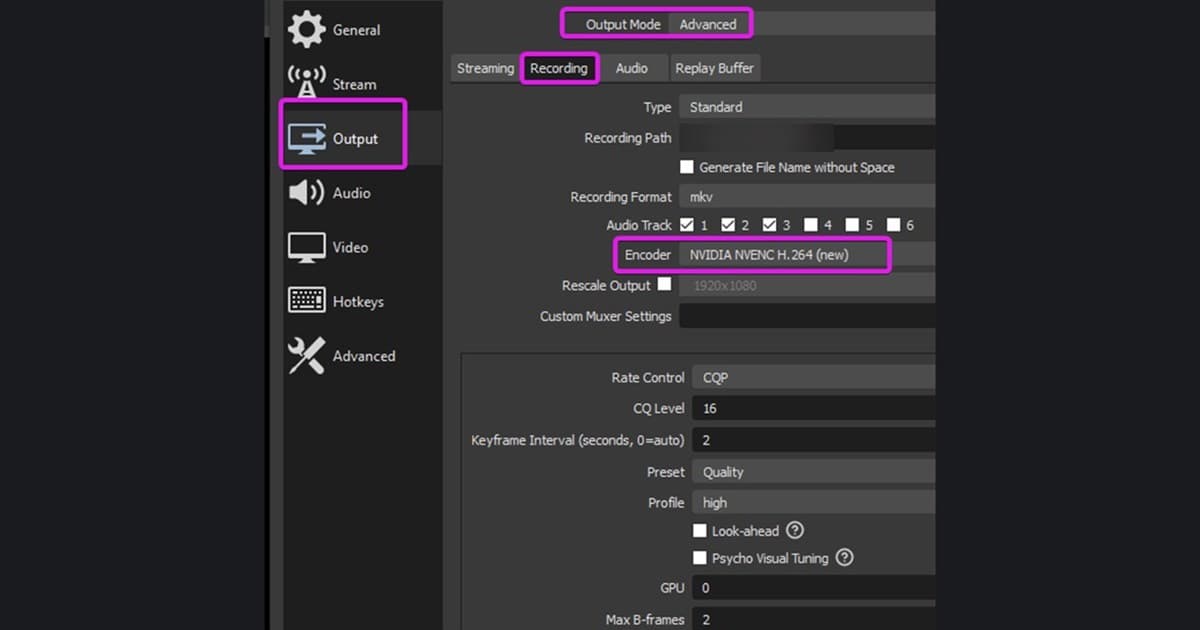
| OBS Studio | Scenes, camera, multiple audio tracks, long sessions | You own output settings, NVIDIA driver, and current NVENC compatibility |
| NVIDIA ShadowPlay | Saving the previous moments with one shortcut | Verify GPU support, overlay health, folder, and microphone track |
| DOR | Game-focused short clips and quick review | Test the supported game and actual output before a match |
A repeatable workflow
- 1Lock one repeatable scene — Use the same replay or practice area with identical resolution, FPS cap, graphics, and background apps.
- 2Run one recorder at a time — Record OBS, NVIDIA, and DOR separately for 60 seconds instead of stacking capture hooks and overlays.
- 3Review frame pacing and audio — Inspect stutter, input feel, game audio, microphone separation, and sync from the output file, not a preview.
- 4Time the complete workflow — Measure from saving the play to locating 20 seconds, exporting, and sharing. Choose the workflow that fits the real job.
Pre-publish or pre-join checklist
- Only one recorder ran per test
- The game scene and graphics stayed identical
- Frame pacing or 1% low was noted
- Game and microphone tracks were replayed
- File size and time-to-clip were compared
Turn the search into a useful next step with DOR
If OBS complexity or the ShadowPlay overlay is more than the task needs, record the same scene briefly in DOR and compare discovery, trimming, and sharing as one workflow. Continue with free game recorder comparison, NVENC versus x264, ShadowPlay alternatives. Create a 60-second test clip first and inspect frame pacing, audio, image quality, and file size before recording a full match. DOR is an option for making and reviewing short gameplay clips; do not assume it replaces an operating system or game feature. To see the auto-detection alternative in a real game, check the VALORANT recording hub.
Official source and freshness check
OBS 32.2 updated to NVIDIA SDK 13, raised the minimum supported driver to 570, and fixed incorrect NVENC bitrate behavior in CQVBR mode. Menu names, supported modes, and limits can change, so the current details were checked against official OBS Studio 32.2 release notes. Future updates should follow the date and version on that primary source rather than copying an undated third-party summary.