If a gunshot follows the muzzle flash or the microphone falls farther behind over time, first decide whether the offset stays constant or grows. If audio is completely missing, use game recording no-sound fixes; if you are still building the inputs, see recording game and microphone audio.
The sync pattern points to the cause
| Pattern | Likely cause | First action |
|---|---|---|
| Same delay from start to finish | Device, Bluetooth, or filter latency | Test a sync offset or wired device |
| Gap grows over time | Sample-rate mismatch or timing drift | Align app and device sample rates |
| Jumps only under load | Rendering or encoding lag | Reduce load and inspect Stats |
| Different in each player | Playback or variable-frame handling | Compare the original in another player/editor |
Correct it without risking the original
- 1Measure the pattern — Compare the same kind of sound event near the beginning and end.
- 2Cross-check playback — Open the original in another player and an editor.
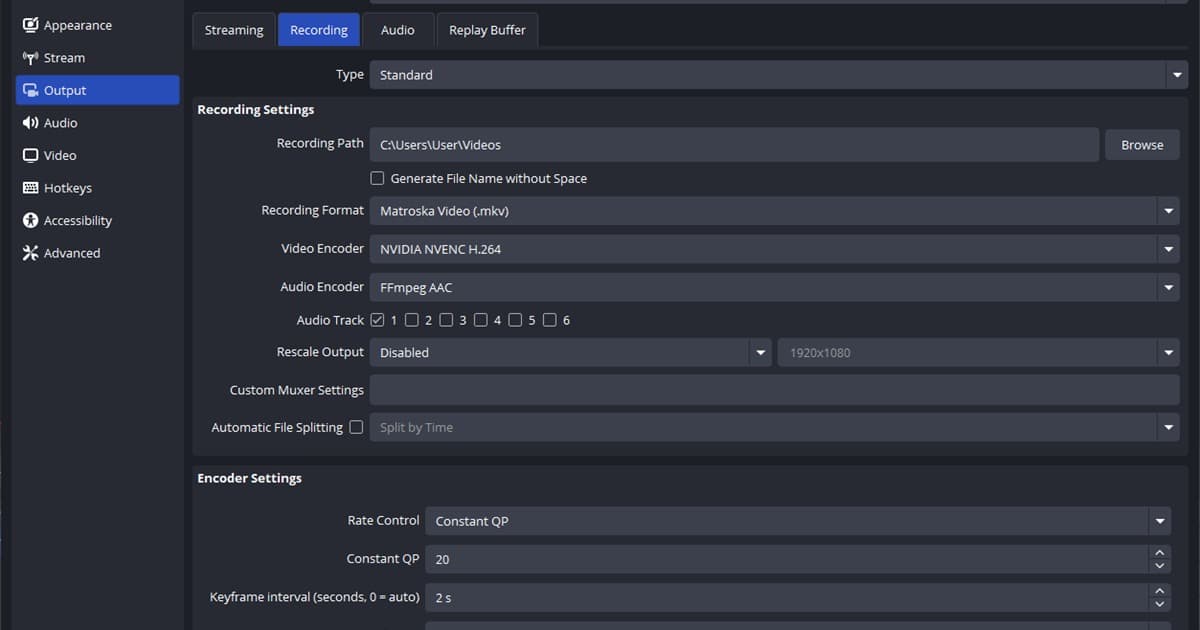
- 3Align sample rates — Keep OBS and active Windows playback/recording devices consistent.
- 4Remove wireless latency — Run a short test with wired headphones and microphone instead of Bluetooth.
- 5Reduce encoder load — If frames are missed, ease game and output settings before recording again.
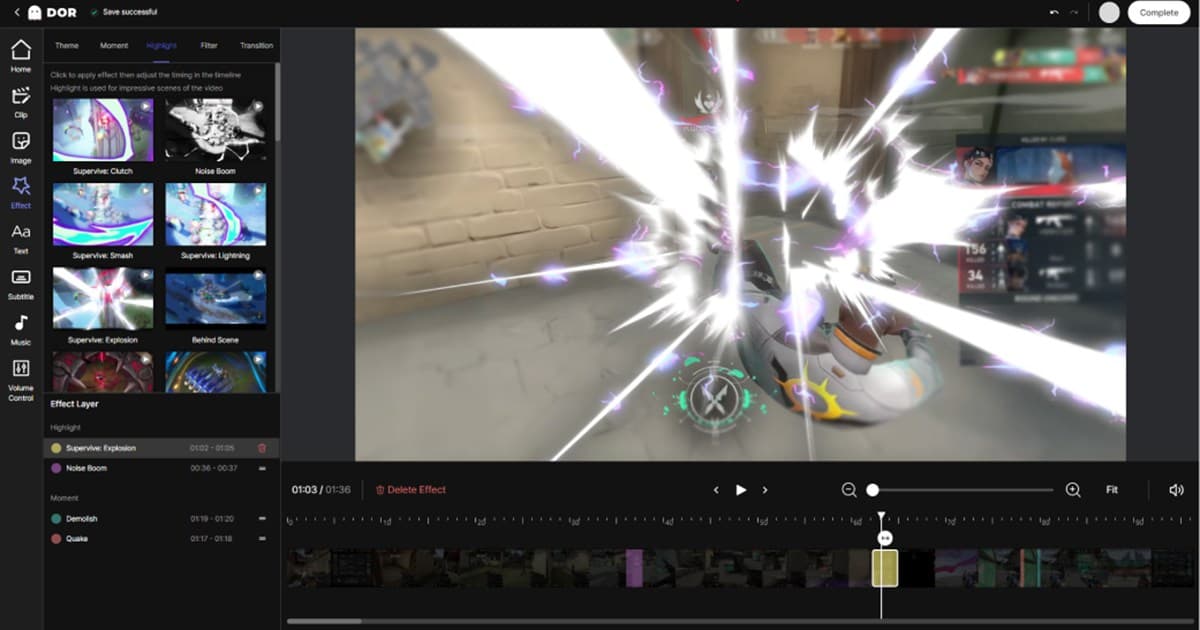
- 6Edit a fixed offset — On a copy, move audio and align a clap, click, or gunshot waveform.
Before re-recording a long session, make a short test containing a visible and audible event such as a clap, menu click, or shot. Its waveform is easier to align than speech by eye.
Prevent the next recording from drifting
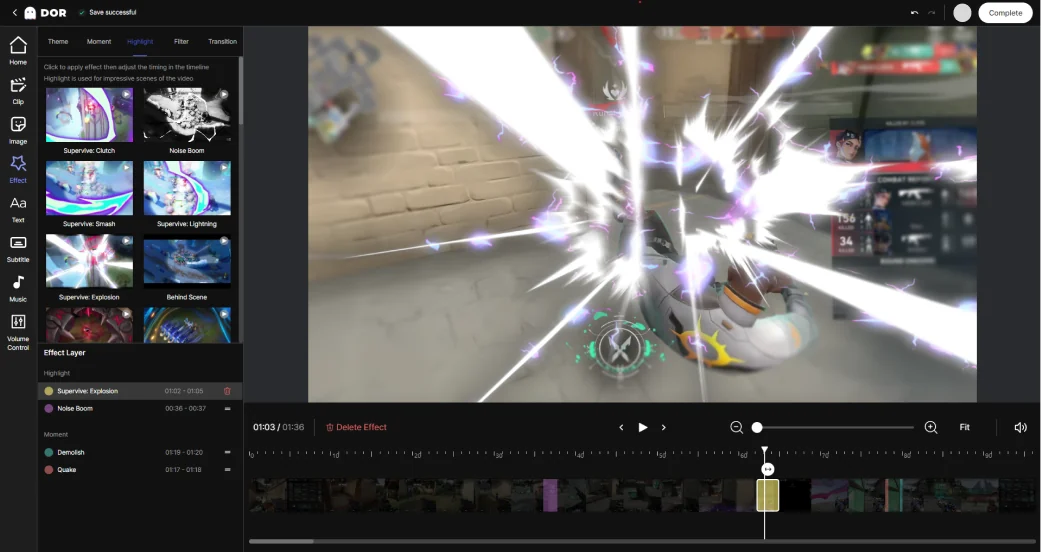
DOR does not claim to automatically repair every out-of-sync recording. You can test DOR automatic game recording as a separate workflow for supported games, but always make a short sync test before an important session.
If video freezes as audio drifts, fix the frozen recording video first because encoding lag also affects timing. OBS explains how to identify overload in its official encoding performance troubleshooting guide.