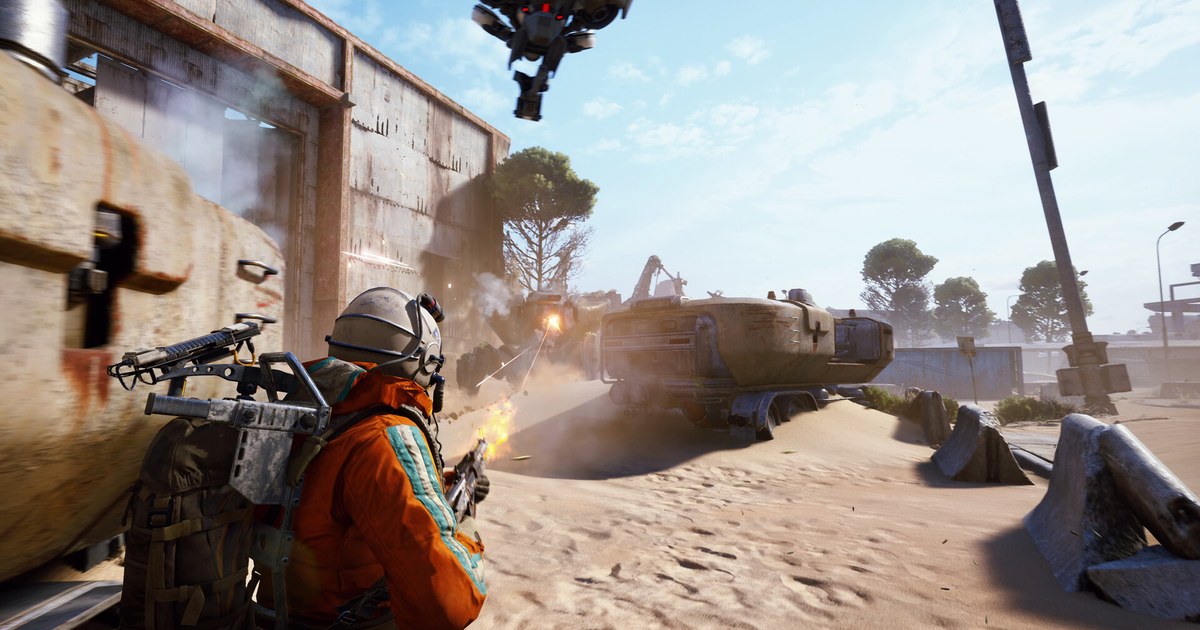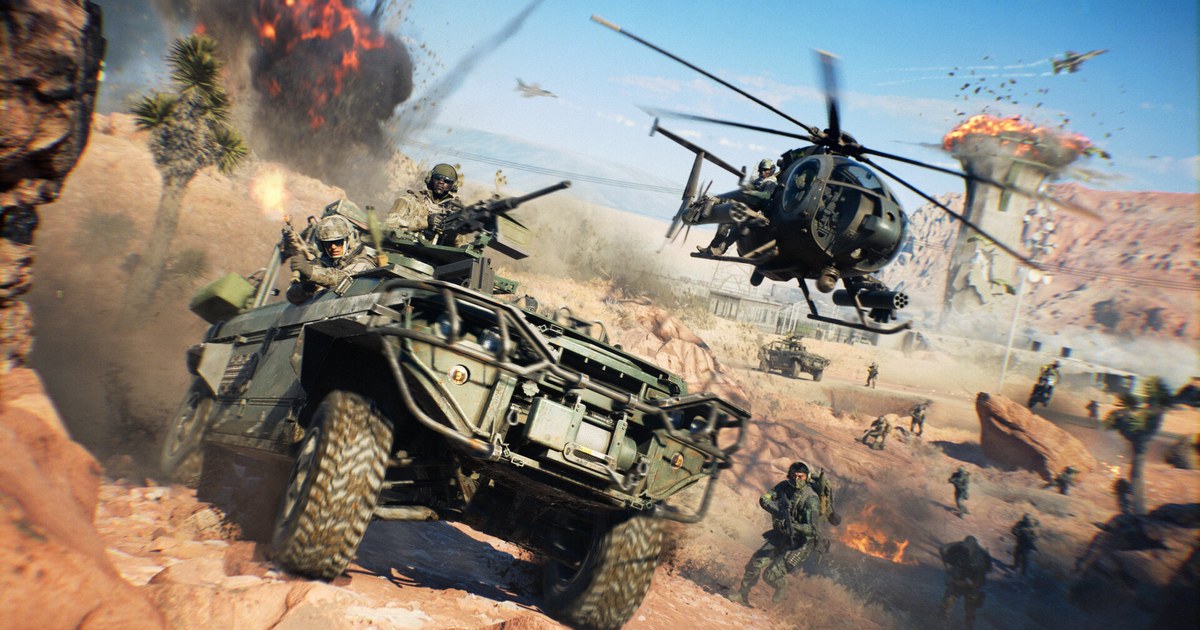
If Battlefield 6 stops at a message saying Secure Boot is not enabled, nothing is wrong with your game files.
EA made Secure Boot mandatory for Battlefield 6 on PC in an August 2025 announcement, framing it as a defense against cheats that load during the Windows boot process, such as kernel level cheats and rootkits.
As of November 12, 2026, the Steam store page still lists TPM 2.0 Enabled, UEFI Secure Boot Enabled, HVCI Capable and VBS Capable under both minimum and recommended specs.
The good news is that most gaming PCs from the last several years support all of this; the setting is simply switched off, often because Windows was installed in Legacy mode years ago.
This guide follows the order in EA's help article: read two lines in msinfo32, confirm TPM 2.0, check whether your Windows disk is MBR or GPT, convert it if needed, then enable Secure Boot from the firmware settings. Two rules before you start.
BIOS menus differ by brand, so your motherboard or prebuilt maker's manual wins over any generic screenshot. And back up anything important before converting a disk or changing firmware, because a wrong setting can stop the PC from booting.
Battlefield 6 Secure Boot symptoms and fixes (as of November 12, 2026)
| What you see | Likely cause | Fix |
|---|---|---|
| msinfo32: Secure Boot State Off, BIOS Mode UEFI | Supported but switched off | Set Secure Boot to Enabled on the BIOS Boot tab and save |
| msinfo32: BIOS Mode Legacy | MBR disk with Legacy or CSM boot | Back up, convert with mbr2gpt, then switch the BIOS to UEFI |
| msinfo32: Secure Boot State Unsupported | Board lacks support or the option is hidden | Check your motherboard spec sheet or manual |
| tpm.msc does not say the TPM is ready for use | TPM 2.0 is disabled in the BIOS | Enable TPM (Intel PTT, AMD fTPM or similar) per your maker |
| Disk Management partition style: MBR | Secure Boot needs a GPT Windows disk | Run mbr2gpt /validate, then /convert only if it passes |
| Secure Boot option will not change in the BIOS | Some makers require a key reset or admin password first | Restore factory Secure Boot keys or set a BIOS admin password |
| Enabled, but the message still appears (user reports) | An extra restart is needed, or a setup such as dual boot | Restart once more, then contact EA Help if it persists |
Read two lines in msinfo32 before you touch the BIOS
Press Windows+R, run msinfo32 and open System Summary. Two values decide your path. If BIOS Mode says UEFI and Secure Boot State says Off, you are one BIOS toggle away from playing.
If BIOS Mode says Legacy, your Windows disk is almost certainly MBR, so you need the GPT conversion and a switch to UEFI first; flipping Secure Boot alone will not work. If Secure Boot State says Unsupported, check your motherboard's spec sheet or manual to see whether the board supports it at all.
Secure Boot also depends on TPM 2.0, so glance at tpm.msc while you are there. If you also play the newest Call of Duty games, they ask for the same pair of settings, and our Call of Duty Secure Boot and TPM guide covers their extra attestation checks, so one pass through the BIOS fixes both.
How to enable Secure Boot for Battlefield 6
- 1Check BIOS Mode and Secure Boot StatePress Windows+R, type msinfo32 and open System Summary. BIOS Mode UEFI plus Secure Boot State On means you already qualify, so relaunch the game. While you are checking hardware, our Battlefield 6 system requirements breakdown lists the minimum and recommended specs alongside the security requirements.
- 2Confirm TPM 2.0 is readyPress Windows+R, run tpm.msc and read the Status box. You want a line saying the TPM is ready for use. If it is missing, TPM is off in the BIOS. Intel boards usually call it PTT and AMD boards call it fTPM, but follow your maker's wording.
- 3Find out if your Windows disk is MBR or GPTPress Windows+X and open Disk Management. Right click the left column of the disk that holds C:, choose Properties and open the Volumes tab. If Partition style reads GUID Partition Table (GPT), skip the next step. If it reads MBR, note the disk number shown in the same window.
- 4Convert MBR to GPT after a backupBack up your files first. Open PowerShell as administrator and run mbr2gpt /validate /disk:0 /allowfullOS, replacing 0 with your disk number. Only if validation passes, run mbr2gpt /convert /disk:0 /allowfullOS. If validation fails, stop and ask your PC maker or someone experienced. After converting, the BIOS boot mode has to be set to UEFI for Windows to start again.
- 5Turn on Secure Boot in the firmware settingsSearch the Start menu for Change advanced startup options, choose Restart now next to Advanced startup, then Advanced options and UEFI Firmware Settings. On the Boot tab set Secure Boot to Enabled, and if there is an OS Type option set it to Windows UEFI mode. Save changes and reset. Many BIOS screens have a search function if you cannot find the option, and some boards only unlock it after you restore the factory Secure Boot keys or set a BIOS admin password.
- 6Relaunch, and restart once more if neededStart Battlefield 6 again. EA notes that some Windows versions need an additional restart before the feature is fully active. Some players report the message repeating even when msinfo32 shows On, for example on dual boot setups; in that case note your configuration and contact EA Help rather than trying workarounds.
Before you queue again
- msinfo32 shows BIOS Mode UEFI.
- msinfo32 shows Secure Boot State On.
- tpm.msc says the TPM is ready for use.
- Disk Management shows your Windows disk as GPT.
- You saved the BIOS changes and restarted the PC.
Record your first match back with DOR
After a BIOS session like that, the first match back is worth keeping. DOR is a free Windows app that detects Battlefield 6 matches automatically and records each whole match. Recordings land in My Clips, where you pick the squad push or vehicle kill you want and trim it to 16:9, 9:16 or 1:1.
To join several moments or add text, BGM and effect templates, open DOR Studio, then export an mp4 or share a dor.gg link. Our guide to sharing Battlefield 6 gameplay videos covers the link workflow, and Battlefield 6 best settings helps you pick graphics options before you record.
On supported NVIDIA graphics cards such as the RTX series, DOR records with NVENC hardware encoding, and game audio and your mic are captured on one track.