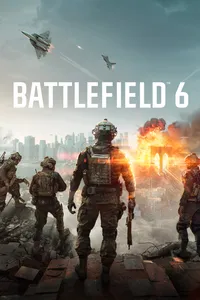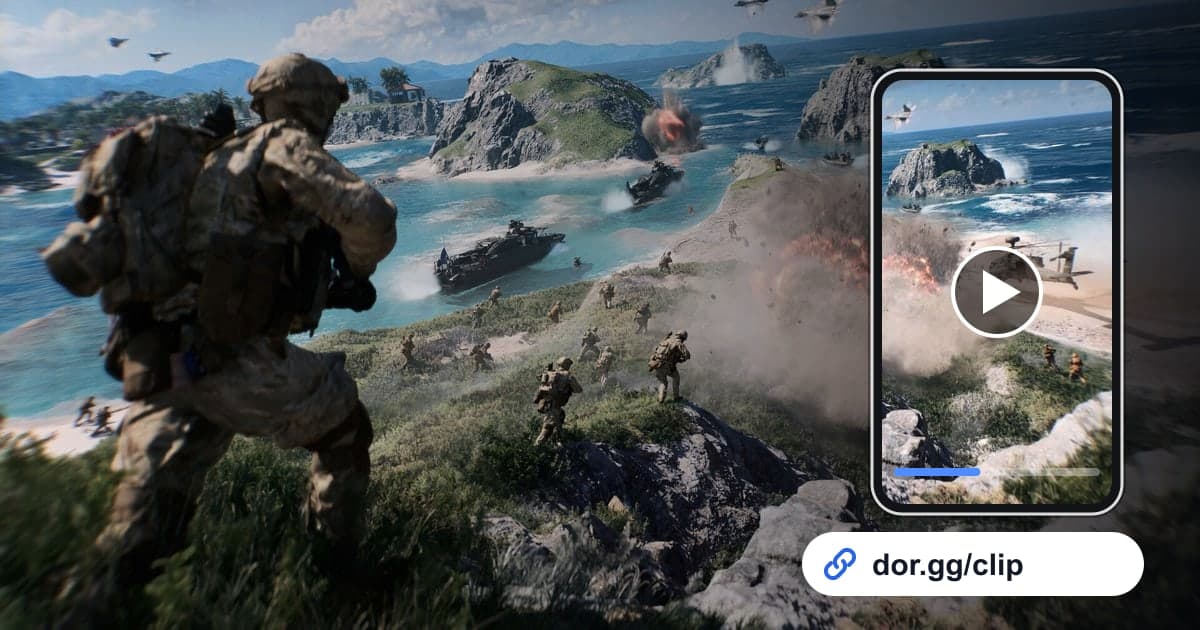
The fun of Battlefield 6 comes from scale. Flying a helicopter over the front line, watching an entire wall collapse from one tank shell, or four squadmates charging through smoke together to flip an objective are all things that are much faster to show than to explain. This guide walks through one method from start to finish: record those scenes with DOR, trim just the part you need, and send it to friends as a dor.gg link.
Check how recording works first
DOR detects Battlefield 6 when it launches and records the whole match. Battlefield 6 does not get automatic highlight clips that detect helicopter shootdowns or kill streaks and cut them for you, so after the match you find the scene in your library and set the range yourself. What sets this game apart is that the battlefields are huge, so recordings are long and scenes are scattered across them. The basic feel for start and end points is covered in How to Trim Game Clips; this guide focuses on how to pick Battlefield 6 scenes.
How to send a Battlefield 6 scene to friends
- 1Install DOR and jump straight into Battlefield 6Install DOR, a free Windows app, and launch Battlefield 6. DOR detects the game on its own and records the full match as an mp4, so there are no recording hotkeys to memorize and no button to press each match. To keep your squad callouts, connect a mic and it will be recorded along with the game audio.
- 2Anchor helicopter and vehicle scenes on the moment you climb inOn a large map, getting into a vehicle is the clearest marker you have. Open the recording in your library, find where the view switches to the vehicle, then keep everything from takeoff or departure to landing, exiting, or getting shot down as one range. Helicopter scenes tend to run long, so keep only the most dangerous part of the flight.
- 3Show the building before it fallsIf you cut only the second a wall collapses, it is hard to see what actually changed. Put a few seconds of the intact building at the start and end the clip once the dust settles and the new path is visible. If you want to show the before and after from different angles, trim them as two ranges and join them in the browser studio.
- 4Start squad captures where everyone moves togetherShowing only the capture complete notice does not explain what your squad did. Start where squadmates begin running the same direction or someone pops smoke, and include the capture finishing and the squad setting up to defend. Pick a range where the squad markers are on screen so each squadmate can spot their own movement.
- 5Set the aspect ratio in the trim toolIn the library's trim tool, set the start and end and choose 16:9, 9:16, or 1:1 for the output. Scenes that fill the whole screen, such as helicopters and building destruction, suit 16:9, while a short clip of one player's kill can work in 9:16.
- 6Paste the dor.gg link into squad chatWhen the trim is done, you can share it as a dor.gg link. Instead of sending a whole long recording, you pass along only the trimmed scene, so the person receiving it gets straight to the point. The link opens as-is in a PC or phone browser, with no app to install.
What to share from each Battlefield 6 scene
| Situation | What to look for on screen | One line to send with the link |
|---|---|---|
| A helicopter run over the front line | The moment you climb in and lift off, and right after landing or being shot down | Who was flying and who was on the guns |
| Pushing in with a tank or vehicle | The moment you get in and the vehicle destroyed notice | Which direction you came in from |
| Bringing down a building to open a path | The wall before it falls and the view after the dust settles | What you used to bring it down |
| Capturing an objective as a squad | Where the squad starts moving the same way, and the capture completing | What role each squadmate played |
| Reviving a squadmate to keep the push going | Where they went down and the counterattack after the revive | What was happening when you revived them |
| Stopping an enemy vehicle | From the first sighting of the vehicle to its destruction | What gear you used to stop it |
Check before sending the link
- Helicopter and vehicle clips start at the moment you climbed in and include the outcome.
- Destruction clips open with the building still standing.
- Squad capture clips show both the squad markers and the capture completing.
- If squadmates' voices were recorded, you got their okay before sharing.
- You tightened the start and end so a single scene is not padded with travel time.
- You added a one-line note about who did what.
Wrapping up Battlefield 6 sharing with DOR
DOR is a free Windows app that detects Battlefield 6 when you launch it and records the full match. This game has no automatic highlight clips, so the standard routine is to find the scene in your library, trim it, and send a dor.gg link. On an NVIDIA graphics card, NVENC hardware encoding is the default. Game audio and your mic are recorded together, so scenes with squad callouts stay intact; tips on balancing the two are in How to Record Game Audio and Your Mic Together. DOR Studio, which opens in a browser with nothing to install, lets you merge several scenes, add text and background music, adjust volume, and then download an mp4 or share a link. If you need squadmates to make these scenes with, see the Battlefield 6 squad finder.