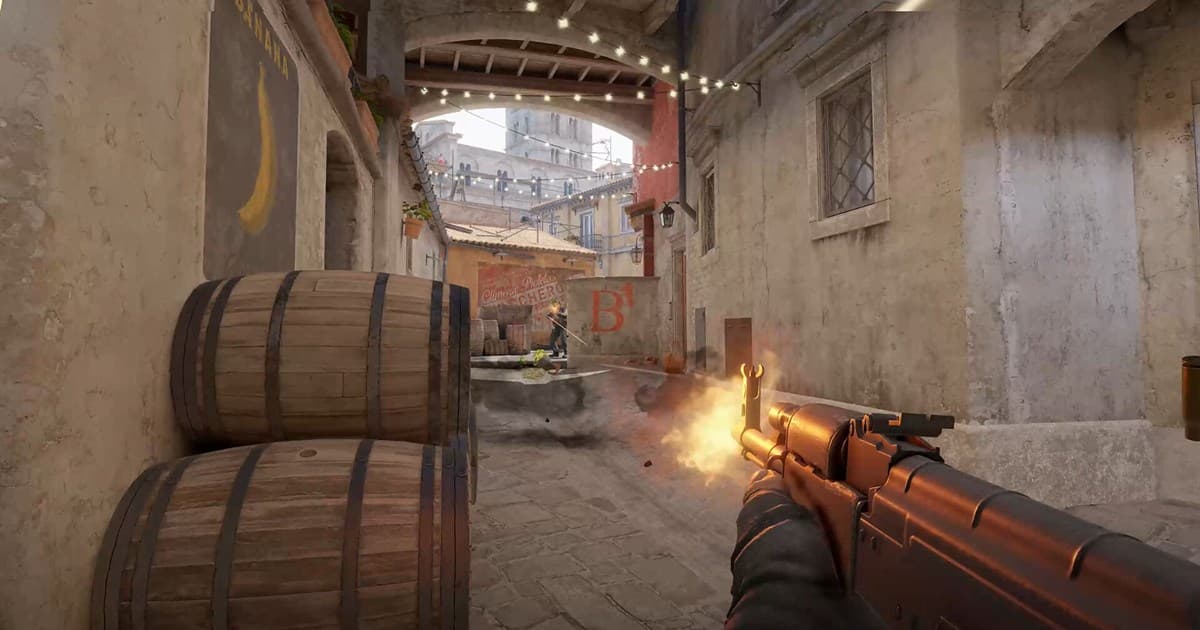
A player saving an ace immediately and an analyst turning a demo into video search for similar words but need different workflows. Searches that look similar can hide very different outcomes. Live background capture preserves the player view and voice but uses resources; a demo enables later camera review but is not a ready-to-share MP4. This guide treats “best CS2 clipping software” as the main task while covering “record Counter-Strike 2 clips” and “turn a CS2 demo into video” without pretending one setting fits every PC, mode, or team. Before installing an app or joining a group, verify the current version, game mode, audio path, storage budget, region, and active hours that can materially change the result.
best CS2 clipping software: Define the outcome and failure condition first
Use a60–90 second buffer for quick personal highlights, demos for team analysis, and separate playback capture for edited video. Compare1% lows and voice in the same smoke-heavy fight. The best choice is not automatically the most famous tool or the biggest server; it is the option that produces a repeatable result under your conditions. Run a short recording test or a one-match conversation, then note output quality, response time, setup cost, and anything that would make you stop. Preserve the original file, settings, and recruitment message so you can reverse course without losing work.
Compare the practical options
| Option | Best fit | Check before committing |
|---|---|---|
| Instant replay | Unexpected kills and aces saved immediately | Verify buffer, shortcut, frame impact, and microphone |
| CS2 demo | Camera changes and team-level analysis | Requires separate playback, capture, and editing for video |
| DOR gameplay clips | Fast review and sharing of a short play | Test current game support and the actual output file |
A repeatable workflow
- 1Separate highlight from analysis — Choose short video for social sharing and a demo as the analysis source. One format does not optimize both jobs.
- 2Test a smoke-heavy fight — Record the same demo segment or practice scene with smoke, multiple shots, and fast camera turns for60 seconds.
- 3Review pacing, audio, and HUD — Check1% low behavior, mouse feel, weapons, voice, kill feed, and crosshair clarity—not just averageFPS.
- 4Measure the20-second deliverable — Time locating the play, exportingMP4, and sharing it with a team or Discord after capture.
Pre-publish or pre-join checklist
- Highlight and demo goals were separated
- The same stress scene was used
- 1% low and input feel were noted
- Voice publication was approved
- The final MP4 keeps kill feed readable
Turn the search into a useful next step with DOR
Review the Counter-Strike page and related clips in DOR, then compare a short DOR capture against the time required to create a video from a demo. Continue with Counter-Strike game page, CS2 demo guide, CS2 graphics settings. Create a 60-second test clip first and inspect frame pacing, audio, image quality, and file size before recording a full match. DOR is an option for making and reviewing short gameplay clips; do not assume it replaces an operating system or game feature.
Official source and freshness check
Steam documents background and on-demand recording and says saved clips can be exported as video files for sharing or editing. Menu names, supported modes, and limits can change, so the current details were checked against official Steam Game Recording guide. Future updates should follow the date and version on that primary source rather than copying an undated third-party summary.