This is for players whose ace, pentakill, or squad clip is short but still rejected as an attachment in Discord. Searches that look similar can hide very different outcomes. The cause is rarely resolution alone: dead time, frame rate, bitrate, codec efficiency, and the attachment condition available to the current account all affect the result. This guide treats “Discord video file too large” as the main task while covering “Discord video upload failed” and “compress a gameplay clip” without pretending one setting fits every PC, mode, or team. Before installing an app or joining a group, verify the current version, game mode, audio path, storage budget, region, and active hours that can materially change the result.
Discord video file too large: Define the outcome and failure condition first
Keep only the useful 15–30 seconds, export a compatible MP4, and decide whether 1080p60 is truly needed. Reducing duration before bitrate protects small HUD text and crosshairs better than immediately dropping resolution. The best choice is not automatically the most famous tool or the biggest server; it is the option that produces a repeatable result under your conditions. Run a short recording test or a one-match conversation, then note output quality, response time, setup cost, and anything that would make you stop. Preserve the original file, settings, and recruitment message so you can reverse course without losing work.
Compare the practical options
| Option | Best fit | Check before committing |
|---|---|---|
| Trim duration only | The highlight has long queues, menus, or dead time | The safest first reduction because image quality is unchanged |
| Tune bitrate and frame rate | The clip is already concise but remains too large | Replay fast motion, crosshair, and kill feed after export |
| Share an access-controlled link | Full quality or a long original is necessary | Verify permission, expiration, and private audio |
A repeatable workflow
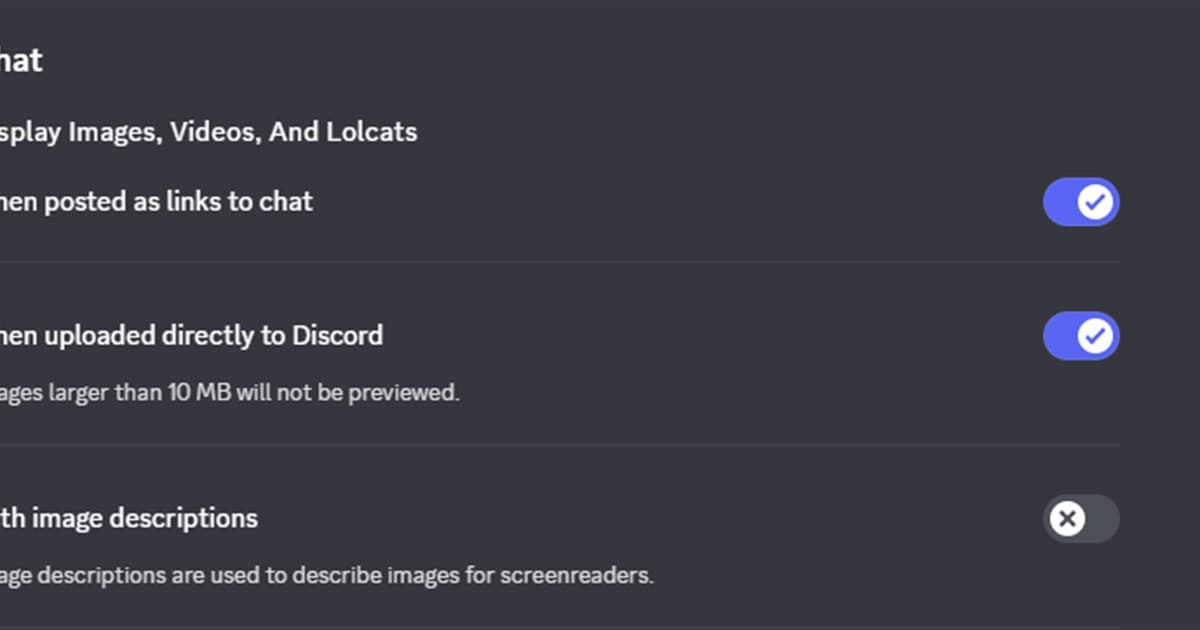
- 1Read the current attachment error — Check the exact message and the attachment condition available to your account or server. Do not over-compress based on an old limit remembered from another account.
- 2Cut to the actual moment — Keep a few seconds of context before the play and enough time to see the result. Remove loading screens and waiting without changing image quality.
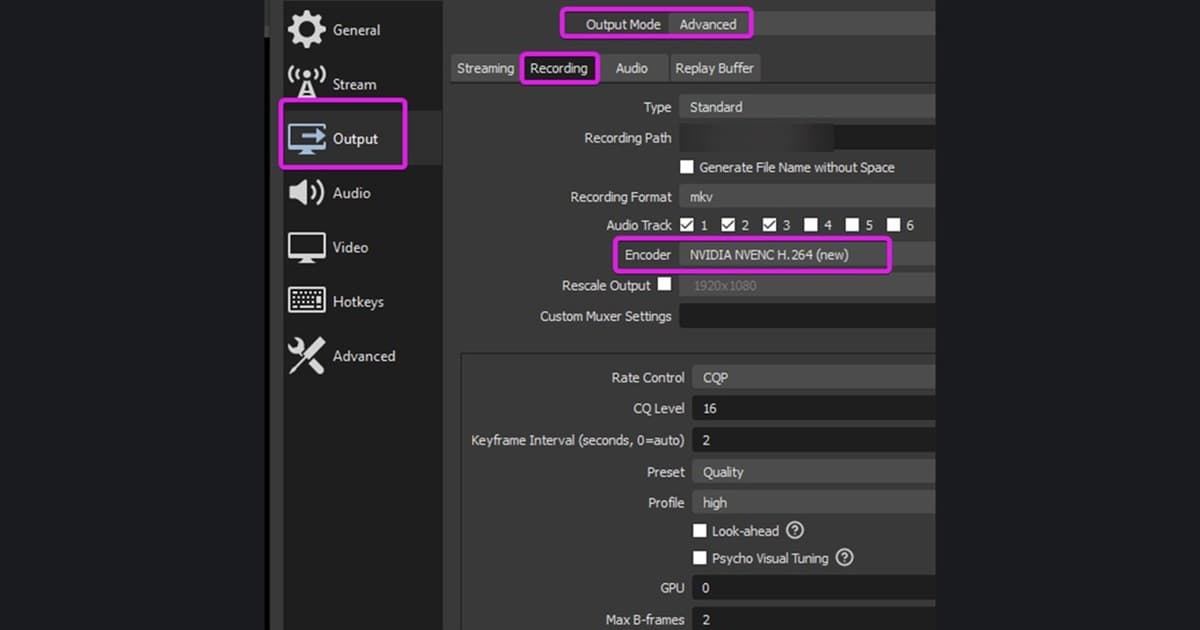
- 3Export one compatible MP4 — Start with H.264 MP4 and compare a 1080p60 test against 30fps only if needed. Avoid repeatedly encoding an already compressed file.
- 4Replay locally before upload — Inspect HUD text, crosshair, kill feed, and audio sync at full screen and phone size, then attach only the verified final file.
Pre-publish or pre-join checklist
- Dead time was removed
- The current Discord attachment condition was checked
- The MP4 plays from start to finish
- HUD text and captions remain readable
- Private voice or notifications were removed
Turn the search into a useful next step with DOR
Trim the useful moment in DOR, export a new final file once, and keep it separate from the archive-quality original so you do not recompress the same clip repeatedly. Continue with share a clip on Discord, reduce a recording file size, export without avoidable quality loss. Create a 60-second test clip first and inspect frame pacing, audio, image quality, and file size before recording a full match. DOR is an option for making and reviewing short gameplay clips; do not assume it replaces an operating system or game feature.
Official source and freshness check
Discord documents file attachments and their current behavior in its official FAQ; available upload conditions can differ by account state and may change over time. Menu names, supported modes, and limits can change, so the current details were checked against official Discord File Attachments FAQ. Future updates should follow the date and version on that primary source rather than copying an undated third-party summary.