This workflow is for players who can open Win+G but see a grey record button, receive a capture warning, or cannot find the resulting video. Searches that look similar can hide very different outcomes. A disabled Game Bar setting, an unsupported target window, a shortcut collision, low disk space, and a damaged app state can all look like the same recording failure. This guide treats “Xbox Game Bar recording not working” as the main task while covering “Game Bar record button greyed out” and “Windows 11 game capture error” without pretending one setting fits every PC, mode, or team. Before installing an app or joining a group, verify the current version, game mode, audio path, storage budget, region, and active hours that can materially change the result.
Xbox Game Bar recording not working: Define the outcome and failure condition first
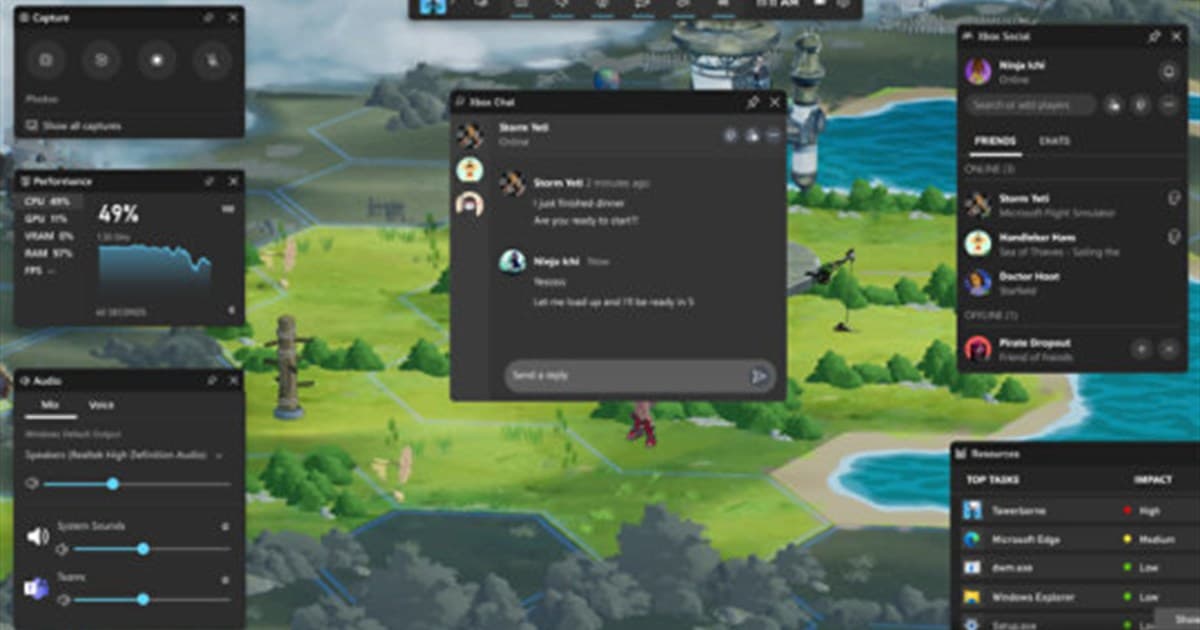
Verify Settings > Gaming > Xbox Game Bar and Captures, focus the actual game window, record ten seconds with Win+Alt+R, and open the saved file before changing more settings. Desktop and File Explorer capture are not a valid test of game capture. The best choice is not automatically the most famous tool or the biggest server; it is the option that produces a repeatable result under your conditions. Run a short recording test or a one-match conversation, then note output quality, response time, setup cost, and anything that would make you stop. Preserve the original file, settings, and recruitment message so you can reverse course without losing work.
Compare the practical options
| Option | Best fit | Check before committing |
|---|---|---|
| Repair Game Bar settings | It worked recently and you want to keep the built-in recorder | Check capture permission, audio, shortcut conflicts, and storage together |
| Repair or reset the app | Win+G does not open or the widget freezes | Widget layout and custom shortcuts may reset |
| Use a game-focused recorder such as DOR | You need repeatable match clips without the same failure | Test game support, microphone, and game audio for 60 seconds |
A repeatable workflow
- 1Test the correct target — Launch the game, focus its window, and press Win+G. Do not conclude that game capture is broken because the desktop itself cannot be recorded.
- 2Check permission and shortcuts — Enable Game Bar and capture settings, then check whether another overlay uses Win+Alt+R. Change one shortcut rather than running two hooks on the same key.
- 3Record ten seconds and locate it — Play the video from View my captures or Videos/Captures. A zero-byte or absent file points to storage, folder, or permission trouble.
- 4Repair once, then compare — Use Windows app repair if the widget remains broken. If one game still fails, compare a short clip from a dedicated recorder before committing to a full match.
Pre-publish or pre-join checklist
- Windows and Xbox Game Bar are updated.
- The actual game window had focus during the test.
- The capture drive has enough free space for the match.
- Game audio and microphone were replayed separately.
- The game name, time, and exact error were recorded.
Turn the search into a useful next step with DOR
If the built-in capture remains unreliable, record the same game briefly with DOR and compare the actual file, then keep only the moments you want as clips. Continue with Xbox Game Bar recording guide, recorder not detecting a game, free game recorder comparison. Create a 60-second test clip first and inspect frame pacing, audio, image quality, and file size before recording a full match. DOR is an option for making and reviewing short gameplay clips; do not assume it replaces an operating system or game feature. For a game-specific example of automatic clips, visit the VALORANT game hub.
Official source and freshness check
Microsoft directs users to verify that Game Bar is enabled, check its shortcut and app state, and use the Windows repair path when the overlay does not work. Menu names, supported modes, and limits can change, so the current details were checked against official Xbox Game Bar troubleshooting guide. Future updates should follow the date and version on that primary source rather than copying an undated third-party summary.