To get straight to it, what determines game recording quality is three things: resolution, bitrate, and encoder. For 1080p, set the bitrate around 25,000 kbps, use a GPU-based encoder (NVENC, AMF, QuickSync), and record at 60fps, and you'll get clean results in most games. The higher you push the resolution to 1440p or 4K, the more you need to raise the bitrate to match. Just following the single table below is enough.
The short answer: recommended settings in one line
On top of the values above, set rate control to CQP (CQ 18-20) and the keyframe interval to 2 seconds; for the bitrate and recommended codec at each resolution, follow the table below. If your goal is keeping the match rather than tuning settings, DOR is a free Windows app that detects supported games, records the full match with NVENC hardware encoding by default, captures game audio and your mic together, and saves it to the in-app library. You can check which games are supported in the game list.
Recommended settings table by resolution
We've organized this around the three most commonly used resolutions. The bitrates assume 60fps; if you record at 30fps, you can lower them to about 60-70% of the table values.
- 1080p (1920x1080) · 60fps · bitrate 20,000-25,000 kbps · encoder NVENC (H.264/HEVC) or x264 (fast CPU) · recommended for: competitive FPS/MOBA like Valorant and League of Legends
- 1440p (2560x1440) · 60fps · bitrate 40,000-50,000 kbps · encoder NVENC HEVC or AV1 (supported GPUs) · recommended for: Overwatch and high-quality highlight editing source
- 4K (3840x2160) · 60fps · bitrate 80,000-100,000 kbps · encoder NVENC AV1/HEVC recommended · recommended for: top-quality source for YouTube uploads
- Common recommendations: keyframe interval 2 seconds, color format NV12 (or P010 for HDR), profile high
How the three values change quality
Resolution: the ceiling on detail
Resolution is the number of pixels on screen. It determines whether fine details survive, like a tiny minimap icon or the silhouette of a distant enemy. But if you only raise the resolution and leave the bitrate as is, there's not enough data per pixel and the image actually smears. If you raise the resolution, you must raise the bitrate along with it.
Bitrate: the real heart of quality
Bitrate is the amount of data packed into each second of video. At the same resolution, a low bitrate breaks into blocks during fast motion, while a high enough one stays clean. The faster the whole screen changes, as in FPS and MOBA titles, the safer it is to use the higher values in the table.
Encoder: the balance of quality and load
The encoder is the method used to compress the video. x264 uses the CPU and gives better quality at the same bitrate, but if the game uses a lot of CPU, your framerate drops. NVENC (Nvidia), AMF (AMD), and QuickSync (Intel) use dedicated circuitry on the graphics card, so they have almost no impact on game performance. The AV1 hardware encoders on recent GPUs are noticeably cleaner than H.264 at the same bitrate, so if it's supported, it's worth considering first.
Recording bitrate by fps: 60fps vs 30fps (1080p, 1440p, 4K)
This covers what bitrate to set when you record at 30fps. The bitrate you need is set by resolution, fps and codec, not by the recording program, so the same baseline applies at the same resolution, fps and codec in any tool, including instant replay features. For 30fps, 60-70% of the 60fps value is enough.
| Resolution | 60fps baseline | 30fps baseline (60-70%) |
|---|---|---|
| 1080p (1920x1080) | 20,000-25,000 kbps | about 12,000-17,500 kbps |
| 1440p (2560x1440) | 40,000-50,000 kbps | about 24,000-35,000 kbps |
| 4K (3840x2160) | 80,000-100,000 kbps | about 48,000-70,000 kbps |
Step-by-step instructions (using OBS)
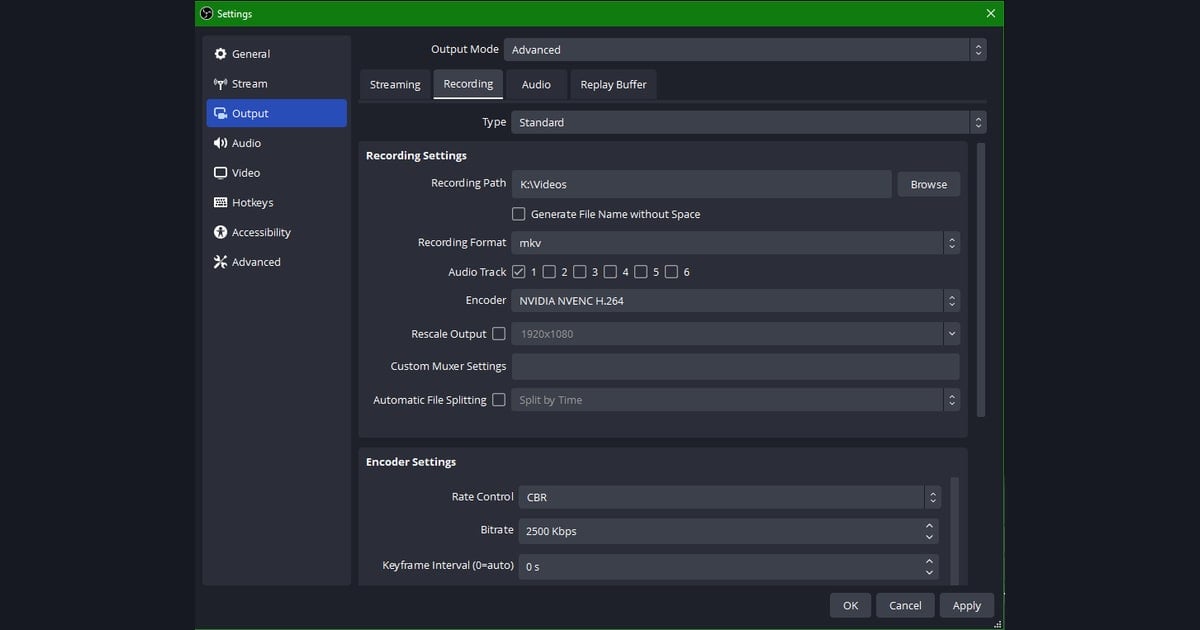
- Step 1: Go to Settings > Output and change Output Mode to 'Advanced.' This lets you choose the encoder and bitrate mode directly.
- Step 2: In the 'Recording' tab, select a GPU-based encoder (NVENC/AMF/QuickSync). If the game uses a lot of GPU, try switching to x264 and compare.
- Step 3: Set bitrate control to CQP (or CRF) and enter a CQ value of 18-20. If file size is a concern, you can go up to 22.
- Step 4: In Settings > Video, set the base/output resolution to one from the table above, and set the common FPS to 60.
- Step 5: Set Output > Recording Format to mp4 (or record to mkv and remux to mp4), with a keyframe interval of 2 seconds and profile high.
- Step 6: Do a test recording of about 60 seconds, then zoom in on a fast firefight scene to check. If you see breakup, lower the CQ value a step or two or raise the bitrate.
With DOR you don't need to memorize this table
If you've read this far and jotted the table down, honestly, that process itself is the reason we built DOR. With DOR you do not need to memorize a table and set everything by hand; it records the moment you turn it on. It uses NVENC hardware encoding by default, which keeps the load on your game low, and there is no encoder or bitrate for you to pick.
As a result, situations where the game uses a lot of CPU and drops frames, or mistakes like setting the bitrate too low so firefight scenes smear, simply never happen. Whether you keep an entire Valorant match untouched with Valorant recording, or organize your League of Legends highlights or Overwatch plays, you can focus on playing instead of staring at a settings screen.
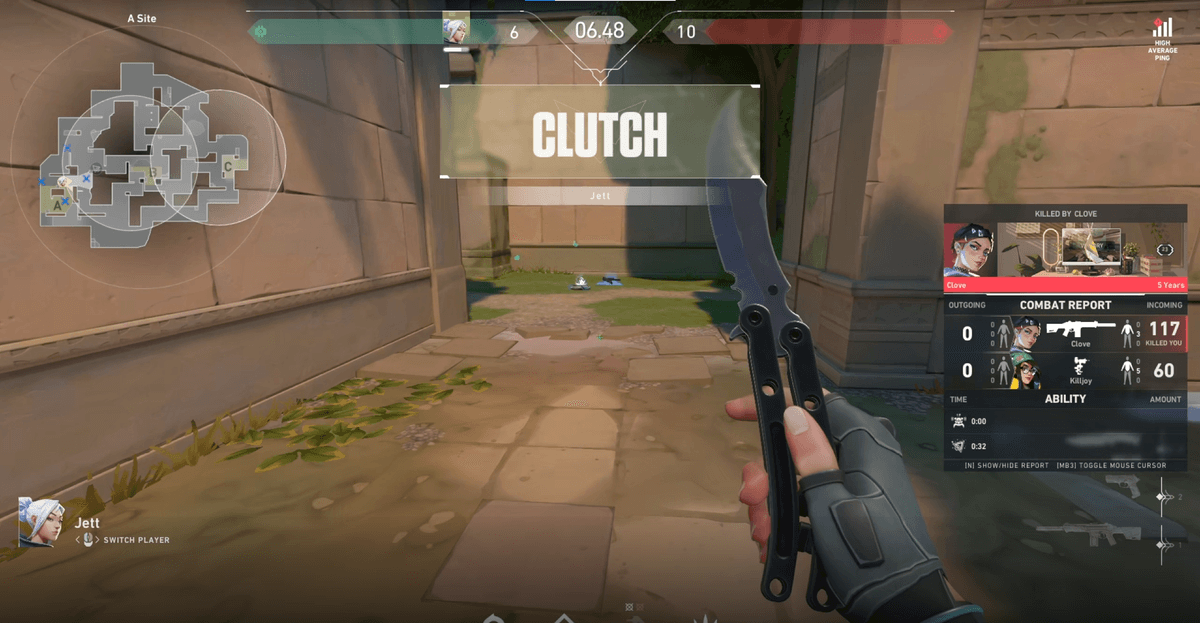
Balancing file size and quality
High-quality source files are large. Even at 1080p 60fps, an hour of recording can come out to tens of GB. If your goal is archiving, raise the CQ value slightly to 20-22 to reduce file size, and if it's source that will be compressed once more, as with a YouTube upload, it's safer to set it high using the upper table values. The more a source will go through editing, the less you lose by keeping the bitrate generous.
Summary
The formula for game recording quality is simple. Set the resolution, give it enough matching bitrate, and protect game performance with a GPU-based encoder. Use 25,000 kbps for 1080p, 50,000 kbps for 1440p, and 80,000 kbps or more for 4K as a baseline with CQP 18-20, and you'll get near-lossless results. If dialing in these values every time is a hassle, starting with DOR, which records automatically with no setup, is a good choice too.