To try for more FPS in Dead by Daylight on PC, test these three groups of options one at a time and compare the results: a lower graphics quality and resolution, an upscaler (FSR 1.0 or Intel XeSS), and VSync, FPS limit and anti-aliasing. If dark maps are the real problem, fix visibility with Gamma and the accessibility options rather than raising quality. The official documentation gives no recommended numbers for individual options, so this guide lists only option names that actually appear in Steam patch notes, checked on October 6, 2026, and gives directions instead of values. If your frame rate only drops while recording, read how to fix FPS drops while recording games first; this page covers the in-game side. It applies to PC (Steam) only, not consoles or mobile.
Bottom line: what to lower and what to add back
Think in two directions. For frame rate, go lower: the quality preset, resolution and anti-aliasing, with FSR 1.0 or Intel XeSS alongside when you drop the resolution. For visibility, go higher or clearer: Gamma, the FOV slider if you play killer, and the accessibility options. Change VSync and FPS limit separately from everything else. If controls feel sluggish after a change, the general principles in reducing input lag in games apply here as well. If your PC is close to the minimum spec, the Steam store itself advises Low quality settings, so begin there.
How to apply it (English client)
- 1Compare your PC with the Steam spec first — As of October 6, 2026, the Steam store lists these requirements. Minimum: Windows 10 64-bit, Intel Core i3-4170 or AMD FX-8120, 8 GB RAM, a DX11 compatible GeForce GTX 460 1GB or AMD HD 6850 1GB, DirectX 11, 50 GB of storage, with a note that Low quality settings are recommended at this spec. Recommended: Windows 10 64-bit, Intel Core i3-4170 or AMD FX-8300 or higher, 8 GB RAM, GeForce 760 or AMD HD 8800 or higher (listed with 4GB of RAM), DirectX 11, 50 GB of storage. The closer your PC is to the minimum, the harder you should lower the frame-rate options below.
- 2Open Settings and walk through the tabs — Patch 9.3.0 in November 2025 regrouped the settings menu into tabs and subtabs and replaced value pickers with sliders, so menu paths in older videos and articles may no longer match your client. Do not memorize a path. Open Settings, go through each tab, and look for the English names Resolution, VSync, FPS limit, Anti-aliasing and Gamma. A note from August 2026 also says some settings live under a Beta section of the General tab, so check there if something seems missing.
- 3Lower the frame-rate options one at a time — Lower the quality preset and Resolution first. If that is not enough, turn on FSR (1.0) or Intel XeSS and see whether a lower resolution still looks acceptable. Then turn anti-aliasing off, and change VSync and FPS limit separately. Changing several at once hides which one helped, so play one match per change. The official sources set no target frame rate, so compare by feel and with your own FPS counter.
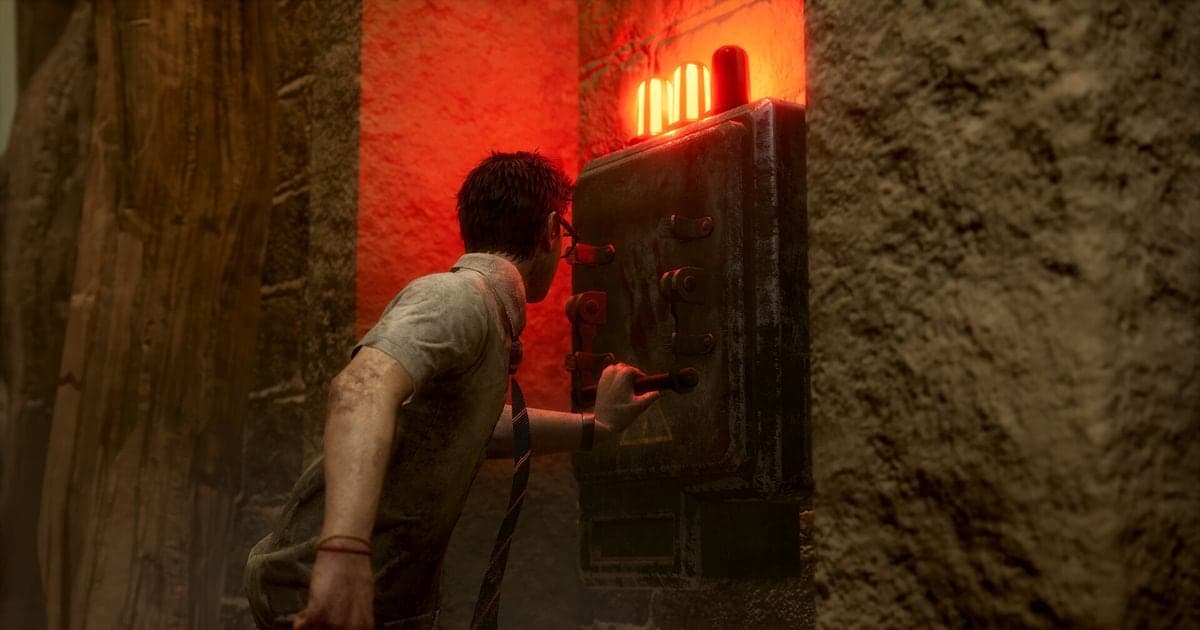
- 4Add visibility back with the right options — If the map feels dark after lowering quality, adjust Gamma. Killer players can change the field of view with the FOV slider added in 7.5.0, and the Restore Defaults button resets FOV. On the accessibility side, check Visual Terror Radius and Colourblind mode. The in-match item preview size (full sized or reduced) added in 8.0.1 and the aura colour customization in the Beta tab from 9.5.0 are also worth a look if the screen feels cluttered.
- 5Play one match, then check recording-related options — After changing settings, play a real match and check that frames are steady and that objects such as pallets and generators are still easy to tell apart in dark areas. If you record or stream, remember that a Copyrighted Music Setting exists (it appears in the 9.1.0 notes). Its menu location is not given in the notes, so look for it by name in Settings and confirm its state.
What the official notes confirm, option by option
| Option (English client) | What the official notes confirm | Direction |
|---|---|---|
| Resolution and Low quality settings | The 7.2.0 notes updated the resolution option, the 9.0.0 bug fixes mention Low graphic quality settings, and the Steam store recommends Low quality at minimum spec. | If frames are short, lower the resolution and quality preset first. Preset tier names and their detailed values are not documented in the sources checked. |
| FSR, FSR SHARPNESS and Intel XeSS | FSR 1.0 support was added in 7.4.0, the 7.5.0 notes name an FSR SHARPNESS option, and Intel XeSS support for PC arrived in 8.2.0. | Try them when you lower the resolution. Support for FSR versions after 1.0 is not confirmed in the notes. |
| VSync and FPS limit | VSync on/off and a way to change the FPS limit were introduced as new settings in 7.2.0. | Change these two separately from other options and compare. Try VSync on and off for one match each. The list of FPS limit values is not documented, so read it from your client. |
| Anti-aliasing | 7.2.0 added a setting to turn anti-aliasing on or off. | Turn it off if you need frames; turn it back on if jagged edges bother you. |
| Gamma and FOV | The 9.0.0 notes place Gamma in the Graphics tab (before the menu rework). 7.5.0 added an FOV slider for first-person-camera killers, The Good Guy excluded. | Use Gamma to correct dark maps. Adjust FOV if the view is uncomfortable or causes motion sickness; the slider range is not confirmed. |
| Accessibility: Visual Terror Radius, Colourblind mode, Press/Hold | Visual Terror Radius and Colourblind mode exist in the notes, and 6.7.0 added a Press/Hold choice for Bloodweb node purchases in the Accessibility tab. | If judging distance by sound alone is hard, try Visual Terror Radius. If colours are hard to tell apart, check Colourblind mode. |
After-you-change checklist
- I compared the Steam minimum and recommended specs with my PC, as checked on October 6, 2026.
- I opened the Settings tabs and subtabs and found Resolution, VSync, FPS limit and Anti-aliasing.
- I changed only one option at a time and compared matches under similar conditions.
- I checked that FSR or Intel XeSS does not make the picture too soft.
- I looked at Gamma and the accessibility options (Visual Terror Radius, Colourblind mode).
- If I record or stream, I checked the state of Copyrighted Music Setting.
If you also want to record the match
As the Dead by Daylight hub shows, this game became a DOR supported game in October 2026, and DOR records the full match automatically and saves it as an mp4. Automatic highlight clips are not offered for this game, so it suits keeping an entire dark-map match, with your Gamma tweaks applied, to review afterwards. On an NVIDIA graphics card the default encoding is NVENC hardware encoding, and game sound and microphone are captured at the same time, so any spoken notes you make while testing a setting end up in the same video. DOR does not raise your in-game frame rate, so if frames drop while recording, work through the checks in reducing GPU load while recording as well.
Official sources (checked October 6, 2026)
System requirements come from the Dead by Daylight Steam store page, the FOV slider and the FSR SHARPNESS name from the 7.5.0 patch notes, and the settings menu rework from the 9.3.0 patch notes. No new graphics or FPS options were found in the recent Steam patch notes.