Before preserving a decisive Delta Force moment, define whether the deliverable is a quick automatic clip, a controlled full production, or an immediate manual save. Delta Force clipping tools differ in automatic-event coverage, scene and audio control, performance cost, and editing preparation, so brand recognition alone cannot decide the winner.
Identify the file and the required outcome first
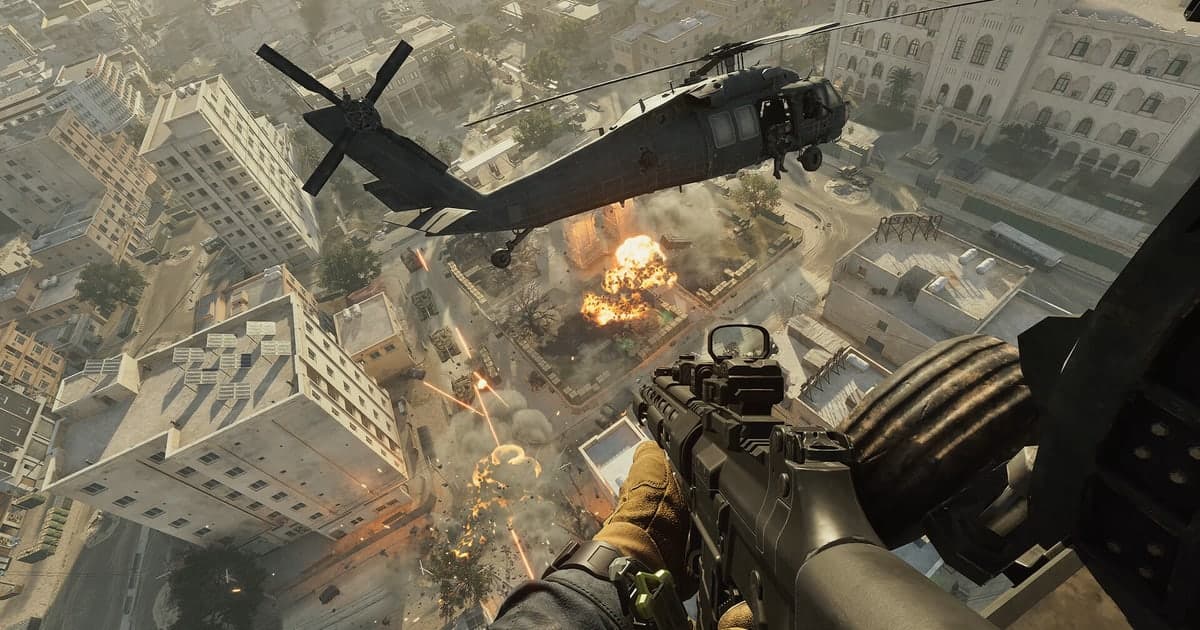
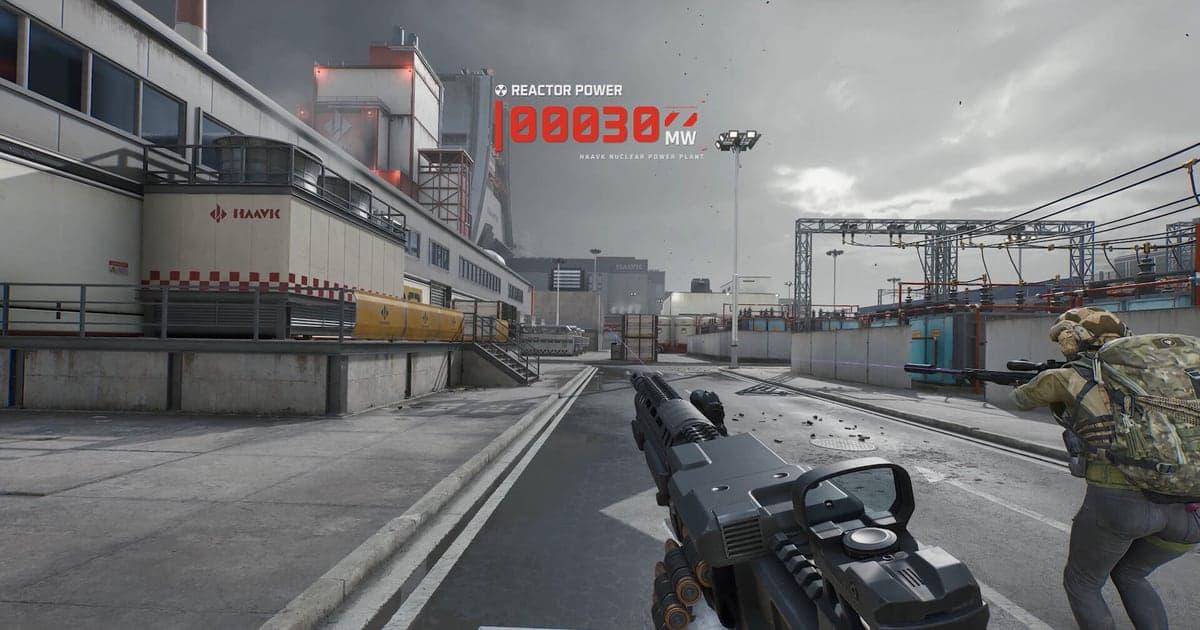
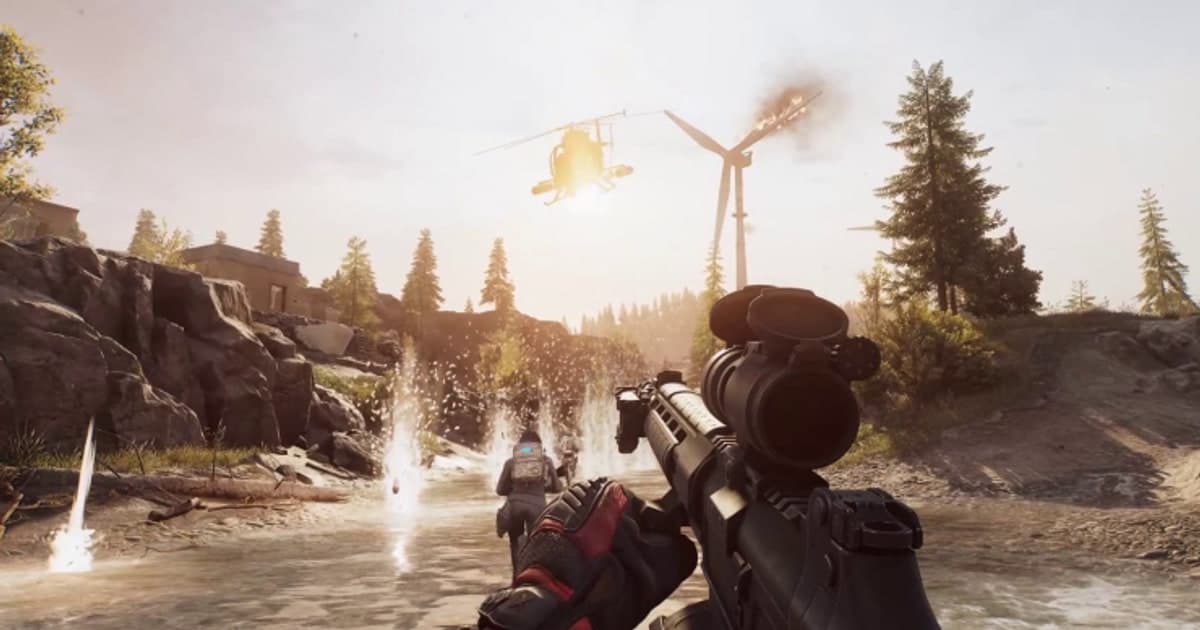
Delta Force publishes continuing frame-rate and graphics optimization updates, so recording results should be retested after a seasonal client patch. Test a vehicle-and-explosion sequence in Warfare separately from a tight indoor fight in Operations. Inspect compression when particles cover the large battlefield, decide whether squad communications and footsteps need separate audio paths, and repeat capture after a large seasonal client patch. The two modes have different visual complexity and session length, so one quiet sample cannot represent both. In Operations, open the inventory in a dark room to test loot labels and shadow gradients; in Warfare, switch from infantry view to a vehicle optic and look for duplicate or black frames. If game capture becomes blank after an update, preserve the original profile and compare display capture once as a diagnostic so the capture-source failure is isolated. Keep the real resolution and frame cap, then test only the relevant DOR, OBS, and operating-system or GPU candidates for sixty seconds each. Do not inspect average FPS alone; compare low-frame smoothness, missing audio, compression artifacts during fast turns, seek behavior, and final file size.
Compare the options and their failure conditions
| Option | Best fit | Verify before committing |
|---|---|---|
| DOR | Simple short-clip collection when Delta Force is supported | Actual support plus sixty-second video and audio quality |
| OBS Studio | Detailed control of scenes, audio, and encoder | Setup time, capture compatibility, performance headroom |
| OS or GPU capture | Immediate saving matters more than a custom production | Supported hardware, hotkeys, and storage limits |
Checks after a one-match test
- A backup of the source file and settings exists.
- Current game and application versions are recorded.
- Game audio and microphone were checked separately.
- Output location and free space were verified.
- The sample opens in an independent player.
A source-safe workflow
- 1Preserve the source and baseline — Copy the file and note game and app versions, display mode, audio devices, encoder, destination, and free space.
- 2Create a sixty-second reproduction — Use real-match conditions and include fast movement, game effects, microphone speech, and any required voice path.
- 3Inspect each result separately — In both the original app and an independent player, verify video, every audio source, frame pacing, seeking, and size.
- 4Change only one variable — Adjust one setting directly tied to the observed failure, then repeat the same sample and compare.
Test DOR as a separate capture path
Verify actual support before evaluating DOR as a short-clip candidate for Delta Force. OBS may fit better when scene composition and multitrack production are required. Delta Force game page, OBS versus ShadowPlay, audio sync diagnosis.
Official source and version boundary
The official Delta Force site publishes a dedicated frame-rate and graphics optimization notice, showing that client performance can change with updates. Delta Force frame-rate and graphics optimization notice.