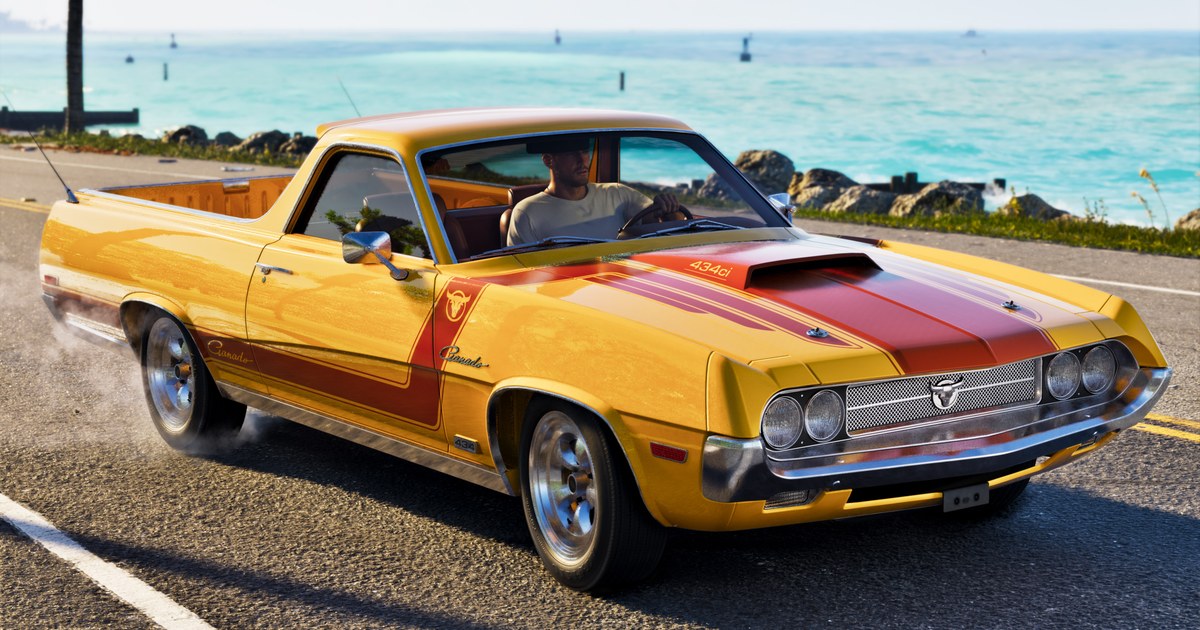
Auto drive in GTA 6 (Grand Theft Auto VI) lets Jason or Lucia drive to your waypoint on their own. The short answer is four steps.
Set a waypoint on the map, get in a vehicle and drive onto the road a little, hold Down on the D pad and press Options (Menu on Xbox) to switch to cinematic view, and when the auto drive prompt appears in the bottom right corner of the screen, hold Circle (B on Xbox).
There is nothing to unlock, so you can use it from the start of the game. Because auto drive follows traffic signals and road rules, it is slower than driving yourself, but it is a great way to put the controller down on a long trip and watch the streets of Leonida like a movie.
This guide is based on GTA 6 as released on PS5 and Xbox Series X|S on November 19, 2026 (as of 2026-11-23), and covers the buttons, speed control, the settings to check when auto drive is not working, and auto drive on boats, in that order. To see how big Leonida is, read GTA 6 map size and regions.
It comes down to a waypoint and a road: get both right and it turns on in cinematic view
Auto drive needs two things. A waypoint must be set on the map, and with the default setting, the vehicle must be on a road. Without a waypoint, holding Down on the D pad and pressing Options will not even turn on cinematic view, and no auto drive prompt appears.
If you have a waypoint but the prompt is greyed out, the vehicle is usually somewhere that is not a road, such as a dirt track or a beach. In that case, drive back onto the road, or go to Settings > Gameplay and set Auto Drive to Unrestricted so you can turn it on off road too.
Even on Unrestricted, the AI is most reliable when it finds the nearest road and drives along it, and off road it can hit trees or bushes. Cinematic view is a movie style camera whose angles you do not control, so steering by hand in this view is awkward.
That is why, once cinematic view is on, it is easiest to hold Circle (B) right away and hand over to auto drive. You can pick from three speed levels with L2 and R2 (LT and RT on Xbox), but the difference between them is small, and at every speed the car stops at red lights and follows road rules.
Drive yourself during police chases or when you are in a hurry, and save auto drive for relaxed long trips.
How to turn on auto drive
- 1Set a waypoint on the mapOpen the map (the touchpad on PS5), move the cursor to where you want to go and press Cross (A on Xbox) to set a waypoint. Without a waypoint, cinematic view in the next steps will not turn on.
- 2Get in and drive onto the roadPress Triangle (Y on Xbox) next to a car to get in, then press R2 (RT on Xbox) gently to pull onto the road. With the default setting, the auto drive prompt only appears on a road.
- 3Switch to cinematic viewHold Down on the D pad and camera options appear in the bottom right corner of the screen. While holding it, press Options (Menu on Xbox) to switch to cinematic view.
- 4Hold Circle to start auto driveWhen the auto drive prompt appears in the bottom right corner, hold Circle (B on Xbox). If the prompt is slow to appear, press the accelerator lightly to get the car moving. Your character now drives to the waypoint alone.
- 5Adjust speed and stop when you need toWhile driving, change speed with L2 and R2 (LT and RT). When you want to drive yourself, hold Down on the D pad or hold Circle (B) again. Pressing other buttons can trigger unexpected actions, such as getting out of the car.
GTA 6 auto drive controls at a glance (PS5 / Xbox)
| What you want to do | PS5 / Xbox input | Notes |
|---|---|---|
| Set a waypoint | Pick a spot on the map, then Cross / A | Without a waypoint, cinematic view will not turn on |
| Turn on cinematic view | Hold D pad down, press Options / Menu | Camera options and the auto drive prompt appear bottom right |
| Start auto drive | Hold Circle / Hold B | If no prompt appears, lightly accelerate on the road |
| Change speed | L2 and R2 / LT and RT | Three levels, road rules at every speed |
| Take back control | Hold D pad down, or hold Circle / B again | You can steer yourself right away |
| Use it off road | Settings > Gameplay > Auto Drive > Unrestricted | Off road it can hit trees and bushes |
| Auto drive a boat | Same inputs, waypoint in the ocean or a lake | A land waypoint ends auto drive at the edge of navigable water |
What to check when auto drive is not working
- A waypoint is set on the map
- The vehicle is on a road (or Auto Drive is set to Unrestricted for off road)
- Cinematic view is on with D pad down and Options (Menu)
- Circle (B) is held down, not just tapped
- For a boat, the waypoint can be reached by water, like the ocean or a lake
- If the car is stopped, a red light, traffic jam or accident may be the reason
How to make GTA 6 videos: turn auto drive cruises into Shorts
An auto drive cruise through Leonida in cinematic view already looks like a film. To keep it, record it on your console, move it to your PC and edit it in the DOR Studio. On PS5, use the Create button to save recent gameplay from 15 seconds up to 1 hour or start a new recording (up to 1 hour).
On Xbox Series X|S, use the Xbox button menu to capture what just happened, up to the last 2 minutes, or start a recording. Copy PS5 videos from the Media Gallery to a USB drive or get them on your phone through PS App auto upload, and find Xbox captures in the Captures list of the Xbox mobile app.
Detailed PS5 steps are in GTA 6 PS5 recording. Upload the video to the dor.gg Studio to turn it into a 9:16 vertical Short, merge several clips, trim, add text, music and effects (shake zoom, punch zoom and more), then export as mp4 or share a link. The result has no watermark. Shorts editing tips are in GTA 6 Shorts and TikTok editing, and the full process from console recording to upload is in how to make GTA 6 videos.