The short answer: Marathon FPS optimization comes down to three steps. First clean up the display mode and sync, then turn on upscaling, then lower the heavy detail settings. Switch from windowed or borderless to fullscreen, turn V-Sync off, and set a frame cap close to your monitor refresh rate.
That alone removes a lot of frame time wobble. Next enable DLSS or FSR, and drop foliage detail distance to the lowest value, because it takes up a large part of the screen.
As of November 24, 2026 we could not find an official settings chart from Bungie, so this guide keeps only the values that several guides and player discussions agree on. Where they disagree, such as shadow quality, it shows you how to compare the options yourself. If your frames drop only while recording, see how to fix game recording stutter.
Answer: fullscreen, V-Sync off, upscaling on, foliage distance lowest
Change the display mode and sync first. Fullscreen with V-Sync off and a frame cap near your refresh rate lowers input delay and smooths frame pacing at the same time. Second, turn on upscaling: DLSS on NVIDIA cards, FSR on AMD, and drop the quality step to Balanced if you still need frames.
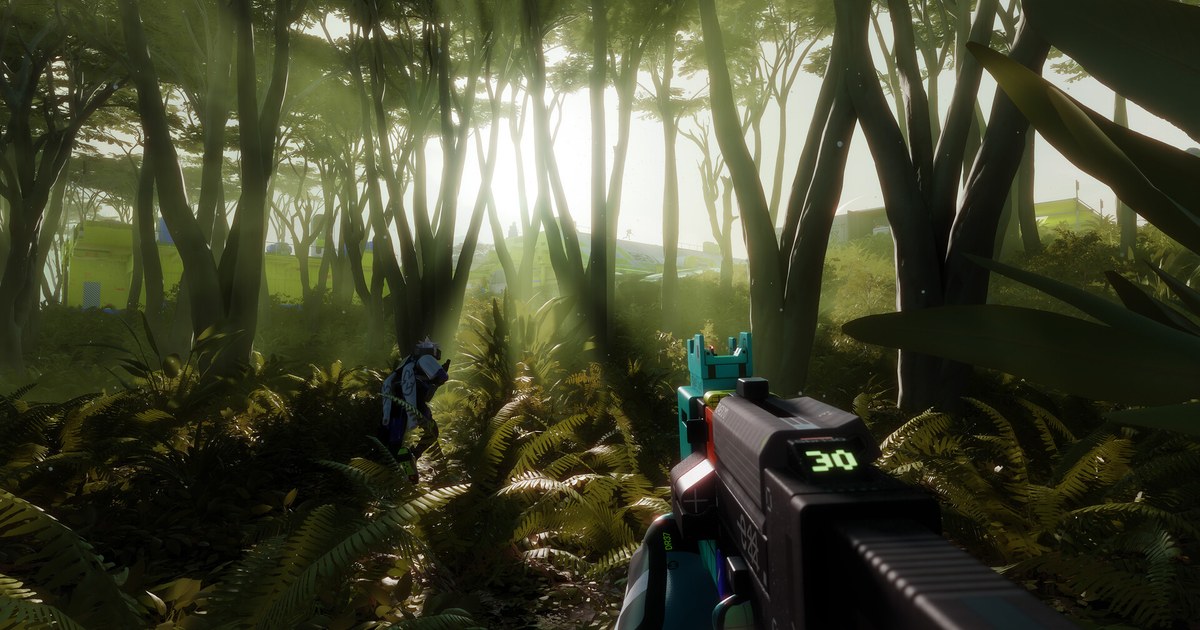
Third, set foliage detail distance to the lowest value. Several guides call it the most noticeable frame gain, and fewer plants on screen also makes enemies easier to spot. Shadow quality is where guides split between low and high, so do not memorize an answer.
Compare both values in the same spot and keep the one that gives a clear frame gain. Leave the preset on Custom and change one item at a time, otherwise you cannot tell which change helped. Once you reach your target frame rate, stop lowering things so you keep as much image quality as possible.
How to Raise Marathon FPS Step by Step
- 1Measure your current frames firstTurn on an FPS counter in game or through an overlay, and write down the frame rate in a crowded fight and in a quiet area. Without numbers you cannot tell which setting helped. Our guide on how to show FPS in games covers the options.
- 2Fix display mode and syncSet fullscreen, turn V-Sync off, and set the frame cap equal to or slightly above your monitor refresh rate. This step alone often removes stutter you can feel, so measure again before moving on.
- 3Turn on upscaling and pick a stepChoose DLSS on NVIDIA cards or FSR on AMD cards. If frames are already high, use a higher quality step; if not, drop to Balanced. On NVIDIA cards, most guides also suggest turning NVIDIA Reflex on to cut latency.
- 4Lower the heavy detailsSet foliage detail distance to the lowest value and turn motion blur and chromatic aberration off. Then match texture quality to your VRAM, and compare low and high shadows in the same spot to see which one costs more frames.
- 5Re-test in a fight and close background appsMeasure the same fight again. If frames are still short, close browsers, video calls and updaters, then test once more. Setting the Windows power plan to high performance is another tip many guides share.
Marathon FPS Settings Table
| Setting | Recommended | Why |
|---|---|---|
| Display mode | Fullscreen | Often lower latency and steadier frames than windowed modes |
| V-Sync | Off | Cuts input delay; use the frame cap if you see screen tearing |
| Frame cap | Near or slightly above refresh rate | Keeps frame pacing even, so motion feels smoother |
| Upscaling (DLSS or FSR) | On, Balanced if you need more | Less image loss than lowering resolution, with a big frame gain |
| Foliage detail distance | Lowest | Guides call it the biggest single gain, and the view gets cleaner |
| Motion blur and chromatic aberration | Off | Small performance gain and clearer enemies in fights |
| Texture quality | Match your VRAM | Running out of memory causes stutter, so go lower on smaller cards |
Before You Finish
- You measured frames before and after in the same kind of fight
- Fullscreen, V-Sync off and the frame cap are all applied
- The upscaling step looks good and gives enough frames
- You only touched textures and shadows after foliage, motion blur and chromatic aberration were already lowered
- If you record too, you played one match to confirm frames hold while recording
Record Marathon with DOR while keeping your frames
DOR is a free Windows game recording app. When you launch a supported game it detects it automatically and records the whole match, and the recordings gather in My Clips in the app. Games that are not on the supported list can still be captured with screen recording.
Free recording quality is 720p or 1080p at 30 or 60 fps, with 1080p at 30 fps as the default. If your game frames are tight, keep recording at 30 fps and protect the game frame rate first. On supported NVIDIA graphics cards such as the RTX series, recording uses NVENC hardware encoding.
You can trim the part you want in the app, then combine clips in DOR Studio, add effects, text and BGM, and export an mp4 or share a dor.gg link, all without a watermark. Keeping a clip of a fight before and after your changes also lets you compare the results on video.