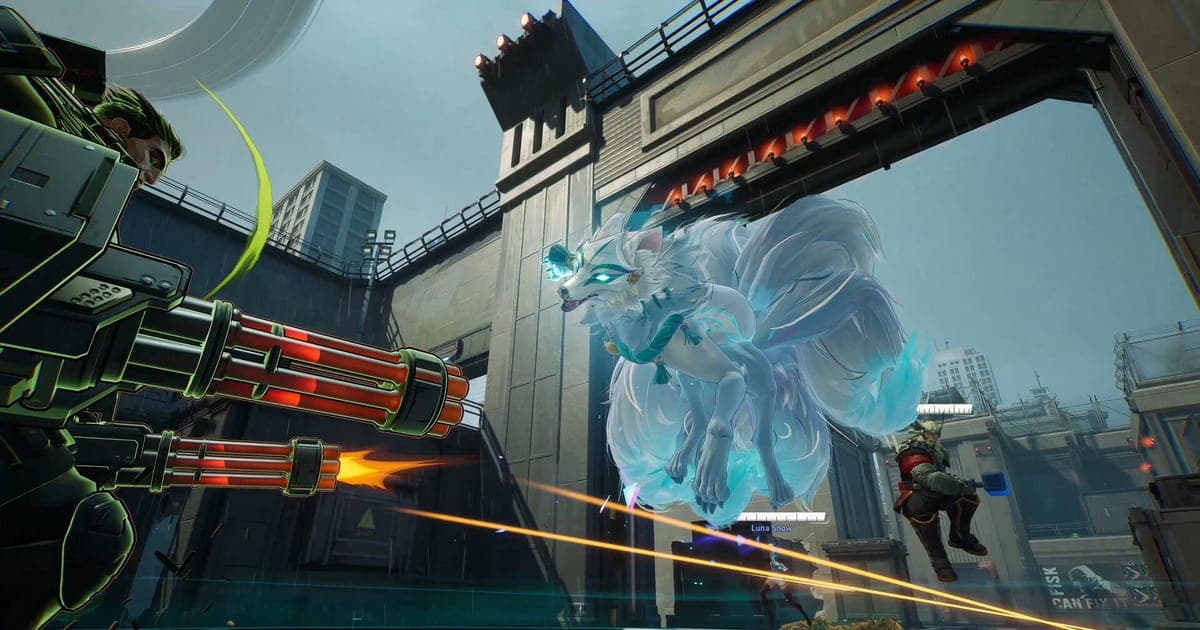
The Marvel Rivals settings with official backing for more FPS are three: move the four options that patch notes added for performance (Anti-Aliasing, Model Detail, Global Illumination, Reflection Quality) toward Off or Performance, set Marvel.exe to high-performance in Windows graphics settings, and, with 16 GB of RAM or less, turn on Switch Shader Compilation Mode in the launcher. This guide covers the PC version and is current as of September 30, 2026. The developer publishes no per-option numbers and no 'pro presets', so nothing here is a magic value, only which way to turn each option. If you also plan to record on a modest machine, read how to record games on a low-end PC alongside this.
Bottom line: what to know before touching any option
Nothing on the official pages gives a percentage gain per option or a 'pro preset', so every direction in the table is a suggestion, not a target value. What the patch notes do confirm is which options were added for performance. Rows for upscalers and frame generation from a GPU vendor you do not own, and experimental features whose RAM or CPU conditions you do not meet, can be skipped. If you record while playing, how to reduce GPU load when recording continues the check from the load side.
Order of application
- 1Reinstall the graphics driver in clean mode — Reinstall the latest driver for your GPU model using clean installation mode. The official December 11, 2024 guidance recommends clean installation for NVIDIA and the factory reset option for AMD, and warns that some integrated graphics such as Intel Iris Xe and UHD may not run the game properly. For minimum and recommended specs, read the Steam store page directly.
- 2Point Windows at Marvel.exe as high-performance — Using the official wording, go to Windows Settings - System - Display - Graphics, use Add Application under custom options for applications, pick Marvel.exe in the game folder, and choose the high-performance option. Menu labels can differ by Windows version. Following the official August 11, 2025 guide, also check that your monitor cable is plugged into the dedicated graphics card, not the motherboard port.
- 3Lower the four performance options one at a time — Do not change Anti-Aliasing, Model Detail, Global Illumination and Reflection Quality all at once. Move them toward Off or Performance one by one and compare FPS in the same situation. The January 8, 2025 patch notes state these four gained Off or Performance choices to improve performance. Other options are not covered because the official sources do not describe them.
- 4Check only the upscaler for your GPU — If the graphics settings list DLSS, FSR or XeSS entries, read only the one for your GPU vendor. Patch notes describe which features are supported but give no menu path, so this guide does not claim where they sit. Frame generation changes input feel and image quality, so compare it on and off yourself.
- 5On a laptop, use Frame Rate Limit and game mode — The official laptop guide says playing with an uncapped frame rate for long sessions can overheat the machine and trigger CPU and GPU thermal throttling, and recommends the in-game Frame Rate Limit. The December 2024 guide names the path Menu > Options > Display Settings > Frame Rate Limit, which may differ from today's screen. It also suggests the maker's Game Mode or Performance Mode and good cooling.
- 6Use experimental features only if your RAM, CPU or disk fits — With 16 GB of RAM or less and frequent stutter or crashes, consider Switch Shader Compilation Mode in the launcher. With a mid-to-high-end CPU, consider Performance Optimization (Beta) under Settings > Other. If disk space is tight, unticking the Steam DLC gives the low-resolution pack at a possible cost in image quality. The official notices call the first two experimental and ask you to report problems to support.
What each option does and which way to turn it
| Option | What it does and suggested direction | Basis (official post date) |
|---|---|---|
| Anti-Aliasing | Smooths jagged edges on objects. If FPS is short, consider Off. | Version 20250110 patch notes (2025/01/08): Off option added |
| Model Detail | Sets how detailed models are drawn. If performance comes first, consider Performance. | Version 20250110 patch notes (2025/01/08): Performance option added |
| Global Illumination | Affects how lighting is calculated. If you need headroom, consider Off. | Version 20250110 patch notes (2025/01/08): Off option added |
| Reflection Quality | Sets reflection quality. Off is selectable, and floor brightness in some scenes was tuned for the Off setting. | Version 20250110 (2025/01/08, Off added) and Version 20250221 (2025/02/18) patch notes |
| Switch Shader Compilation Mode (launcher) | An experimental feature that compiles shaders only on the first launch after a new game version or driver update, cutting memory use and stutter. Recommended for 16 GB of RAM or less plus heavy FPS drops, freezes or frequent crashes last season. On 6 or fewer CPU threads, combining it with AMD FSR3 Frame Generation may add stutter. | Official notice (2025/04/10), Version 20250411 patch notes (2025/04/08) |
| Settings > Other > Performance Optimization (Beta) | A PC-only experimental feature that improves CPU rendering during fights on mid-to-high-end CPUs. Turning it on asks for privacy consent, downloads data, and applies after a restart. | Version 20260320 patch notes (2026/03/18) and notice (2026/03/19); Beta status checked only up to then |
| High-Resolution Resource Pack (Steam DLC) | Unticking the DLC switches you to the low-resolution pack. It reduces total install size to some extent but may lower visual fidelity. On Steam: right-click the game > Properties > DLC tab. | Official notice (2026/05/15); Epic was listed as coming soon |
| DLSS, FSR, XeSS (by GPU vendor) | NVIDIA: DLSS 4.5 Super Resolution (Performance Mode, Quality Mode) and DLSS Frame Generation Auto. AMD: FSR 4 (Radeon RX 9000 series only) and Anti-Lag 2 (RX 5000 series or newer). Intel: XeSS 3 Frame Generation on compatible cards. If it is not your GPU, ignore it. | Patch notes Version 20260612 (2026/06/10), 20260625 (2026/06/24), 20250411 (2025/04/08), 20250221 (2025/02/18), 20260911 (2026/09/09) |
Checklist after applying
- Reinstalled the graphics driver in clean installation mode
- Set Marvel.exe to high-performance in Windows graphics settings
- Monitor cable is plugged into the dedicated graphics card
- Changed the four performance options one at a time and compared FPS in the same situation
- Checked only the upscaler and frame generation entries for my GPU vendor
- With 16 GB of RAM or less, considered Switch Shader Compilation Mode
- Checked the date (September 30, 2026) against the latest official posts
Turning recording on after you have won back FPS
In DOR, Marvel Rivals is a full-match auto-recording game only, with no automatic highlight clips. Moments you want to keep are trimmed by hand with Clip Trim in the app library or in the browser-based DOR Studio, then shared as a dor.gg link. Once your settings give you headroom, switch recording on and confirm the frame rate holds in the same situation. On an NVIDIA graphics card, DOR encodes with NVENC hardware encoding by default, which hands the encoding work to the card, and it can capture game sound and your microphone together so team comms are kept too. See the Marvel Rivals page for the game overview.
Official sources and check date
Checked as of September 30, 2026. The four performance options come from the Version 20250110 patch notes, the driver and Windows graphics steps from the official release FAQ, and Shader Compilation Mode from the Switch Shader Compilation Mode notice. For the NVIDIA and AMD driver install options and the integrated graphics warning, see the December 11, 2024 common FAQ under Announcements; for the laptop Frame Rate Limit advice, the December 1, 2024 laptop optimization guide under Guide; for the monitor cable advice, the August 11, 2025 guide on switching to dedicated graphics. For Performance Optimization (Beta), the resource pack and the DLSS, FSR and XeSS entries, open Game Update and Announcements on www.marvelrivals.com and find the posts dated in the table. The latest patch at this point is Version 20260924; this guide did not review its contents, so check the newest patch notes under Game Update for graphics changes. Beta and experimental features can change at any time.