On PC, this guide looks at three things for Marvel Rivals sensitivity: your mouse DPI multiplied by your in-game sensitivity, the Raw Input, mouse acceleration and mouse smoothing options under Settings - Keyboard, and the ADS sensitivity entry inside hero settings. The official patch notes give no recommended numbers and no on or off direction for any of them, so the safest method is to record your current values, change one thing at a time, and compare in the same situation. This guide covers PC only and relies on official notes checked on October 6, 2026. If you are carrying a sensitivity over from another game, run the math in the DPI and sensitivity converter guide first.
Bottom line: the official record has no target number
What the official patch notes actually establish is that these options exist. They never name a recommended DPI, a recommended in-game value, or whether smoothing and acceleration should be on. As of October 6, 2026, the most recent official patch note that touches mouse options is the 20260116 version (Season 6), and the notes from 20260911 (Season 10) through 20261001 mention no mouse or sensitivity changes. So instead of copying somebody else's figures, the conclusion here is a routine: write down what you have now and change one variable at a time. If you want to see how the same idea works in another hero shooter, read the Overwatch sensitivity guide alongside this one.
The order for settling your sensitivity
- 1Record what you have now — Before touching anything, note your mouse DPI, in-game sensitivity, whether Raw Input, mouse acceleration and mouse smoothing are on, and the ADS value for the hero you play. A screenshot works too. Without a baseline to return to, you cannot tell which version was better. This guide is PC only, so console-specific sensitivity options are left out.
- 2Confirm your mouse DPI — DPI is a mouse hardware setting and does not change inside the game. Check the current figure in the mouse maker's software or on the mouse's own DPI indicator. The official documents name no recommended DPI range for Marvel Rivals, so it is fine to keep the value you are used to and start from there.
- 3Find the options under Settings - Keyboard — Open Settings - Keyboard in the game, including the Combat category, and look through the mouse-related entries. The patch notes only go as far as that path, so the exact slider name, range and default must be read from your own screen. The official site offers English, Japanese and Korean only, so the English option names are used here.
- 4Write down the product — Multiply mouse DPI by in-game sensitivity. For example, DPI 800 with an in-game value of 2.0 gives 1600, but that is only an illustration and not a recommendation. There is no official definition of eDPI, so this guide simply calls it the product. Comparing two products is meaningful only inside the same game and under the same option conditions.
- 5Change one thing and compare under the same conditions — Change only one of in-game sensitivity, Raw Input, mouse acceleration or mouse smoothing, then repeat the same motion with the same hero, such as a quick flick turn or tracking a distant target. Changing several at once hides the cause of any difference. Keep frame rate conditions similar too; the 20250314 patch fixed an issue where frame rate affected sensitivity.
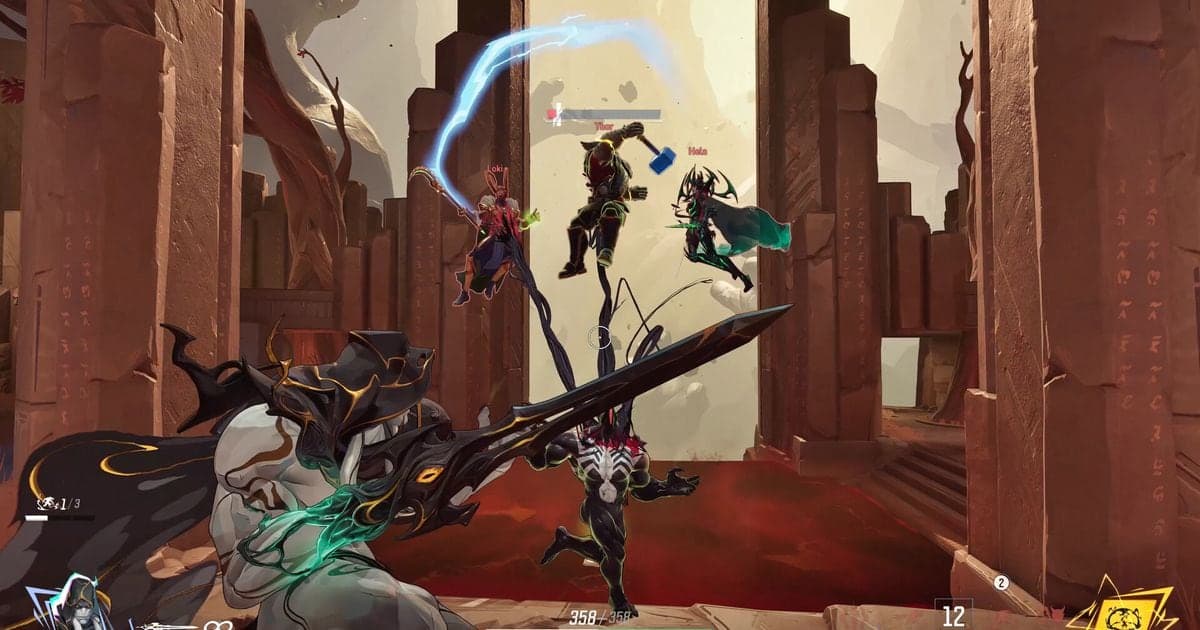
- 6Tune the hero ADS value separately — Black Widow is confirmed to have an ADS sensitivity entry in her hero settings. Open the settings of the hero you play to see whether one exists, and if so, test it apart from your general sensitivity using the same one-change method. How ADS sensitivity relates to the general value is not officially published, so judge it by feel rather than by multiplying numbers.
Mouse and sensitivity options named in official patch notes
| Option (official English name) | What the official record confirms | What to check yourself |
|---|---|---|
| mouse smoothing | Added to the Combat category of Settings - Keyboard in the 20250110 version (PC) | Note the exact label on screen and whether it is currently on |
| mouse acceleration | Added in the same patch and the same place as mouse smoothing | Record its state, and never change it at the same time as another option |
| Raw Input (Mouse) | Added as a mouse option under Settings - Keyboard in the 20250314 version, in the same patch that fixed frame rate affecting sensitivity | Record where it sits and its state, then compare feel after switching it |
| High polling rate mouse experimental optimization setting | Listed in Settings - Keyboard in the 20260116 version (Season 6) as an experimental optimization for high polling rate (8K) mice; the notes say turning it on can address related lag | Only relevant if you own such a mouse; check its polling rate in the mouse maker's software |
| ADS sensitivity | The 20241210 patch notes confirm an ADS sensitivity entry in Black Widow's hero settings; whether other heroes have one is not officially confirmed | Open the settings page of the hero you play and see if an ADS entry exists |
| Basic mouse sensitivity slider | Its name, value range and default are not in the patch notes or on the Steam store page | Read the name and range off the in-game options screen and write them down |
Before and after checklist
- I recorded DPI, in-game sensitivity, Raw Input, mouse acceleration and mouse smoothing before changing anything
- I wrote down the product (DPI x in-game sensitivity) and did not treat the example numbers as advice
- I changed only one setting at a time and logged it with the date
- I compared before and after using the same hero and the same motion
- I opened my hero's settings to see whether an ADS sensitivity entry exists
- I adjusted only through the mouse and in-game options, with no adapter that mimics a controller
Keep both matches when you change sensitivity
Marvel Rivals is a game DOR supports, and the app records the full match automatically and saves it as mp4. It does not create automatic highlight clips for this game, so the workflow is to keep the whole match from before the change and the whole match after it, then cut only the fights you want to compare using the app library's trim tool or DOR Studio. On an NVIDIA graphics card, NVENC hardware encoding is the default, and game audio and your microphone are recorded together, so saying something like "product is 1600 right now" aloud during play saves you from guessing which match used which setting later. Recording does not aim for you; it simply gives you the same situation to watch twice. A trimmed scene can be shared as a dor.gg link.
Official sources and check date
Checked on October 6, 2026. The originals are the patch notes adding mouse smoothing and mouse acceleration, the patch notes adding Raw Input and the patch notes for the high polling rate mouse optimization. The ADS sensitivity entry comes from the 20241210 patch notes on the official Marvel Rivals site, and the adapter policy from the January 13, 2025 announcement on the same site. Options can change with later patches, so trust your in-game screen first.