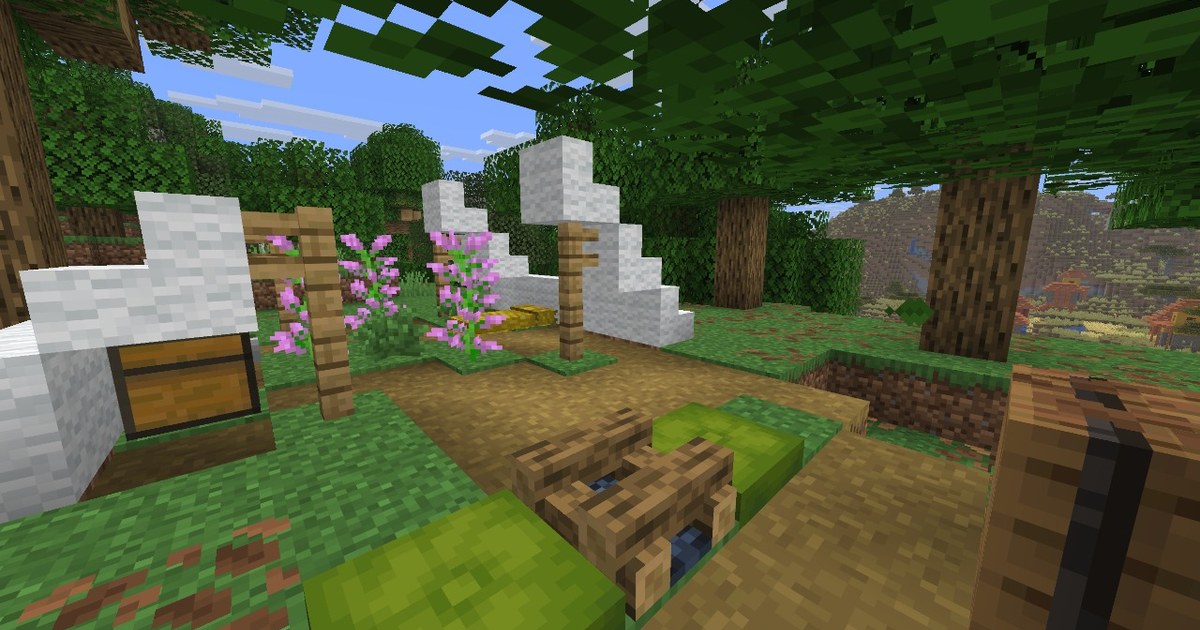
Search 'how to make a minecraft server' and you get three different answers mixed together. Friends on the same network can join a singleplayer world you open to LAN. A Realms subscription gives you an always on world with no router setup.
And the official server jar lets you run your own Java Edition server on your PC, with every setting under your control.
This guide walks through that last option, the one with the most freedom and the most moving parts, using Minecraft's official help center article on server setup, the official server download page, and Mojang's version data, all rechecked on November 10, 2026.
The help center is upfront that self hosting means changing your home network configuration and is meant for people who know what they are doing, so start with the comparison table and pick the route that actually fits your group.
If you are trying to find an existing server to join rather than run one, see how to find a Minecraft server for checking version, rules, and whether it is still active.
Bottom line: LAN for one household, Realms for easy, your own server for control
There are three main ways to play Java Edition together. Open to LAN: the host loads a singleplayer world, presses Esc, and selects Open to LAN, and the world shows up automatically on the Multiplayer screen for anyone on the same local network.
Nothing to install, but everyone must share the network and the world closes when the host quits. Realms: a subscription server run by Mojang with automatic backups, and friends can join even when you are offline.
A Java Realm can have far more invited members than players online, and up to 10 players besides you can be online at the same time. Your own server: the official server jar running on your PC.
You decide max players, game mode, difficulty, PvP, and spawn protection in server.properties, and you can grow it into a modded or plugin server later.
The trade off is port forwarding, a PC that has to stay on, and backups and security that are entirely yours; the help center states it cannot support home networks or privately made servers. Editions must match too.
Java Edition players can only join Java Edition servers, Bedrock players only Bedrock ones, and the game version should match the server to avoid connection errors. Bedrock has its own dedicated server software for Windows and Linux on the official site.
How to set up a Minecraft Java server
- 1Check Java and download the server jarOn the PC that will host, open Command Prompt and type java -version to see whether Java is installed. As of November 10, 2026 the current release, 26.3, requires Java 25, so update first if yours is older. Then grab the server .jar from the official Java Edition server download page on minecraft.net and put it in its own folder, for example a Minecraft Server folder on your desktop. The server version needs to match the version your friends play.
- 2Run it once and accept the EULAIn Command Prompt, type cd followed by the folder path, then start the server with java -jar plus the jar file name. The first run stops with messages that it failed to load eula.txt and server.properties. That is expected. Open the new eula.txt in Notepad, change eula=false to eula=true, and save. This is how you agree to the Minecraft End User License Agreement.
- 3Edit the key lines in server.propertiesOpen server.properties in the same folder. gamemode sets survival or creative, difficulty takes peaceful, easy, normal, or hard, pvp decides whether players can hurt each other, max-players caps the player count, spawn-protection is the radius around spawn where blocks cannot be broken (0 turns it off), level-seed sets a world seed, and motd is the message shown in the server list. The default port is 25565. The help center suggests sizing max players to the RAM you give the server.
- 4Set memory and start the serverRun the java -jar command again and the world generates and the server opens. The official download page shows a start command with 4GB of memory: java -Xmx4G -Xms4G -jar followed by the jar name and nogui. If you also play on the same PC, make sure the server allocation plus the game allocation still leaves room for Windows. Save the command in Notepad as a .bat file in the server folder and you can start the server with a double click next time.
- 5Forward port 25565 and allow it through the firewallFor friends outside your home, log in to your router and forward port 25565 to the local IP of the server PC. Every router brand puts this in a different menu, and the official guide simply points you to your router's manual. When the server starts for the first time and Windows Firewall asks whether Java can access the network, allow it. If only people on your Wi-Fi will join, you can skip port forwarding and have them use the server PC's local IP.
- 6Give friends the server addressSearch 'what is my IP' and note your public IPv4 address, the one made of four groups of numbers. Friends go to Multiplayer, choose Add Server or Direct Connection, and enter it as yourIP:25565. On the server PC itself you can just type localhost. The help center strongly urges you not to post your public IP anywhere public and to give it only to people you trust. If you ever open the server to strangers, turn on the whitelist first.
Minecraft multiplayer options compared (as of November 10, 2026)
| Option | Requirements and players | Pick it when |
|---|---|---|
| Open to LAN | Same network, only while the host is playing | Friends are in the same house or on the same Wi-Fi. If joins time out, switch the Windows network profile to Private. |
| Java Edition Realm | Subscription at US$7.99 a month (as of November 10, 2026), you plus 10 online at once, automatic backups | You want an always on world with no router setup. Friends join with an invite code. |
| Your own server (home PC) | Port forwarding, server PC must stay on | You want full control over player count, rules, and mods. You handle backups and security. |
| Your own server (play on the same PC) | Server and game share the same memory | You host and play on one machine. Connect with localhost; the official start command allocates 4GB. |
| Hosting provider | Use the address and port the provider gives you | You cannot keep a PC running. If the port is not 25565, add it after the address. |
| Bedrock dedicated server | Separate software for Windows and Linux | Your friends play Bedrock (Windows app, mobile, console). Java and Bedrock servers do not mix. |
Checklist after your server is up
- Server version matches your friends' game version (Java with Java)
- eula.txt is saved with eula=true
- Max players, game mode, and difficulty are set in server.properties
- Port 25565 is forwarded to the server PC on your router
- Your public IP went only to friends you trust
- You copy the world folder somewhere else on a regular schedule
Record your server events and share them
Once the server is live, the moments worth keeping arrive fast: the first night everyone builds a base together, the reveal at the end of a build contest, the group trip to the Ender Dragon.
DOR is a free Windows app that detects Minecraft when you launch it and records the whole session from launch to exit, collecting the recordings in My Clips inside the app.
After an event, pick the scenes you want from the recording and save them as 16:9, 9:16, or 1:1 cuts, or open DOR Studio to merge several scenes, add text and music, and turn the night into a recap video. Export it as an mp4 or drop a dor.gg link straight into your server's Discord announcements.
Game audio and your mic go on one track, so voice chat reactions come along too, and on supported NVIDIA graphics cards such as the RTX series DOR records with NVENC hardware encoding.
If you run the server and the recorder on the same PC, see Minecraft recording settings for picking resolution and frame rate, and how to share Minecraft clips with friends for sending what you cut.