Bottom line first. If you're playing a game and recording that screen, choose NVENC (GPU encoding). If you aren't running a game and need to pull the highest quality for archiving video, or your GPU is weak and your CPU has cycles to spare, choose x264 (CPU encoding). That one line is the right answer in 90% of situations.
The core difference between the two is "who takes on the encoding work." NVENC has a dedicated encoding chip embedded in the NVIDIA graphics card handle video compression, while x264 has the CPU compute the compression in software. Since the game on the same PC also uses the CPU and GPU, where the encoding load goes translates directly into game frame loss.
NVENC vs x264 Comparison Table at a Glance
- NVENC, load location: dedicated GPU encoding chip / frame impact: nearly none (a dedicated chip, separate from game rendering) / quality: on RTX, equal to or better than x264 medium / recommended for: recording or streaming in real time while playing, single PC
- x264 (fast preset, veryfast), load location: CPU / frame impact: moderate (stutters if cores are tight) / quality: medium level / recommended for: weak GPU with CPU headroom
- x264 (slow preset, slow), load location: CPU (very high) / frame impact: large (frames plummet when running a game at the same time) / quality: top-tier / recommended for: max-quality archiving without running a game, a separate recording-only PC
Unpacking the table, it goes like this. NVENC has a separate area within the GPU handle encoding exclusively, so it barely overlaps with the GPU resources used for game rendering. As a result, your game frames stay almost unchanged even with recording on. x264, on the other hand, has the CPU take on game logic and encoding at the same time, so if cores are scarce, frame times waver and stutters appear. In games where momentary frame rate decides wins and losses, like Valorant or PUBG, you really feel this difference.
Image Quality: Is x264 Really Better?
There used to be a perception that NVENC's quality fell short, but starting with the "new NVENC" on Turing (the RTX 20 series) in 2018, the story changed. At the same bitrate, RTX's NVENC produces a picture equal to or cleaner than the x264 medium preset. NVENC is often noticeably sharper, especially at picking up small graphical details.
The point where x264 wins is when you use a slow preset like "slow." Text edges come out a touch crisper. That said, the slow preset uses the CPU to the extreme, so realistically you can't use it on a single PC that's running a game at the same time. It only makes sense for archiving work where you turn off the game and encode video only.
How to Change the Encoder in OBS
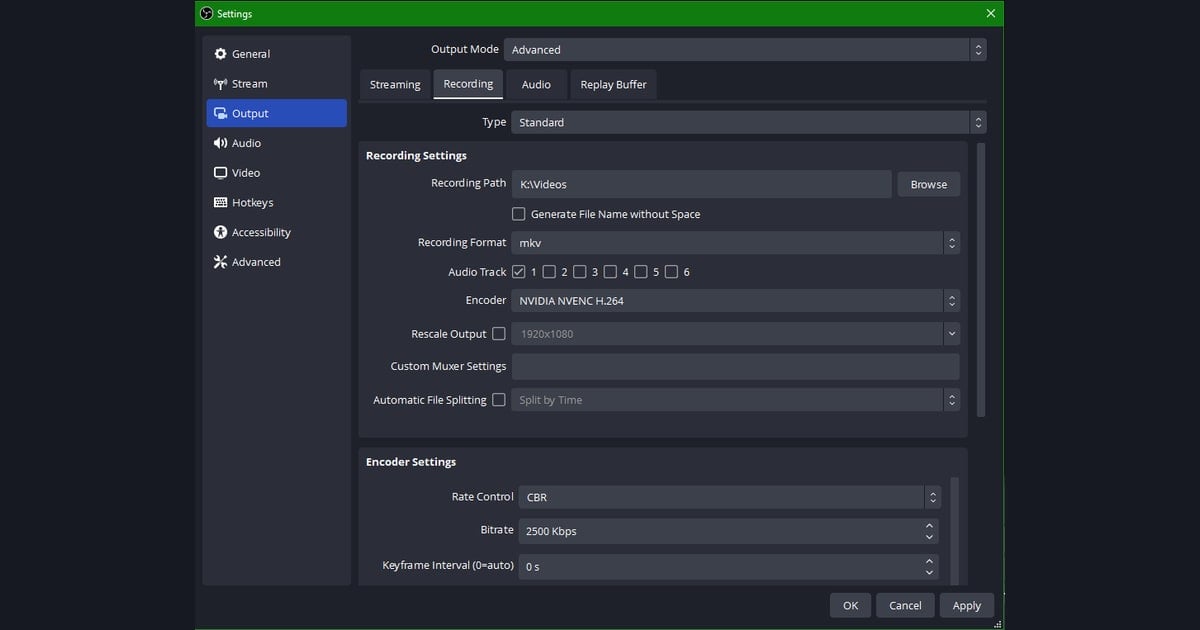
- Click the "Settings" button in the bottom-right of OBS.
- Select "Output" from the left menu.
- Change the Output Mode at the top to "Advanced." (Simple mode limits your encoder choices.)
- Go to the "Recording" tab (the "Streaming" tab if you're streaming).
- From the "Encoder" dropdown, pick an NVENC option (NVIDIA NVENC H.264 / HEVC / AV1) or x264.
- Set the bitrate and preset, click "Apply," then restart OBS.
If there's no NVENC option in the encoder dropdown at all, you either don't have an NVIDIA graphics card or your graphics driver is out of date. Update the driver to the latest in GeForce Experience or the NVIDIA app, then restart OBS and the option will appear.
But Do You Really Have to Make This Choice Yourself?
If you've read this far, you've probably noticed that the NVENC vs x264 comparison ultimately boils down to one sentence: "to protect your game frames, use GPU encoding." The problem is that the whole process of switching the output mode to Advanced in OBS, hunting down and choosing the encoder, and dialing in the codec and preset is itself a barrier for first-time users.
DOR removes this choice and setup entirely. DOR applies NVENC hardware encoding by default, so once you install it and just hit the record button, it encodes on the dedicated GPU chip. Even if you don't know what an encoder or a preset is, recording starts with game frame loss minimized. There's nothing to fiddle with in encoder settings in the middle of a Valorant or Overwatch match.
If you're curious about per-game recording setups, check out the Valorant recording guide, PUBG recording guide, and Overwatch recording guide. Whatever the game, DOR runs the same NVENC-based way, so there's no need to choose an encoder again for each game.
Final Summary by Situation
- Recording while playing on an NVIDIA RTX/GTX graphics card → NVENC. No need to think twice.
- Weak GPU with 8 or more CPU cores to spare → x264 veryfast to medium.
- Pulling max-quality archives only, without launching a game → x264 slow, or a recording-only PC.
- Don't want to mess with settings and just want to protect your game frames → install DOR and hit record.