Install OBS Studio by downloading the Windows Installer from the official download page at obsproject.com, and if it will not open or acts up afterward, work through the checks the official docs mention, easiest first: antivirus allowlisting, drawing-tablet drivers, Safe Mode, then Check File Integrity. As of October 6, 2026, the stable Windows version on that page is 32.2.2 (released August 14), and the page says the Windows release supports Windows 10 and 11. If the install worked but your capture is just black, that is a capture problem rather than an install problem, so start with fixing the OBS black screen. This guide covers downloading, choosing an install route, checking the first launch, and errors at the install and launch stage, on PC (Windows) only.
Symptoms and the checks the official docs point to
| Symptom or situation | Check the official docs describe | Where to look |
|---|---|---|
| Not sure where to download it | On the download page, the Windows section offers Download Installer, Download via Bittorrent and Download Zip, and the Microsoft Store and Steam badges are official links too | obsproject.com/download |
| Behavior changed right after an update | Antivirus or security software may flag or block OBS, so allowlist the OBS folder; some products need the .exe removed and re-added after every update | Your antivirus or firewall settings |
| The process runs but no window ever appears | Old Wacom-style drawing tablet drivers can stop OBS from opening, so update or remove the driver | Tablet driver settings |
| A dialog appears after a crash | In the dialog titled OBS Studio Crash Detected, choose Run in Safe Mode to start with third-party plugins, scripts and websockets disabled | Help > Restart in Safe Mode |
| Installed files look damaged or modified | The integrity check scans the installation and redownloads broken or modified files, and works only on the latest version | Help > Check File Integrity |
| A ZIP unpacked outside Program Files and UWP game capture misbehaves | Grant the ALL APPLICATION PACKAGES group full control of the OBS Studio folder and its subfolders | Folder security (permissions) settings |
The short verdict
One download source is enough: obsproject.com. The official help portal says that downloading from that site gives you the latest version, safe to use and free of malware, that OBS has no ads or bundled software, and that being asked to pay for OBS is a scam. It also states that OBS is GPLv2 open source with no watermark, no other restrictions and no limit on commercial use, so there is no reason to pay or to hunt for an installer elsewhere. If installing is only a means and your real goal is recording games for free, skim the options in how to record gameplay for free first and come back if you still want OBS. For errors, this guide does not name one cause; the table and steps below follow the conditions the official documentation lists.
From download to a verified first launch
- 1Confirm you are on 64-bit Windows 10 or 11The download page lists only an x64 build for Windows, and the official system requirements name Windows 10 or 11. Right-click Start, open Settings > System > About, and read Windows specifications for the version and Device specifications for a 64-bit system type. Windows on Arm support has been experimental since OBS 31.1, with hardware encoders, game capture and the installer or updater listed as unsupported in the official FAQ dated June 2025, so this guide gives no install steps for Arm PCs.
- 2Download the Installer from the official pageCheck that the address bar reads obsproject.com/download, then choose Download Installer in the Windows section. As of October 6, 2026 the file is named OBS-Studio-32.2.2-Windows-x64-Installer.exe, and the version number changes with each release. Even if the next major version, 33.0.0, is in beta, the stable version shown on the download page is the one to use, so read the version printed there before you download. Installers from other sites, cracked copies and pages asking for payment are not official routes and should be skipped.
- 3Pick an official route other than the installerThe download page also carries a Microsoft Store badge and a Steam badge, and the official Windows Installation article points to the OBS Project GitHub Releases page as well. For the command line, the same article lists winget install -e --id OBSProject.OBSStudio, choco install obs-studio, and scoop bucket add extras followed by scoop install obs-studio, and says each one downloads the EXE installer directly and verifies it with a hash. In winget, -e matches the query exactly and --id limits it to an app ID, and the tool runs on Windows 10 1809 or later and Windows 11. Screen-by-screen installer details, disk space and whether administrator rights are needed are not documented officially, so this guide does not assert them. The default folder is also unconfirmed from an installer screen; the official plugins guide only mentions an obs-studio folder under Program Files.
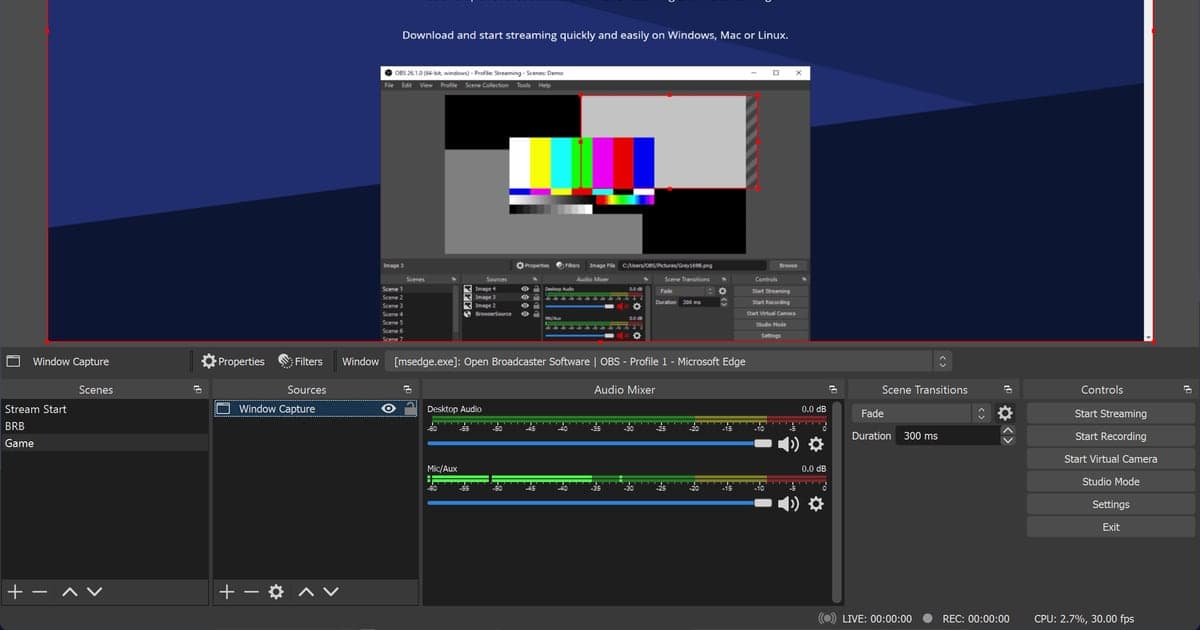
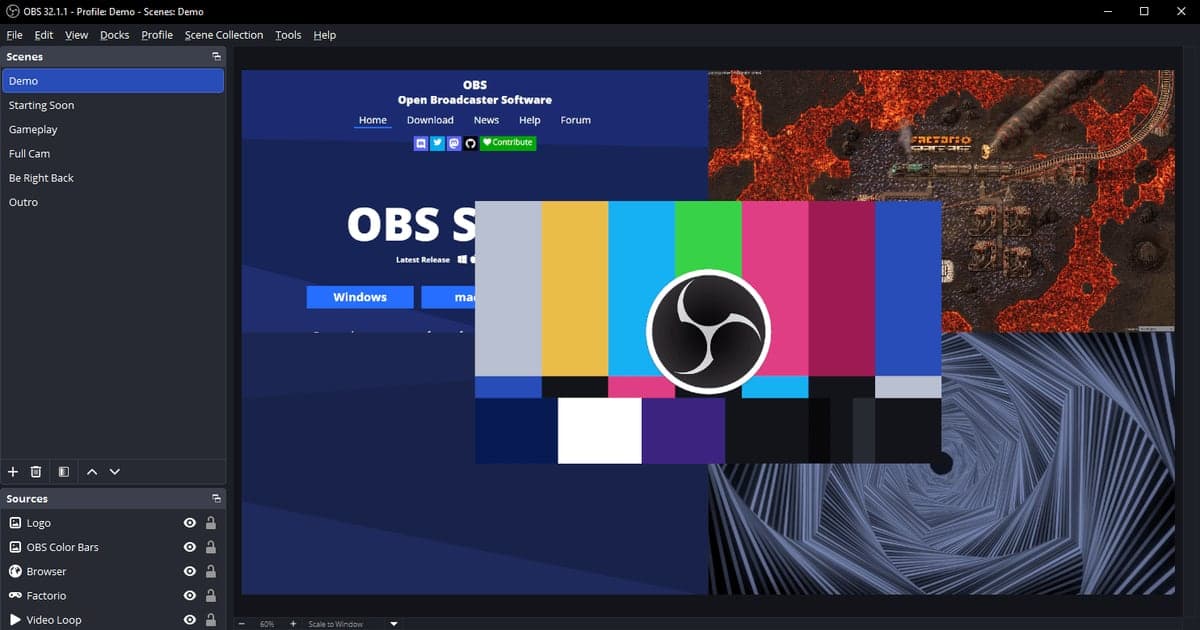
- 4Check what the first launch should look likeOn first launch the Auto-Configuration Wizard appears, and you can reopen it from Tools > Auto-Configuration Wizard. Its first page is Usage Information, where you choose between Optimize just for recording, I will not be streaming; Optimize for streaming, recording is secondary; or I will only be using the virtual camera. Later wizard pages and your first recording are outside this guide. According to the official Quick Start Guide, you start with a blank scene and the audio mixer already shows Desktop Audio and Mic/Aux. If the window opens and you see that, the install worked. Use Help > Check For Updates to see whether you are current: a newer build shows New update available with an Update Now button, and a current one shows No updates available.
- 5Work through launch problems in orderThe official help portal and conflicts article mention the checks below; the sequence is this guide's own, easiest first. First make sure OBS is allowlisted in your antivirus and firewall with unrestricted local and internet access; after an update, add the OBS folder as an exception and, for some products, remove and re-add the .exe. If a process exists but no window opens, update or remove the drawing-tablet driver. If the window does open, use Help > Restart in Safe Mode to disable third-party plugins and scripts, and look for SAFE MODE in the title bar. If nothing opens, add --safe-mode after the obs64.exe path in the shortcut's Target field. Then run Help > Check File Integrity, titled Confirm Integrity Check, which works only on the latest version, so use Help > Check For Updates first if you are behind. For diagnostics, open Help > Log Files > Show Log Files, Help > Crash Reports > Show Crash Reports, or use Help > Log Files > Upload Current Log File.
- 6If you chose the ZIP or portable modeWhen you unpack the ZIP (OBS-Studio-32.2.2-Windows-x64.zip) outside Program Files, the official Windows Installation article says to give the ALL APPLICATION PACKAGES group full control of the OBS Studio folder and subfolders, otherwise some features, mainly game capture of UWP apps, may not work. For portable mode, the official Running in Portable Mode article says to unpack into a user folder and definitely not Program Files, then either create an empty file named portable_mode or portable_mode.txt in the OBS root folder and run bin/64bit/obs64.exe, or launch obs64.exe with --portable. Image and media paths used by scene collections are not made portable. You can switch off the built-in updater with --disable-updater, and a scheduled task needs its Start in location set to the folder containing obs64.exe.
Post-install checklist
- The download address was obsproject.com and nothing asked you to pay
- You confirmed 64-bit (x64) Windows 10 or 11
- The version number in the file name matches the stable version on the download page
- The wizard appeared on first launch and the window opened normally
- You confirmed you are current with Help > Check For Updates
- The OBS folder is allowlisted in your antivirus and firewall
- You know that Help > Log Files > Show Log Files opens your logs if something goes wrong
If you only want to start recording right away
DOR is a free Windows app that detects supported games and records the full match to mp4 automatically, so you do not need to build OBS-style scenes, sources or output settings first. VALORANT is one of the seven games where kill highlight clips are also made automatically, and the encoder step is handled by NVENC when an NVIDIA graphics card is present, with your game audio and microphone recorded together. Afterward you can trim in the app library by setting a start and end in 16:9, 9:16 or 1:1 and share through a dor.gg link, or open the browser-based DOR Studio guide for length adjustment, merging clips, text and background music with nothing to install. None of this means DOR fixes OBS install or launch errors; if you stay with OBS, follow the checks above.