One hour of game recording takes bitrate (Mbps) × 3600 ÷ 8 ÷ 1000 gigabytes (decimal), so a 12 Mbps recording works out to 5.4 GB per hour. That number is arithmetic, not a measured file size, and the bitrates in the table below are YouTube's recommended upload values used as examples, not recording recommendations. This article covers game recording on a PC, using OBS Studio settings as the reference, not consoles or mobile. Everything here is as checked on September 30, 2026. If your drive is already filling up, start with how to reduce game recording file size, then come back to estimate how much free space you actually need.
GB per hour by example bitrate (calculated)
| Resolution and frame rate (SDR unless noted) | Example bitrate | Calculated GB per hour |
|---|---|---|
| 720p · 24–30 fps | 5 Mbps (5000 kbps) | 2.25 GB |
| 720p · 48–60 fps | 7.5 Mbps (7500 kbps) | 3.375 GB (about 3.4) |
| 1080p · 24–30 fps | 8 Mbps (8000 kbps) | 3.6 GB |
| 1080p · 48–60 fps | 12 Mbps (12000 kbps) | 5.4 GB |
| 1080p · 48–60 fps · HDR | 15 Mbps (15000 kbps) | 6.75 GB |
| 1440p · 24–30 fps | 16 Mbps (16000 kbps) | 7.2 GB |
| 1440p · 48–60 fps | 24 Mbps (24000 kbps) | 10.8 GB |
| 2160p (4K) · 24–30 fps | 35–45 Mbps | 15.75–20.25 GB |
| 2160p (4K) · 48–60 fps | 53–68 Mbps | 23.85–30.6 GB |
Bottom line: the table is a starting point, encoder settings decide the real size
The GB figures in the table assume the chosen bitrate is written steadily for the whole hour, so they do not guarantee the size of a real game recording. According to OBS's official documentation (as checked on September 30, 2026), Advanced-mode recording uses Constant QP for NVENC, CRF for x264, CQP for AMD and ICQ for Quicksync, all with a quality value in the 16-23 range, and a lower number means higher quality and a larger file. Those are quality targets rather than fixed bitrates, so the bits per second change with the scene. The Simple-mode Lossless preset is described as around 7 GB per minute, which multiplies out to roughly 420 GB per hour, so it belongs in a class of its own when you plan long sessions. OBS's documents give no percentage for container overhead, so this article does not claim one either. Choosing the bitrate itself is covered in the game recording bitrate guide.
How to calculate hourly size and free disk space
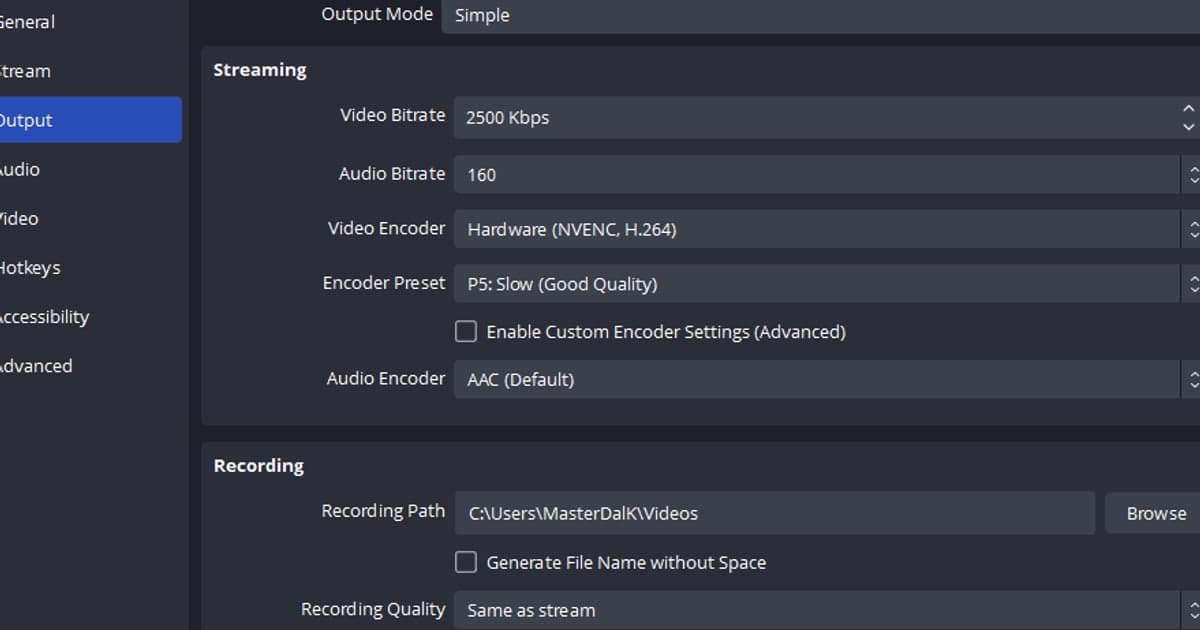
- 1Find the bitrate value and its unit — Open Settings > Output in OBS and read the video bitrate. Wherever you type the bitrate yourself it is entered in kbps, so 12000 means 12 Mbps. If you use a quality-based method such as CQP or CRF in Advanced mode, there is no fixed bitrate to read, so rely on the test recording in the last step.
- 2Convert kbps to Mbps — 1 Mbps equals 1000 kbps, so 8000 kbps is 8 Mbps and 12000 kbps is 12 Mbps. If you already know the value in Mbps, skip this step.
- 3Apply the formula for GB per hour — Calculate Mbps × 3600 ÷ 8 ÷ 1000. The 3600 is the seconds in an hour, 8 turns bits into bytes, and 1000 turns MB into GB. At 12 Mbps that is 12 × 3600 ÷ 8 ÷ 1000 = 5.4 GB.
- 4Add the audio — The table covers video bitrate only. If you take YouTube's recommended 384 kbps for stereo audio (0.384 Mbps) as an example, it adds about 0.17 GB per hour (0.1728 calculated). YouTube's document also says the audio bitrate does not depend on video resolution.
- 5Multiply by your recording time — Multiply by the hours you record per day or week. At 5.4 GB per hour, 3 hours is 16.2 GB, and 500 GB of free space would hold about 92 hours (500 ÷ 5.4). Leave room for the operating system and other files, so plan with more headroom than the calculation.
- 6Confirm with a test recording — With a quality-based mode, record about 5 minutes of a game you actually play, check the file size and multiply by 12 for an hourly estimate. Include both busy fights and quiet lobby time, because size changes with the scene.
Storage check before you record
- I checked whether my bitrate is in kbps or Mbps.
- I know the table covers video only and added about 0.17 GB for audio (384 kbps example).
- I know GB here is decimal (1 GB = 1000 MB), so a file explorer may show slightly different numbers.
- If I use a quality-based Advanced mode (CQP, CRF, ICQ, Constant QP), I know the size is not fixed and I ran a test recording.
- I confirmed the drive holding my recording folder has more free space than the calculation.
- I treated the YouTube table as upload guidance, not as a recommended recording setting.
When you would rather not calculate or tune anything
If sizing files and tuning encoder settings by hand feels like too much, DOR is one option. It is a free Windows desktop app that detects supported games automatically and records the full match to mp4. With an NVIDIA graphics card, encoding runs on NVENC hardware by default, and the game's audio and your microphone are written into the same file, which suits people who want whole matches kept to review later. DOR's file sizes have no public basis, so this article gives no figure for them; record one match, note the file size and its length, and you can convert it to an hourly number with the steps above. If long sessions worry you, read how to record long gameplay without stutter, and for a wider look at free tools see how to record gameplay for free.
Official sources checked (as of September 30, 2026)
Example bitrates come from YouTube recommended upload encoding settings, OBS's quality-based methods from the OBS Advanced Recording Settings Guide, and the Simple-mode presets from the OBS Recording Encoder Presets Guide. Both sites can change these pages, so check the latest values before an important calculation.