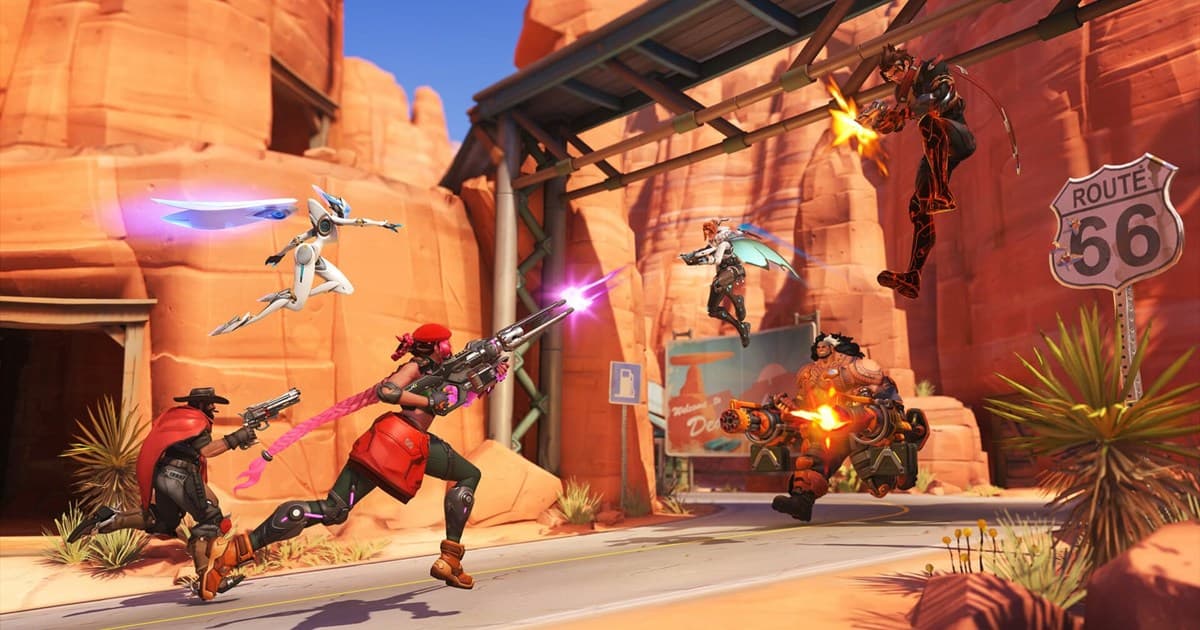
The fastest way to raise your skill in Overwatch 2 is not changing your mouse sensitivity but tidying up your screen and crosshair to fit your hands. If your frames fluctuate or your crosshair widens every time you fire, your hit rate drops even with the same aim. This article lays everything out as values you can enter exactly as written, from video settings to crosshair values by hero.
The Conclusion First: Stability Above All
What changes how competitive play feels the most is not graphics quality but consistent frames and low input lag. Rather than turning on flashy options, making your frames stay steady even mid-fight directly helps your hit rate. Set the video settings below first, then move on to the crosshair.
Video Settings Step
In Options -> Video tab, set things in the following order. You only need to adjust the values to match your monitor's specs.
- Display Mode: Leave it on Fullscreen. It has lower input lag than windowed mode.
- Frame Limit: Do not set it to Max; lock it at a value just below your monitor's refresh rate. Lower it slightly, like 141 for 144Hz or 237 for 240Hz, to stabilize frame pacing.
- Vertical Sync (V-Sync): Off. It is the main culprit behind increased input lag.
- Triple Buffering: Off.
- Dynamic Render Scale: Off. Mid-fight resolution changes create momentary stutter.
- Render Scale: Lock at 100%. If you are on mid-range specs that cannot hold 240 fps, lower it to 75%.
- NVIDIA Reflex: On if available. It reduces system latency for faster response.
- Reduce Buffering: Turn it on and play a round, then if you feel stutter, turn it off and compare again. Results vary by spec, so testing yourself is the answer.
Crosshair Settings Step
You can change the values directly under Options -> Controls, in the Reticle section. Pick All Heroes or a specific hero at the top before entering values, and if the section is missing, check the Hero tab next to it; menu placement can change with updates (as of September 2026). It is convenient to first set a default to apply to all heroes, then separately tweak only the heroes with different roles.
- Accuracy Indicator (weapon spread): Off. The crosshair widening while firing or moving only clutters your view with no real benefit.
- Color: Green or cyan tones. They contrast well with most map backgrounds and stay clearly visible.
- Opacity: 100%. Set the outline opacity to 100% as well and it stays visible even against dark backgrounds.
- Thickness: Thin, around 1 to 2. Too thick and it covers the enemy's head.
Once those four are in place, here is a single table for the five reticle options people ask about most often: what each one does on screen and where to start. The starting values are this guide's editorial picks, since Blizzard publishes no recommended values. They line up with the list above and the per-type values below, so you can enter them as they are and refine in the Practice Range.
| Option (in-game name) | What it does on screen | Suggested starting value |
|---|---|---|
| Show Accuracy | Draws the reticle widening to match weapon spread. | Off, as in the list above |
| Thickness · Crosshair Length | How thick the lines are and how long each arm is. Thicker is easier to see but hides a distant enemy's head. | Thickness 1 (2 for tanks), length 3 to 5 |
| Center Gap | The empty space between the center and where each arm starts. Wider keeps the head visible through the middle; tighter makes the exact center obvious. | 0 to 2, slightly wider for projectile heroes |
| Dot Size · Dot Opacity | Size and strength of the center dot. To remove the dot entirely, set Dot Size to 0 rather than Dot Opacity (5 December 2023 patch). | Size 2 to 3, opacity 100% |
| Scale with Resolution | Whether the reticle size is adjusted to match your resolution. Official patch notes do not describe its behaviour, so go by the tooltip next to it in the menu. | Keep the default. If the reticle looks larger or smaller after changing resolution, toggle it in the preview and compare |
Of the option names in this table, only Thickness (September 2017) and Dot Size (December 2023) are confirmed in official patch notes; the rest follow the wording shown in the options screen and can change with updates. As of 14 September 2026, the latest live patch (the 10 September hotfix) made no reticle changes, but check the Overwatch patch notes list before relying on any name. What the eight advanced options such as Reticle Type, Reticle Dot, Outline Color and Outline Thickness each change on screen is covered item by item in Overwatch 2 Advanced Reticle Options: What Each Setting Actually Changes.
Crosshairs by Hero Type
Hitscan DPS (Widowmaker, Ashe, Cassidy, Soldier: 76)
For hitscan, where a precise single shot matters, a small dot or short cross works best. If a dot alone makes headshots hard to line up, add a very short cross.
- Type: Dot or Cross
- Center Gap: 0 to 2 (meaningless if a dot)
- Crosshair Length: Short, 3 to 5
- Thickness: 1
- Color: Green, opacity 100%
Projectile DPS (Hanzo, Genji, Pharah, Junkrat)
Projectiles need to be led ahead depending on distance, so a slightly larger circle becomes the reference point for predictive aim. Putting a small center dot inside the circle also makes close-range precise aim comfortable.
- Type: Circle + Center Dot
- Circle Size: 10 to 15
- Center Gap: Slightly wide
- Thickness: 1 to 2
- Color: Cyan or green, opacity 100%
Tanks (Reinhardt, D.Va, Zarya, Winston)
Tanks land hits on wide hitboxes more often than precise headshots, so a thick circle matched to weapon spread or the hitbox is intuitive.
- Type: Circle + Center Dot
- Circle Size: 20 to 30
- Thickness: 2
- Color: Green, opacity 100%
Recommended Crosshair Values by Hero
This table applies the per-type values above to twelve commonly played heroes. Cassidy and Widowmaker sit at the top, and the Type column links each row back to the hitscan, projectile and tank sections. Widowmaker, Ashe and Ana switch between two weapon modes, and since the 5 December 2023 patch each mode can have its own reticle or stay synced with the other, so check the scoped reticle separately once. The original wording is in the December 2023 patch notes. The numbers are this guide's editorial starting values, not official recommendations.
| Hero | Type | Thickness | Crosshair Length | Center Gap | Opacity | Outline Opacity | Dot Size | Dot Opacity |
|---|---|---|---|---|---|---|---|---|
| Cassidy | Hitscan · short cross + dot | 1 | 3 | 2 | 100% | 100% | 2 | 100% |
| Widowmaker* | Hitscan · dot (scope mode set separately) | 1 | 0 (dot only) | 0 | 100% | 100% | 3 | 100% |
| Ashe* | Hitscan · short cross + dot (scope mode set separately) | 1 | 3 | 1 | 100% | 100% | 2 | 100% |
| Soldier: 76 | Hitscan · short cross | 1 | 5 | 2 | 100% | 100% | 0 (no dot) | 0 |
| Tracer | Hitscan · short cross + dot | 1 | 4 | 2 | 100% | 100% | 2 | 100% |
| Sojourn | Hybrid · short cross + dot | 1 | 4 | 2 | 100% | 100% | 2 | 100% |
| Hanzo | Projectile · circle (12) + dot | 1 | — | — | 100% | 100% | 2 | 100% |
| Genji | Projectile · short cross + dot | 2 | 4 | 2 | 100% | 100% | 2 | 100% |
| Pharah | Projectile · circle (15) + dot | 1 | — | — | 100% | 100% | 2 | 100% |
| Kiriko | Projectile · short cross + dot | 1 | 3 | 2 | 100% | 100% | 2 | 100% |
| Ana* | Hybrid · circle (10) + dot (scope mode set separately) | 1 | — | — | 100% | 100% | 2 | 100% |
| Reinhardt · Zarya | Tank · circle (25) + dot | 2 | — | — | 100% | 100% | 3 | 100% |
Overwatch 2 has no crosshair codes you can copy and paste the way Valorant does. As of 14 September 2026, the only share code confirmed in the live patch notes is for Stadium builds, and no patch has ever added a reticle import. Entering the values above hero by hero and saving them is the only way, and the four steps below cover it. If you are curious how moving a pro setup with a single line works, compare it with Valorant pro crosshair codes and the difference is obvious.
- 1Open the reticle section in Options — Go to Options and find the Reticle heading on the Controls tab. If it is not there, check the Hero tab right next to it. Menu placement and wording can change with updates (as of September 2026).
- 2Pick the hero at the top — Enter your shared default under All Heroes first, then select only the heroes that get their own values from the list at the top. Values chosen per hero are saved for that hero only.
- 3Expand Advanced and enter the table values — Settle the reticle type and dot first, then go in order: thickness, crosshair length and center gap, then opacity and outline opacity, then dot size. For Widowmaker, Ashe and Ana this is also where you decide whether the scope mode gets its own reticle or stays synced.
- 4Check the preview, then the Practice Range — Confirm the shape looks as intended in the options preview, then test it in the Practice Range against both a bright wall and a dark corridor. If it disappears, raise Outline Opacity first.
How to Check Whether Your Settings Worked
Whether switching your reticle from build A to build B actually helped is decided in real fights, not in the Practice Range. The catch is that those fights last a few seconds per match, and in-game highlights are limited by count, retention and patches, so they are hard to keep for long (see How to Save Overwatch POTG). A before-and-after comparison therefore needs a recording, and DOR does that on its own once it is running. It is a free Windows app that detects Overwatch automatically, records the full match, cuts kills and other highlights into clips automatically, and keeps them in its library. NVIDIA NVENC hardware encoding is the default, and game audio and your mic are recorded together. Open the browser clip editor with nothing to install, trim the build A and build B clips, and share a dor.gg link; teammates play it in a mobile browser and tell you which reticle looks better. Marvel Rivals gets full-match auto recording as well, so you cut the moments you want in the same editor.
Summary
Stabilize your frames, turn off the accuracy indicator, and pick a crosshair that fits your role in a clear color. Just getting these three right noticeably raises your hit rate at the same skill level. Once you have finished your settings, play a round of Overwatch and use the automatically saved clips to check whether your changes actually led to real kills.