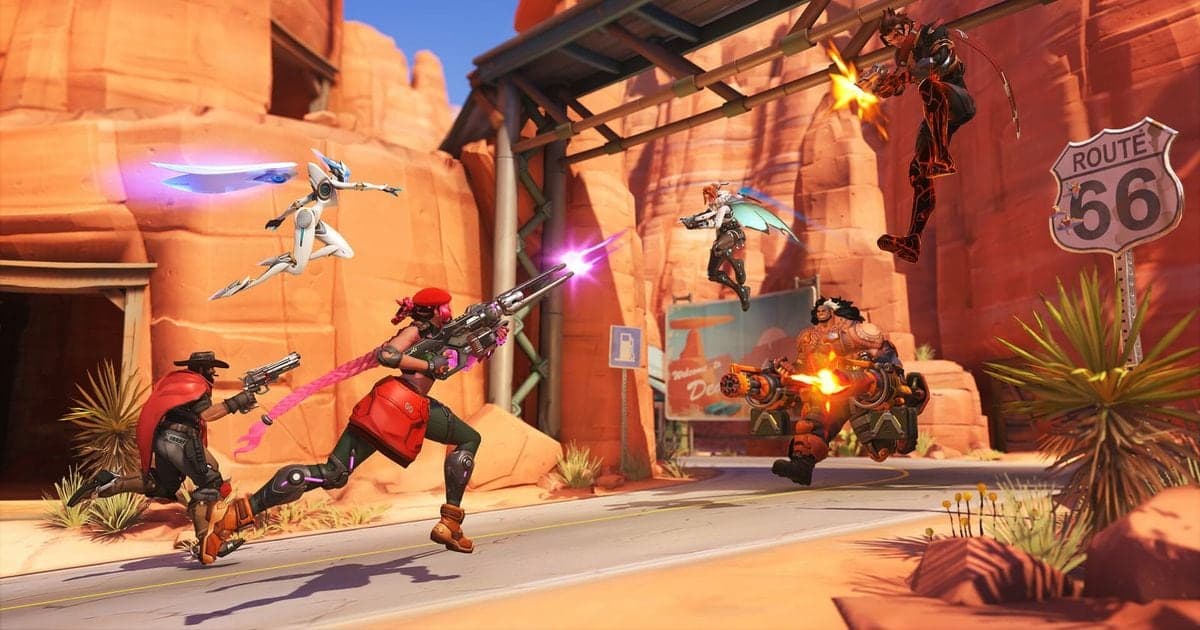
To lower ping in Overwatch (formerly Overwatch 2), work through Blizzard's official latency checklist in order: power cycle your modem and router, release and renew your IP and flush DNS, update drivers and Windows, then close background apps. Before changing anything, press Shift+Ctrl+N to open the Netgraph so you know whether the trouble sits in the connection or in your own PC. If your FPS number is low but LAT stays calm, it is not a network problem, so start with the graphics and frame cap settings in our guide to reducing input lag in games. This article covers the PC version only and reflects the official documents as checked on October 6, 2026.
What each Netgraph symptom means and what to do next
| What you see | Blizzard's reading | Next move |
|---|---|---|
| A big orange highlight bar | Latency has exceeded the interpolation delay. It causes erratic behavior in the game and usually points to a connection-related problem. | Work through steps 1 to 6 in order, then go to the advanced checks in step 7 if it persists. |
| A big white highlight bar | Your computer took longer than expected to process the data it received from the server. | Clean up background apps and startup items and check drivers (steps 4 and 6). |
| LOSS IN or LOSS OUT staying above 0 | Estimated packet loss in each direction, as a percentage. A small amount goes unnoticed, but a value that stays above 0 can be a warning sign. | Check in this order: power cycle, IP and DNS reset, connection optimization (steps 2, 3 and 5). |
| A flashing amber icon at the top left | It flags a server response that took too long or packet loss being detected. The thresholds are set very low, so it can flash without a real problem, and they may change. | Do not judge from the icon alone. Cross-check against the Netgraph numbers. |
| Small spikes in LAT | Small spikes are normal. Only a latency that exceeds the interpolation delay by a lot for a long time is a problem. | No action needed. If large spikes repeat, note when they happen. |
| Low FPS but flat LAT and IND | FPS depends on your computer's performance and has nothing to do with the latency figures. | Skip network checks and look at input lag and frame rate causes instead. |
Three ground rules before you start
First, go down the official list one item at a time, and only reach for the advanced items (removing a VPN, disabling proxies, security scans, exceptions in security software, router firmware) when the basics do not help. Second, you cannot choose an Overwatch server or region. It is a global game that detects the server with the lowest latency for your group or location, so any tip to lock a server has no official backing. Third, Blizzard tells you to try removing a VPN if you use one, not to add one, and its documents never mention third-party boosters. Games differ in whether they offer a region choice, so do not copy the steps from our VALORANT ping guide one for one.
Eight steps in Blizzard's order
- 1Check for outages and identify the type of lag — Blizzard asks you to look at the official BlizzardCS account for service interruptions before troubleshooting. Then use the PC default hotkeys, Shift+Ctrl+R for FPS Display and Shift+Ctrl+N for the Netgraph, and read LAT, IND, LOSS IN, LOSS OUT and any orange or white bars at the moment the game stutters. The documentation says to use the right Shift key, otherwise an ability may fire by accident. These are default bindings and can change.
- 2Power cycle the modem and router — The official procedure: shut down every computer connected to the modem or router, turn off and unplug the modem and router, and wait 60 seconds. Plug them back in, turn them on, and wait until the modem's front-panel lights show a stable connection. Only then start your computer. If the modem has a battery backup, remove the battery or use the modem's reset button.
- 3Release and renew your IP, then flush DNS — Press the Windows key, type CMD, right-click Command Prompt and run it as administrator. Enter ipconfig /release, then ipconfig /renew, then ipconfig /flushdns, pressing Enter and waiting for a response after each. Close the window and try the game. If the command line feels risky, the article says restarting the computer can have a similar effect.
- 4Update network and graphics drivers and Windows — Type Device Manager in the search box, expand Network Adapters, double-click your network card and read the date and version on the Driver tab. Most people download current drivers from the motherboard maker's site, or from the card maker if it is a separate network card. For graphics driver details, press Windows+R, run DxDiag and open the Display tab.
- 5Optimize how you connect — Close other programs that use the internet and try connecting the computer directly to the modem or router. Blizzard only says Wi-Fi can cause trouble in online games and gives no numbers. Satellite, cellular and WiMax internet are listed as entirely unsupported for PC gameplay. If nothing helps, ask your internet service provider (ISP) to improve the connection for online gaming.
- 6Close background applications — Close unneeded programs and restart. Then press Ctrl+Shift+Esc to open Task Manager, choose More Details, open the Startup tab, right-click entries to Disable them and restart again. If the symptom disappears, turn startup programs back on one at a time, restarting each time, to find the culprit.
- 7Advanced checks: VPN, proxy, security software, firmware — If you use a VPN, try removing it, and disable any proxy that could interfere. Run a virus and malware scan, and allow Blizzard applications in your security software's exception list. If your modem or router firmware is old, update it following the manufacturer's instructions. The firewall article adds that Blizzard does not directly support proxies, firewalls or routers, so contact your ISP or the hardware maker for those.
- 8Contact support if it persists — If you have tried everything, the official guidance is to check the Technical Support Forums or contact Blizzard. Bring the notes from the checklist, and find contact details on the official support pages themselves.
What to have ready before you contact support
- You confirmed on the official BlizzardCS account that there is no outage notice.
- You captured the Netgraph at the bad moment and noted LAT, IND, LOSS IN, LOSS OUT and whether an orange or white bar appeared.
- You switched the modem and router off for at least 60 seconds and turned them back on.
- You ran ipconfig /release, /renew and /flushdns in that order.
- You cleaned up startup programs, VPNs and proxies, and checked the security software's exceptions.
- You wrote down when it started, in which situations, and which steps you already tried.
Keeping a record of the moment ping spiked
DOR supports Overwatch with automatic full-match recording and automatic highlight clips for kills and similar moments, on PC. A ping spike is hard to describe afterward, but with a full-match mp4 you can scrub through the app library to find roughly when it happened and use trim to cut just that part to show support staff or teammates. On an NVIDIA graphics card, NVENC hardware encoding is the default, and DOR records game sound and your microphone together, so you can also keep your spoken reaction to the hitch. DOR is not a tool that lowers ping, so save numbers such as LAT and LOSS separately by capturing the Netgraph. For the game's own replay feature, continue with our guide to watching Overwatch replays.
Official sources and the date checked
Checked on October 6, 2026. This article is based on Overwatch Latency Problems (updated 2026-09-02), Diagnosing Overwatch Network Problems (updated 2026-08-10) and Play Overwatch in a Different Region (updated 2026-09-23). The detailed procedures for power cycling, IP and DNS, drivers and background apps are in Blizzard's Power Cycling Your Network Devices, IP Release, Renew, and Flush DNS, Updating Your Drivers and Operating System, and Closing Background Applications articles. Default hotkeys and icon thresholds can change, so recheck the documents.