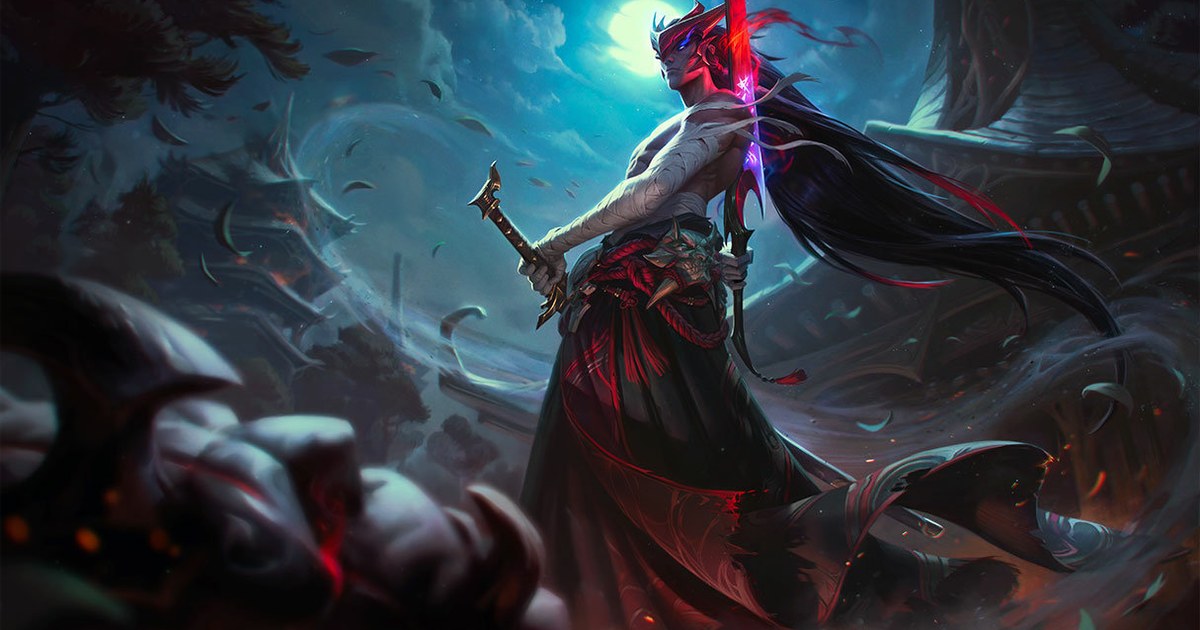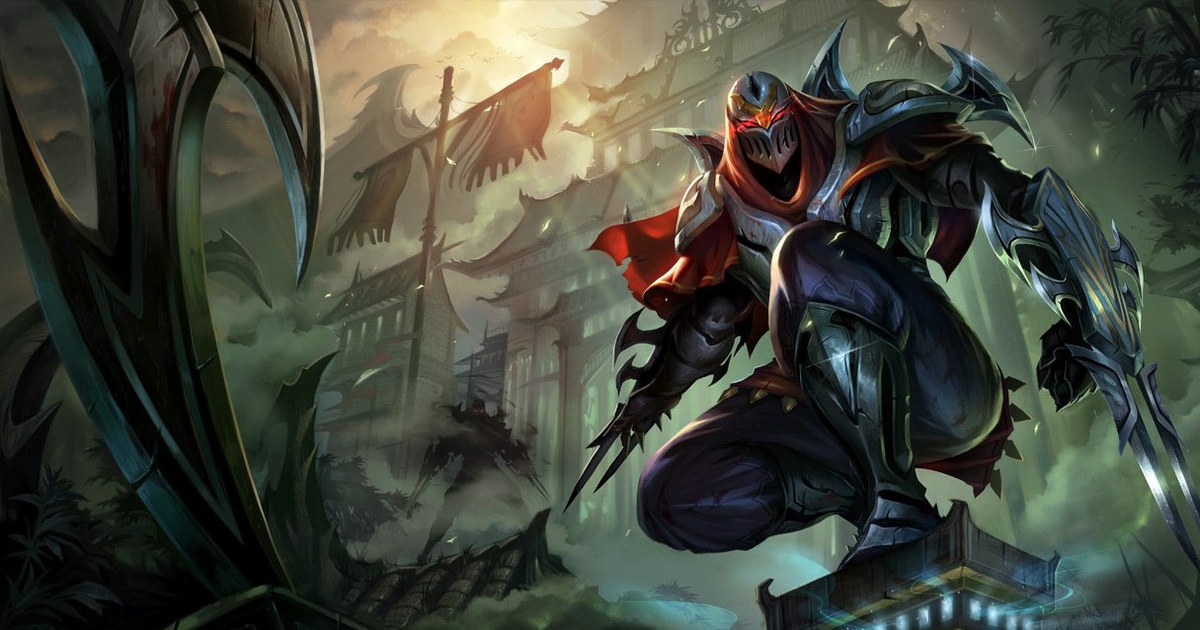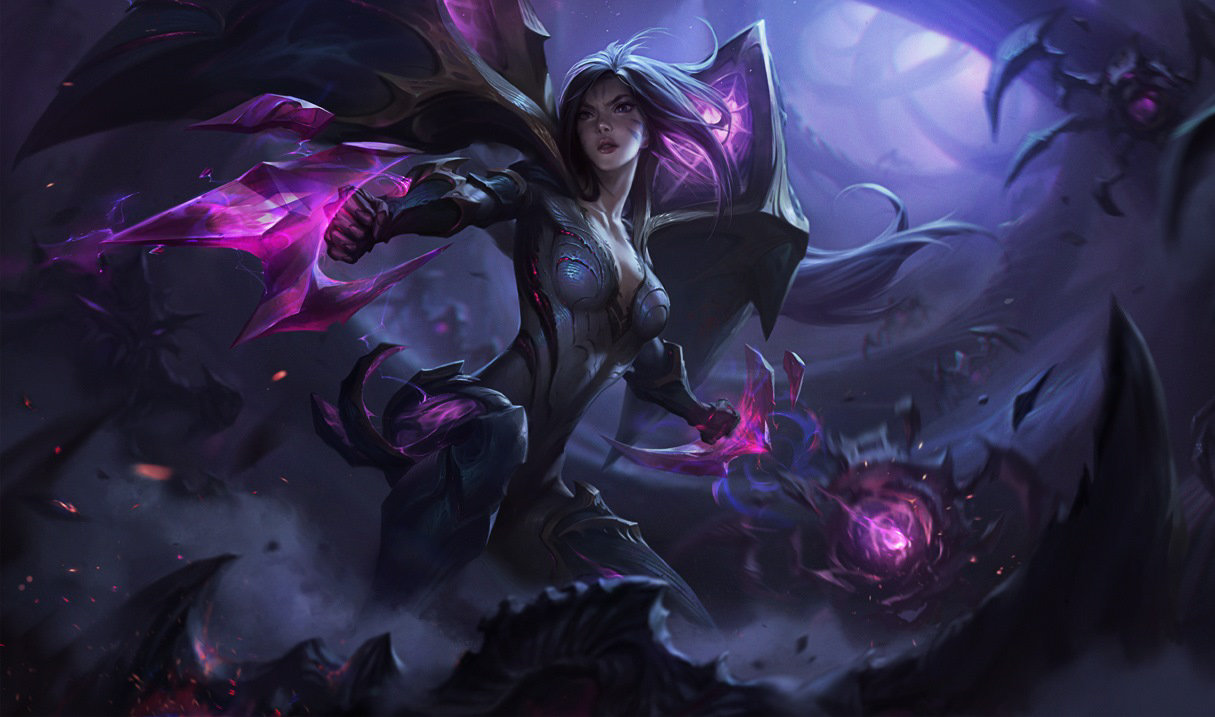

The short answer is that you do not have to hunt for scenes yourself. As of November 24, 2026, DOR's party clip works for VALORANT and League of Legends, merges several players' views into one video, and has the AI pick each player's best moment for you.
Your job is to open the AI recommended scenes, keep the ones you like, and swap the others for different recommendations. If a few friends played the same match, you no longer have to collect everyone's footage and stitch it together by hand.
For the general way to join separate videos, see how to merge game clips; this guide only covers the dedicated party clip flow. Recommendations differ from match to match, and the scene the AI picks is not always the one you wanted.
That is why the order here starts with the recommendation and only touches the scenes you want to change.
The answer: watch the recommendations first, swap only one weak scene
Starting from the AI's picks is much faster than choosing every scene yourself. The screen opens with the message that the AI has already chosen each player's best moments, so if the video looks good you can finish right away.
When one player's scene is weak, open the scene change option, choose another AI recommended scene, and replace just that part. You do not need to rewatch everyone's footage from the start. The feature targets VALORANT and League of Legends only, so do not expect the same flow in other games. After you finish, you can keep going with how to send a VALORANT video to friends or how to share a League of Legends video with friends.
How to make a party clip
- 1Confirm the game firstParty clips target VALORANT and League of Legends. The feature merges the views of friends who played the same match, so you will not find it for other games. For those, cut the clips yourself and join them.
- 2Start the party clipStarting a party clip in the app opens a screen where several players' views are merged into one video. The AI has already picked each player's best moment, so you never begin with an empty timeline.
- 3Skim the AI recommended scenesOpen the AI recommended scenes and choose the ones you like. Scenes with the recommended badge are marked as AI recommended clips. Play them one by one and note only whose scene disappoints you.
- 4Swap only the weak scenesIn the scene change window, pick another AI recommended scene from the list. Change one or two weak scenes instead of redoing everything. It is faster and the video keeps its flow.
- 5Choose horizontal or vertical and finishIf the video is for Shorts, Reels, or TikTok, choose the vertical 9:16 output. Play it to the end to check the order and the sound. For vertical posting tips, see how to post game videos to Instagram Reels.
Party clip steps at a glance
| Step | What to do | How to do it |
|---|---|---|
| 1. Check the game | Confirm it is VALORANT or LoL | Party clips target these two games. For other games, join clips with normal editing |
| 2. Start | Open the party clip flow | It starts as a flow that merges several players' views into one video |
| 3. Review | Open the AI recommended scenes | Each player's best moment is already chosen, so play them as they are first |
| 4. Swap | Change the scene | Replace only the weak player's scene with another AI recommended scene |
| 5. Pick a shape | Horizontal or vertical | If it is for Shorts or Reels, choose vertical 9:16 |
| 6. Verify | Play it once to the end | The AI is not always right, so check by eye before you save |
Checklist before you finish
- Is the video from a VALORANT or League of Legends match
- Did you play each AI recommended scene once
- Did you swap weak scenes with AI recommendations instead of searching from scratch
- Did you pick horizontal or vertical 9:16 for where you will post
- Did you play it through to check order and sound
Collect party clip material automatically with DOR
DOR is a free Windows game recording app. When you launch a supported game it is detected automatically and the whole match is recorded, and your recordings collect in My Clips in the app. Party clips start from those recordings.
As of November 24, 2026, party clips work in VALORANT and League of Legends, merge several players' views into one video, and have the AI pick each player's best moment. You can swap a scene for another AI recommended scene and choose vertical 9:16 output.
After finishing, export an mp4 or send a dor.gg link to your friends. To see how VALORANT kills, aces, and clutches are saved automatically, read how to clip VALORANT.