To VOD review yourself in PUBG: BATTLEGROUNDS, the match you want to study has to exist as a video, and the official documentation does not state how long in-game replays are kept (checked October 2, 2026). So record the matches that matter, review only one or two at a time, and focus on the fights that decided them. This guide covers PC only. How to operate Replay and the Death Cam is covered in how to watch PUBG replays and the Death Cam, while this post covers only the routine of saving your match as video first and then reviewing it. The focus here is on what to keep, which match to pick, what to check, and how to trim it down.
The short version: no saved footage, no review
In-game replays are a useful viewing tool, but what the official sources confirm is limited. The hotkey table lists items such as pause, play speed, a timeline and a free camera, and 2D Replay shows match details from the Match Report. What you will not find is a retention period or a save count. The Update 24.2 notes state that Arcade modes do not support replays, and the 2021 notes for Updates 11.1 and 11.2 say replays from earlier versions could not be played after the replay system was updated. That does not mean it happens with every patch. If a match matters, keep it as a video file, and plan for the disk space ahead of time with the PUBG recording storage guide.
Review routine: from recording to a trimmed clip
- 1Record the match before you need it — A review starts after the match ends, so recording has to be running beforehand. An auto-recording tool saves you from touching anything each match; if you start recording by hand, build the habit of checking its status while you wait in the lobby. Recording your microphone as well keeps the callouts you exchanged with teammates as material for checking your decisions.
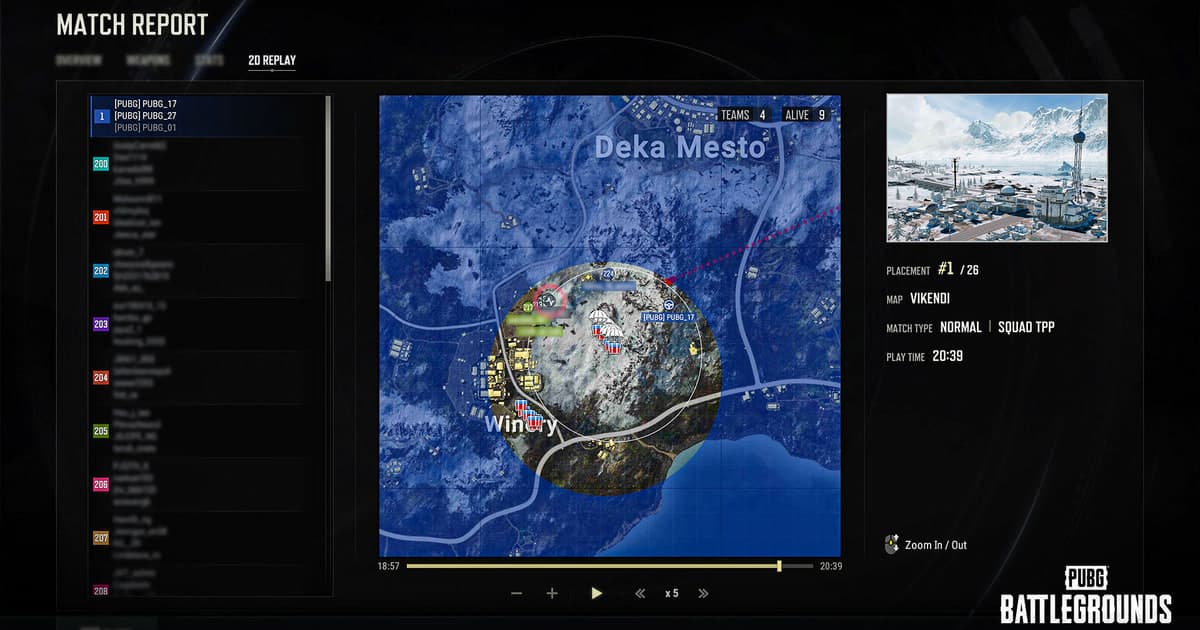
- 2Pick the match worth reviewing — Start with matches you lost, matches where a fight went differently than you expected, and matches that went well when you cannot say why. Limiting yourself to one or two matches a day makes it easier to stay focused. If you want the overall flow first, the 2D Replay in Match History lets you skim the map and where engagements happened.
- 3Watch with questions and pause often — Play the match through once without speeding up, then stop at the fights that bother you and run through the checklist below. Look at your position and reason for moving before the fight, how you read the first sound or sighting, your choice just before going down, and when you decided to move to the next zone. You can use 2D Replay for the map and engagement locations and your recording for the fight itself.
- 4Trim only the key stretches and save them — For fights you want to rewatch, use range trimming in the DOR app library to set a start and end point and save a short clip. You can choose 16:9, 9:16 or 1:1, and a dor.gg link lets someone else play it in a mobile browser. Keeping the key stretches separately means you will not lose them when you tidy up full-match files.
Review methods compared: what the official sources confirm
| Method | Confirmed in official sources | What to consider when reviewing |
|---|---|---|
| In-game Replay (Career > Replays) | The official hotkey table lists pause (P), play speed (Up/Down), timeline (J), Free Cam (F) and Player List (Tab). Arcade modes do not support replays (Update 24.2). | No retention period or save count is stated officially. Replays from earlier versions were unplayable after the replay system updates in Updates 11.1 and 11.2 (2021). |
| 2D Replay (Career > Match History > Match Report > 2D Replay) | Added in Update 30.2. It shows the map, players, engagements, zones, Care Packages and specific player details, with PC speeds of 1, 2, 5, 10 and 20x. Since Update 40.1 it can also be watched outside the game via the PUBG Bridge website and a QR code. | The official list of information ends there. No official comparison with in-game Replay or maximum length was found, so treat it as a way to skim the match overview. |
| Your own recorded video | Not covered by PUBG's support documents. The file sits on your PC, so you can pick any match and rewatch it as often as you like. | Recording must already be running before the match starts, and saved videos take up disk space. |
| DOR full-match auto recording | Detects a supported game, saves the whole match as mp4 and makes kill moments into separate highlight clips. Range trimming in the app library exports at 16:9, 9:16 or 1:1. | You still decide what to look for, so bring a list of questions. NVENC hardware encoding applies on NVIDIA graphics cards. |
Review questions to ask while watching
- Can I explain, in words, where I was before the fight started and why I went there?
- What did I decide after the first sound or the first enemy information?
- In the last few seconds before I went down, was there another option?
- When did I choose to move to the next zone, and what was my reason?
- Did what I said to teammates match what I actually did?
- If I could change just one thing next match, what would it be?
Saving full matches and trimming key fights with DOR
PUBG is a game DOR supports, so check the coverage on the PUBG hub and leave DOR running: each match is saved in full as mp4, and kills are turned into highlight clips separately. For a review, that full-match video becomes a record of the whole match, including how you went down. On NVIDIA graphics cards, NVENC hardware encoding is the default, and game sound and your microphone end up in the same video, so you can line up your callout timing with what was happening on screen later. Fights you want to revisit can be cut with range trimming in the app library, and how to trim game clips walks through the technique. DOR is a free Windows app, and deciding what to look for is still your part, which is what the checklist above is for.
Official sources and check date
Checked as of October 2, 2026. The replay hotkeys come from the PUBG support article on replay hotkeys, the 2D Replay location and speeds from the Update 30.2 patch notes, and PUBG Bridge with QR code viewing from the Update 40.1 patch notes. Arcade not supporting replays (Update 24.2), the replay system updates (Updates 11.1 and 11.2) and the Career > Replays menu name (Update 42.3) are also taken from official patch notes, whose wording may differ from the live in-game menus. No retention figure for in-game replays was found in the official documents, so none is given here.