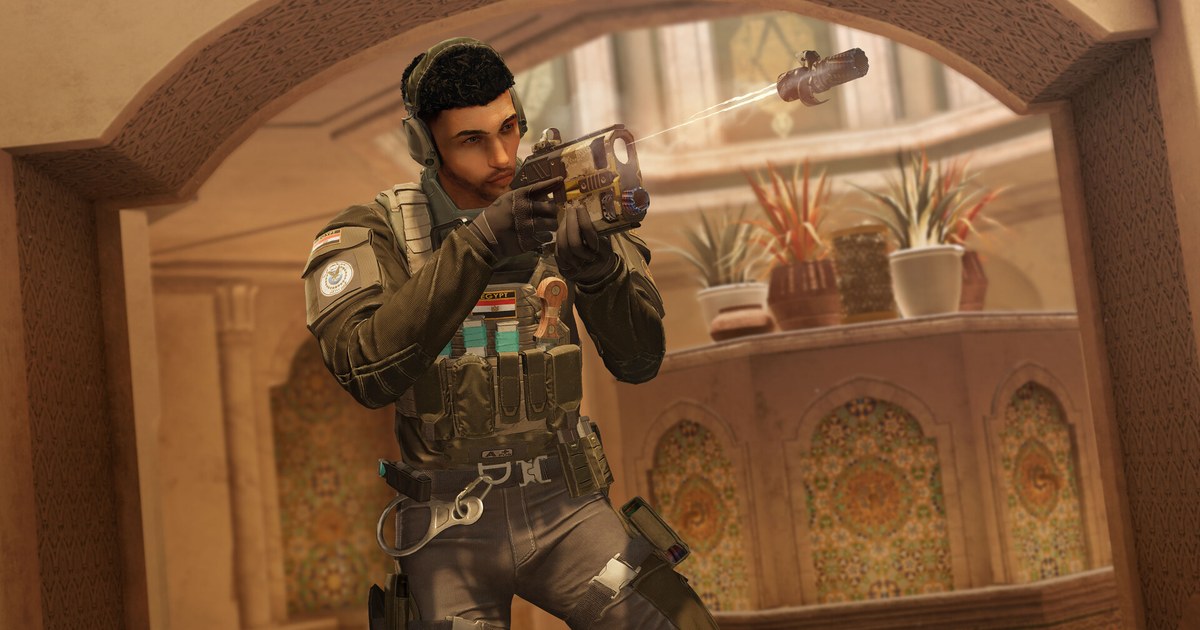
Rainbow Six Siege has more moving parts at launch than most shooters. On PC it starts through Ubisoft Connect even when you own it on Steam, it runs BattlEye, and Ubisoft's help center now also lists Siege under its own Ubisoft Anti-Cheat troubleshooting page.
So when R6 is not launching, crashes on startup, or throws you back to the desktop mid round, the exact message on screen decides where to start.
We went back through Ubisoft's official help articles for Siege and Ubisoft Connect on November 10, 2026 and organized them by symptom: what each message points to, what to try first, and what to collect before you open a ticket.
This guide covers the PC version and deliberately skips registry edits, renamed DLL tricks and files from unofficial sites. If the game only crashes while a recorder or overlay is running, start with our guide to games crashing while recording, because the fix there usually sits on the capture side.
Otherwise, find your symptom in the table, then work through the steps one change at a time and relaunch after each one, so you know which step actually fixed it.
Rainbow Six Siege launch and crash problems by symptom (as of November 10, 2026)
| Symptom or message | What Ubisoft's help pages point to | What to try first |
|---|---|---|
| Nothing happens after Play, or 'Unable to start game' / 'Unable to locate game' | A temporary Ubisoft Connect fault or damaged game files | Restart Ubisoft Connect, verify files and press Update, then reinstall Ubisoft Connect if it still won't start |
| 'Steam connectivity issue' or 'We couldn't verify your access to this game' | Steam running in Offline Mode, or a different Ubisoft or Steam account than the one the game is linked to | Put Steam in Online Mode, sign in with the linked accounts, check the game's status in Steam Properties, verify files |
| Failed to install, start or initialize BattlEye Service | Outdated or blocked BattlEye service files | Verify files, allow BEService.exe and the BattlEye folder in your antivirus, delete the BattlEye service folder and relaunch |
| Error 0-0x00001001, or 2-0x00019008 kick | The connection to BattlEye was lost, or BattlEye removed you for being idle too long | Restart the game (after an idle kick, rejoin the match); if it repeats, run through Ubisoft's connectivity troubleshooting |
| Ubisoft Anti-Cheat error or a crash right as the game opens | A damaged Ubisoft Anti-Cheat install or security software blocking it | Run UbisoftAntiCheatInstaller.exe from the Sentinel folder as administrator, choose Repair, and add it to Windows Security exclusions |
| Error 01102, or Legend Division locked behind Security Requirements | R6 ShieldGuard sees Secure Boot not activated correctly (Legend Division needs TPM 2.0, Secure Boot and Memory Integrity) | Check Play > Security Requirements, reset Secure Boot keys to default and turn Secure Boot back on in Standard Mode |
| 'Failed to load player profile' | A corrupted local save | Back up and delete the save folder (…\savegames\<UbisoftConnectID>\1843 on Steam, \635 on Ubisoft Connect), then follow Ubisoft's re-sync steps |
| Crashes or freezes mid match | Below spec hardware, an old driver, or background, overlay and capture apps | Follow Ubisoft's PC order, turn off overlays, and send DxDiag and MSInfo with a support case if it repeats |
The short answer: start with the PC basics Ubisoft lists, in its order
Ubisoft's general PC troubleshooting article gives one order for crashes and stutter: check the system requirements, update Windows, run the game with administrator rights, verify game files, update your graphics card driver, and disable background applications, testing after every step.
Only after that does it ask you to contact support with DxDiag and MSInfo reports. Requirements matter more for Siege than they used to.
As of November 10, 2026, Ubisoft and the Steam store list 64 bit Windows 10 or 11, an AMD Ryzen 3 3100 or Intel Core i3-8100, 8 GB of RAM, an NVIDIA GeForce GTX 1650 4GB, AMD RX 5500 XT 4GB or Intel Arc A380 6GB, DirectX 12, and 65 GB of storage with an SSD required.
The DirectX 12 line is the one older PCs trip on: the game no longer offers a DirectX 11 path, so a graphics card that can't run DirectX 12 won't start it at all.
On price, as of November 10, 2026 the base game is free to play on Steam, with the paid Elite Edition at US$19.99 and the Y11 Ultimate Edition at US$39.99, neither on sale. Free or paid, every copy goes through the same Ubisoft account link and Ubisoft Connect launch.
If the game does launch but stutters, our Rainbow Six Siege graphics settings guide covers which options cost the most frames. And change one thing at a time. If you verify files, update drivers and add an antivirus exclusion in one go, you won't know which one worked the next time it happens.
How to fix Rainbow Six Siege not launching or crashing, step by step
- 1Confirm your PC can run DirectX 12Press Windows+R, type dxdiag and press Enter. The System tab shows your DirectX version and Windows build, and the Display tab shows your graphics card and driver version, which is exactly where Ubisoft tells you to look. Compare that against the minimum above: GTX 1650, RX 5500 XT or Arc A380 class, 8 GB of RAM and an SSD with 65 GB free. If your card is older than that, no other fix on this page will make the game start reliably.
- 2Restart Ubisoft Connect and verify game filesClose the game and fully quit Ubisoft Connect from the system tray, then open it again. In Ubisoft Connect, go to Library, pick Rainbow Six Siege, click the cog icon next to Play and choose Verify files. When it finishes, press Update if offered. If you play through Steam, you can verify from Steam instead: right click the game, open Properties, then Installed Files. For a Steam connectivity message, make sure Steam isn't in Offline Mode and that you're signed in to the same Steam and Ubisoft accounts you linked.
- 3Run as administrator and add security exclusionsUbisoft's support staff routinely suggest launching Ubisoft Connect, Steam and Siege with administrator rights so the game can read and write everything it needs. Then open your antivirus or Windows Security and allow Ubisoft Connect, the game folder, BEService.exe and BEService_x64.exe, and the BattlEye service folder, usually C:\Program Files (x86)\Common Files\BattlEye. Security software quietly blocking a service is one of the most common reasons the game closes before the main menu.
- 4Repair BattlEye and Ubisoft Anti-CheatFor 'Failed to install' or 'Failed to start BattlEye Service', Ubisoft's BattlEye FAQ for Siege says to delete the BattlEye service folder and relaunch so it reinstalls, and if that fails, to set the launcher file ending in _BE in the game folder to run as administrator from its Compatibility tab. Don't uninstall BattlEye on its own: Ubisoft notes the game can't launch without it. For Ubisoft Anti-Cheat, open the game's installation folder, go into the Sentinel folder, run UbisoftAntiCheatInstaller.exe as administrator and choose Repair, or Install if repair doesn't help.
- 5Turn off overlays and background apps, then update Windows and driversIn Ubisoft Connect, open Profile, Settings, Interface and untick 'Enable in-game overlay for supported games', then restart the game for it to take effect. Close other overlays, RGB and monitoring tools, and FPS counters you don't need. Ubisoft's graphics troubleshooting page warns that screen capture and overlay software can interfere even while it's paused. Then run Windows Update and install the latest driver from NVIDIA, AMD or Intel. If a crash started right after a driver update, roll back to the previous version and test again.
- 6Collect reports and contact UbisoftIf it still crashes, save a DxDiag report (Save All Information) and an MSInfo report (Windows+R, msinfo32, File > Save) and attach both to a Ubisoft support case. For in game bugs, Ubisoft's Siege bug reporter asks for the steps that led to the problem, what you expected, how to reproduce it, any workaround, and images or videos. A short clip of the moment it crashed makes that report far easier to act on than a description alone.
Check before you relaunch or open a ticket
- Your GPU supports DirectX 12 and meets the GTX 1650, RX 5500 XT or Arc A380 minimum, with 65 GB free on an SSD.
- You verified files after fully restarting Ubisoft Connect, and pressed Update if it offered one.
- Steam is online and signed in with the account linked to your Ubisoft account.
- Ubisoft Connect, the game folder and the BattlEye files are allowed in your antivirus, and BattlEye itself is still installed.
- Your DxDiag report, MSInfo report and a screenshot or clip of the error sit together in one folder.
Keep footage of the round that crashed
DOR is a free Windows game recorder. When you launch Rainbow Six Siege, it detects the game and records the whole match automatically, and every recording lands in My Clips in the app. If Siege crashes or freezes mid match, open My Clips before relaunching and check the last match.
If it caught the hitch or freeze before the crash, trim just that part in the app and give it a like. Storage cleanup only kicks in when full match recordings go over their share (5 GB by default), it removes the oldest videos first, and recent recordings and liked videos stay.
The original recordings saved on your PC carry no watermark, so you can attach them to a support case or bug report as they are. Once Siege runs smoothly again, let it keep recording: our guide to saving R6 clutch clips covers cutting rounds, and sharing Siege clips with friends shows how to send one as a dor.gg link.