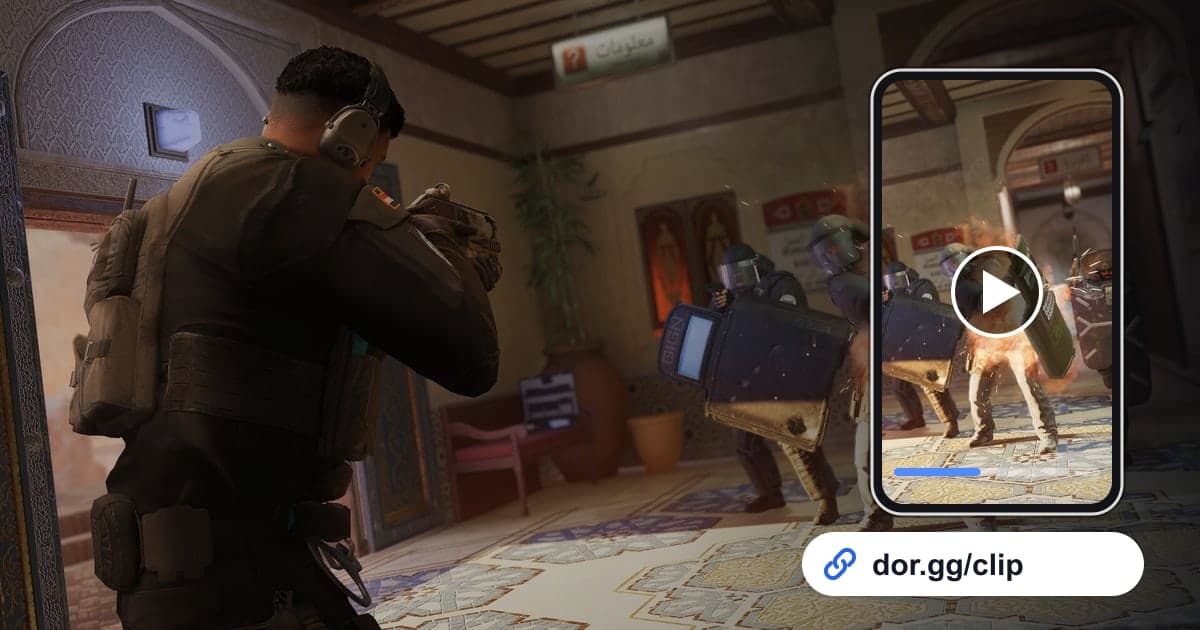
Most great Siege moments start and finish inside a single round. So when you show one to a friend, sending just that round is far easier to follow than sending the whole match. This guide covers one method only: record a Rainbow Six Siege match with DOR, find the round with the clutch or setup in the recording, trim it, and share it through a dor.gg link. Siege is a game where DOR does not create automatic highlight clips, so you will locate the round yourself inside the full match recording.
Where to start the round and where to cut
The starting point depends on why you are sending it. To show off a clutch, start from the moment you become the last one alive. To share drone intel or a defensive setup, start from the prep phase. Either way, the end point is the screen showing who won the round. For tips on landing exact start and end points, see how to trim game clips.
From a Siege round to a link your squad can open
- 1Install DOR and launch Rainbow Six SiegeDOR is a free Windows desktop app. After installing it, launch Siege and DOR detects the game automatically and records the whole match from start to finish. You do not need to turn recording back on for each round.
- 2Remember the round number and whether you were attacking or defendingA Siege match runs through many rounds, and sides switch partway through. Just remembering which round the clutch happened in and whether your team was attacking or defending narrows the search in the recording a lot.
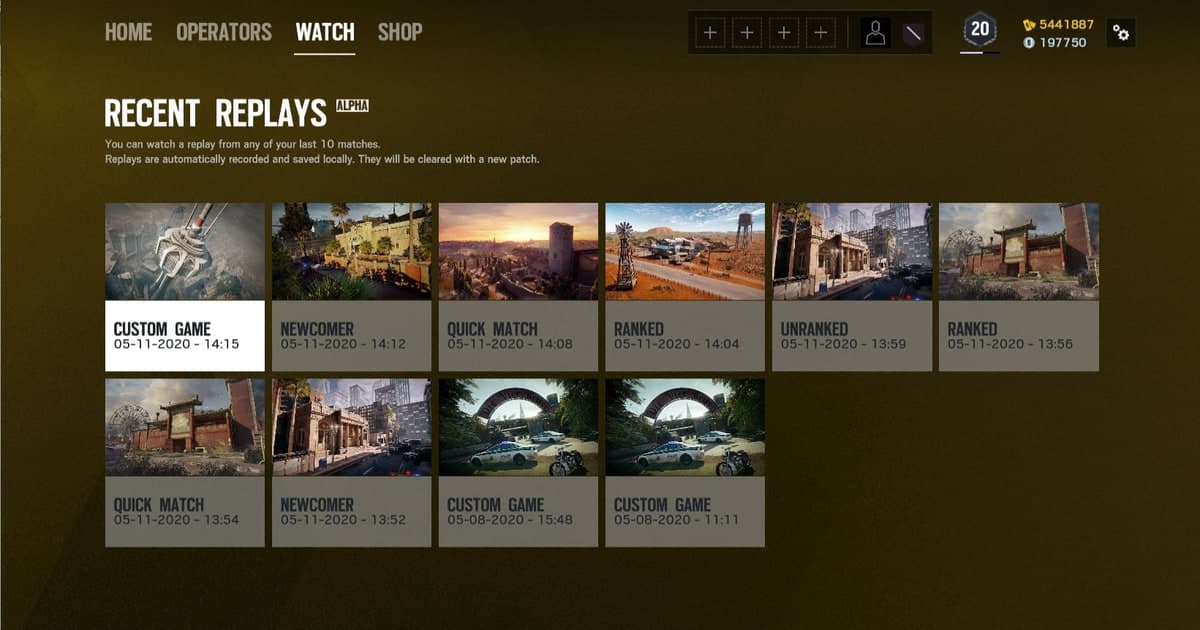
- 3Open the match in the library and find the round boundariesRecordings are saved as mp4 files and appear in the DOR app library. As you drag the playback bar, you can spot the transition where one round ends and the next prep phase begins. Count those boundaries to reach the round you want. There are no pre-split clips.
- 4Decide whether to include prep, then trimSet the start and end with the trim tool. If you are sharing a defensive setup or drone intel, start from the prep phase. For a clutch, start a little before you became the last one alive. End right after the round result appears on screen.
- 5Choose 16:9 for setups, 9:16 for phone viewingPick 16:9, 9:16, or 1:1 for the output. Videos showing where walls were reinforced or gadgets were placed work better in 16:9, which shows more of the map. If your friend will only watch the clutch on a phone, 9:16 is fine too. A vertical crop drops both sides of the frame, so check the preview.
- 6Paste the dor.gg link into your squad chatOnce trimming is done, you get a dor.gg link. Paste it into the squad chat where you plan your setups before the next match, and your teammates can play it straight away in a phone or PC browser without installing DOR.
What context to keep for each Siege round situation
| Round situation | Context to keep before and after | Why you are sending it |
|---|---|---|
| 1vX round clutch | From the player count when you became the last one alive to the round result | Show the round you turned around alone |
| Drone intel play | Finding enemy positions with a drone in the prep phase and the fight you took with that info | Show how the callout turned into the actual play |
| Defensive setup | Reinforced walls and gadget placement in prep, then the attackers getting stopped by that setup | Share it so teammates can run the same setup next match |
| Breach entry | Positioning right before a wall is opened and the moment everyone pushes in | Sync entry timing with your squad |
| Defuser plant or deny | From the moment the plant starts until the round ends | Show the decision that closed out the round |
| Numbers advantage from the opening kill | The first fight early in the round and the push that followed | Explain how being one player up changed the round |
Before you send your Siege clip
- For clutch clips, confirm the moment you became the last one alive is included so viewers can tell the odds.
- For drone clips, check that the enemy positions seen on the drone feed and the fight that followed play out in one video.
- For defensive setup clips, confirm the placement process in the prep phase is visible from the start.
- Siege tends to capture a lot of voice comms, so if teammates' voices are in it, agree on who it can be shared with first.
- If other players' names on screen bother you, send it only to your squad chat rather than somewhere public.
- Stick to one link per round so teammates never wonder which round you mean.
How DOR handles sharing a Siege round
When Rainbow Six Siege launches, DOR detects it automatically, records the whole match as an mp4, and captures game audio and your mic together. On NVIDIA graphics cards, NVENC hardware encoding is used by default. Trim the round you want with the library's trim tool and send it as a dor.gg link. If you want to put an attack round and a defense round into one video or add text, use DOR Studio, which opens in your browser with nothing to install. The steps for joining several clips are in how to merge game clips, and finding teammates to review footage and refine setups with is covered in finding a Rainbow Six Siege ranked squad.