Let me start with the conclusion. The way to nearly eliminate frame loss when recording competitive matches on a 144Hz monitor is simple. Leave the in-game frame rate at 144, and split only the recording (capture) frame rate to 60. The motion you see on screen stays smooth at 144, while only the saved video is kept light at 60fps, which greatly reduces the load on your computer. For saved footage, 60fps is plenty smooth, and platforms like YouTube and CHZZK usually only accept up to 60fps, so there's no reason to match in-game 144 and recording 60 exactly.
Why Does Recording at 144Hz Drop Your Frame Rate?
Recording repeats the process of capturing each frame, encoding (compressing) it, and saving it to disk dozens of times per second. If you set the recording frame rate to 144, you have to do this process 144 times per second, so the capture and encoding load grows nearly 2.4 times compared to doing it at 60. That leaves fewer resources for the game, and in the end your in-game frame rate drops along with it.
On top of this comes the encoder choice. If you leave the encoder on CPU (x264), the game and recording compete over the same CPU, so the frame rate tends to drop sharply during intense scenes like fights. Conversely, GPU encoders (NVIDIA NVENC, AMD AMF, Intel QuickSync) handle encoding on a dedicated circuit inside the graphics card, so they barely affect game performance. To sum up, the two pillars of frame loss are setting the recording frame rate too high and using a CPU encoder, and changing just these two solves most problems.
The Core Principle: Keep In-Game at 144, Split Capture to 60
So the goal of your settings is just one thing: run the game at 144Hz as is, and split only the recording pipeline to 60fps and a GPU encoder. This way the screen you see on your monitor is smooth at 144, while only the saved file gets light at 60, so you can keep your competitive feel nearly intact. To sum up, the basic combination is to keep the in-game frame rate at 144 (or your monitor's refresh rate), set the recording frame rate to 60, use a GPU encoder (NVENC/AMF/QuickSync), and prefer game capture for capturing.
Splitting In-Game and Recording Frame Rates in OBS
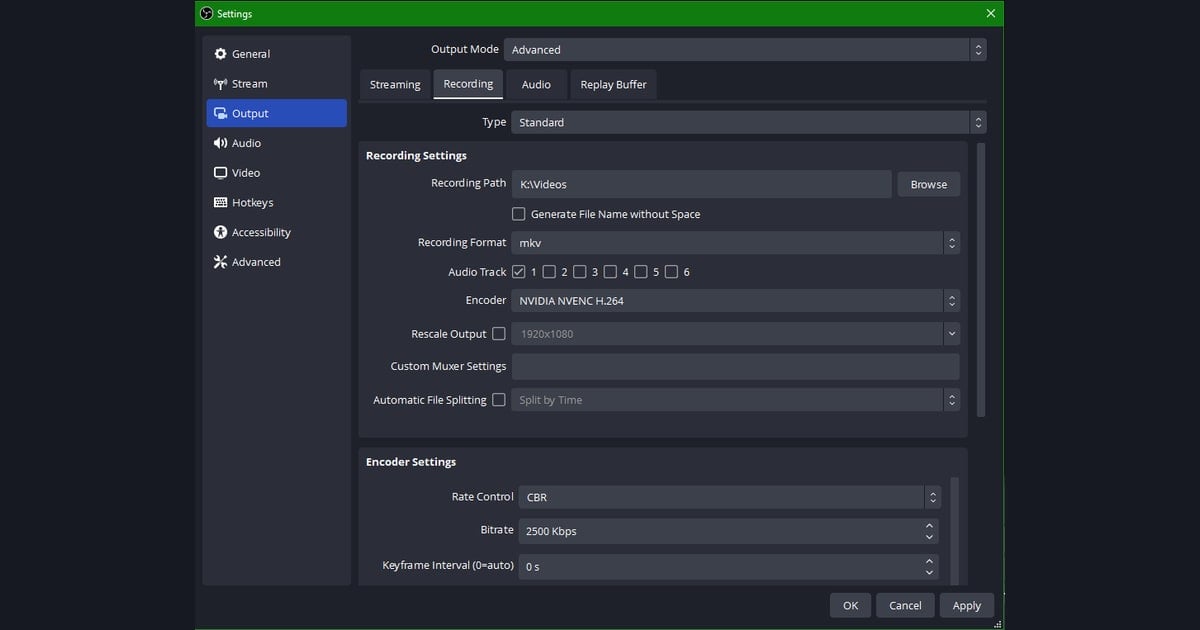
OBS Studio is free and lets you set in-game and recording frame rates separately, which makes it great for implementing this approach. You do have to match up the capture method and encoder by hand, so set it up in the order below. First, in the Video tab of Settings, set the 'FPS value' to 60. This value is not your game frame rate but the frame rate OBS uses when recording, so even with it at 60 the game still runs at 144. This is exactly the point where you split in-game and capture.
- Output frame rate: In the Video tab of Settings, fix FPS to 60.
- Encoder: In the Output tab of Settings, switch the mode to 'Advanced' and choose NVIDIA NVENC or AMD AMF.
- Image quality: Using 'CQP' (quality-based) mode rather than bitrate is cleaner.
- Capture: Using 'Game Capture' before 'Display Capture' means less frame loss in a 144Hz environment.
The encoder part especially matters. Handing encoding to the graphics card reduces the CPU and memory burden the game uses, so the frame rate holds up well even in intense scenes like fights. Game capture is most efficient in exclusive fullscreen mode, so if possible play in exclusive fullscreen rather than windowed mode.
Apply It This Way in Competitive (FPS) Games
In competitive games like Valorant and Overwatch, fights are decided by 0.1-second differences, so if recording makes your in-game frame rate waver, the cost is high. That's why the principle above is especially important. For fast shooters like Valorant or Overwatch, you can consider the combination of keeping in-game at 144 plus splitting recording to 60 the de facto standard.
- Open the in-game frame limit wide enough to be at or above your monitor's refresh rate (144).
- Fix recording at 60fps, and if image quality is lacking, prioritize resolution (keep 1080p) over bitrate first.
- Playing in exclusive fullscreen mode improves capture efficiency and also reduces input lag.
- Frame-sensitive games like Counter-Strike or Apex Legends follow the same principle exactly.
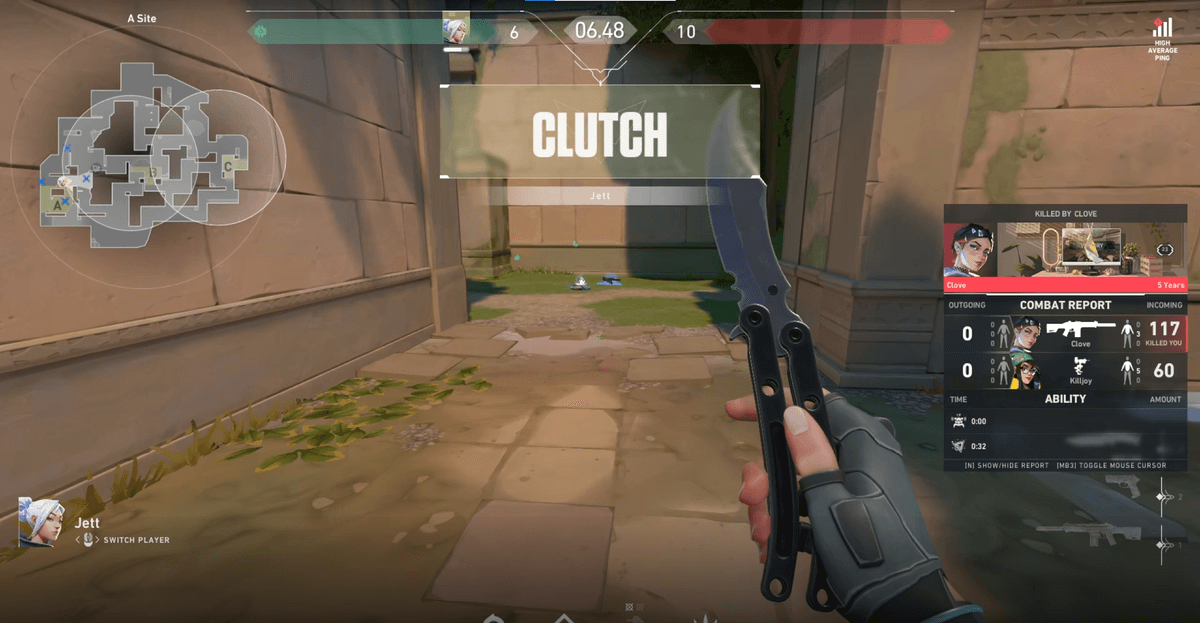
Even Simpler With DOR: Splitting Capture and In-Game Frame Rates
OBS is powerful, but you have to match every step above by hand, and getting even one wrong can actually drop your frame rate further. DOR has this split structure built in by default. Capture frame rate and in-game frame rate are kept separate, so recording runs while your 144Hz competitive matches stay intact. Without choosing an encoder in settings or agonizing over a capture method, the game keeps running at 144 once you turn it on.
On top of this, DOR automatically grabs your highlights and saves them as clips. Rather than heavily recording the entire footage and cutting it down later, it organizes your kill and highlight moments directly into short clips, which reduces both disk burden and editing time. Even in games where a single match runs long, like League of Legends, you can pick out and keep only the key moments.
The key to reducing frame loss in 144Hz recording comes down to one sentence: keep in-game at 144, and split recording into 60 with a GPU encoder. You can match it yourself with OBS, or use DOR, which separates capture and in-game frame rates from the start, to get the same result more simply. Start by checking whether your in-game frame rate barely drops from 144 when you turn recording on, and if you want to keep both your competitive feel and your highlights, try splitting your settings to 60 starting today.